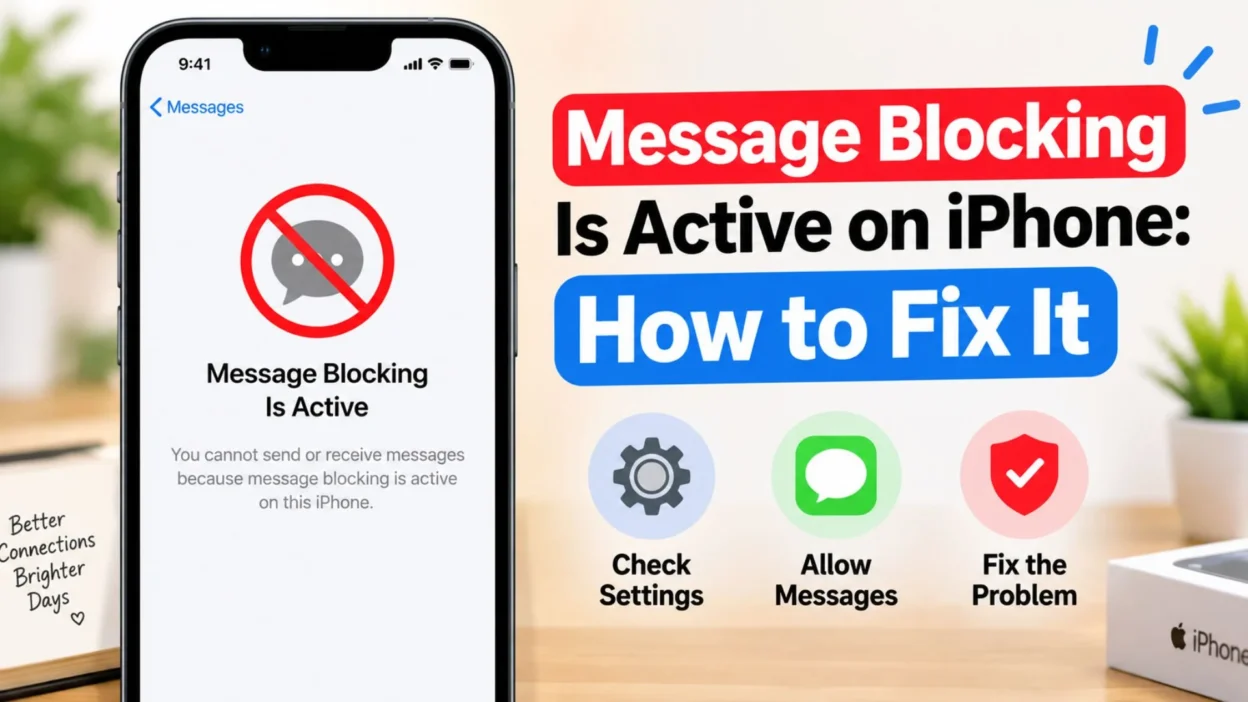
Seeing “Message Blocking Is Active” on iPhone when you are simply trying to send a text can be confusing, especially when you have not intentionally blocked anyone. The message can make it seem like your iPhone has suddenly stopped allowing texts, but there are several possible reasons behind it.
Sometimes the problem is connected to a blocked contact. In other situations, the issue may involve your cellular carrier, SMS settings, account status, SIM or eSIM, iMessage, or the recipient’s number. The important thing is not to assume that the other person blocked you just because this message appears.
This guide explains what the warning means, what can cause it, and what you can do to get messaging working again. The steps also take into account newer iPhone software, including iOS 26, where Apple has centralized blocked contacts under Settings > Privacy & Security > Blocked Contacts.
What Does “Message Blocking Is Active” Mean on iPhone?
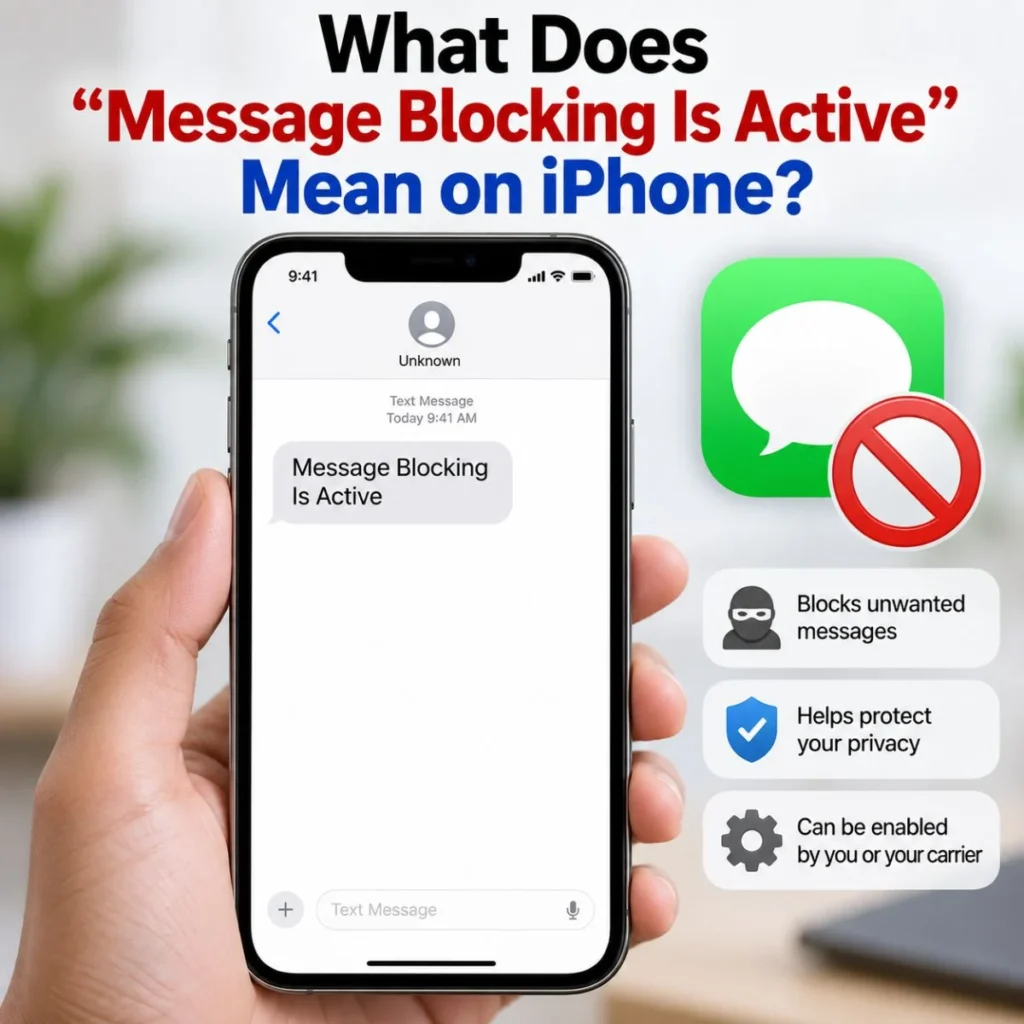
“Message Blocking Is Active” generally means that your text message is being prevented from reaching its intended destination. The restriction can occur because of a setting on your iPhone, a restriction associated with the recipient, or a problem with your mobile carrier or messaging service.
The exact cause depends on what happens when you try to send the message.
For example, if you can message everyone except one person, the problem is more likely to involve that particular contact, number, or recipient. If you cannot send SMS messages to anyone, your carrier service, account, SIM/eSIM, or messaging configuration deserves more attention.
It is also important to distinguish blocking from a normal delivery failure. Apple says that when you block a phone number or contact, messages sent by that person are not delivered, and the blocked person does not receive a notification telling them they were blocked.
So, the warning does not automatically prove that another person blocked you.
Why Is Message Blocking Active on iPhone?
There isn’t one universal reason for the warning. Several different situations can produce messaging problems that look similar.
Here are the most common possibilities:
- The contact or number is blocked on your iPhone.
- The recipient’s number is incorrect or no longer active.
- Your carrier has restricted SMS or MMS service.
- Your mobile account has a service or billing issue.
- Your SIM or eSIM is not connecting correctly.
- Your iPhone has temporarily lost cellular service.
- SMS messaging is disabled or unavailable for your current setup.
- iMessage is experiencing a connection or activation problem.
- You are trying to send a message through a method your carrier does not support.
- Screen Time or communication restrictions are preventing certain contacts from communicating.
- A contact has multiple phone numbers or email addresses, and the wrong one is being used.
- A recently changed SIM, eSIM, phone number, or carrier configuration has not been fully activated.
Apple also notes that on iOS 26, a contact can appear to be blocked unexpectedly if that contact shares contact details, such as a phone number or email address, with someone who is already blocked.
That is why checking the actual blocked-contact list is a better first step than guessing what happened.
1. Check Your Blocked Contacts
The first thing to check is whether the person you’re trying to message is actually blocked.
On iOS 26, Apple provides a centralized blocked-contact list:
Settings → Privacy & Security → Blocked Contacts
Look through the list for the person or number you’re trying to reach. If you find the contact there and you want to communicate with them again, remove the block.
Apple’s current instructions say you can select the blocked contact, scroll down, and choose the option to unblock them.
If you use an older iOS version
The location can be different on older software. Apple documents blocked contacts through areas such as Phone, FaceTime, Messages, or Mail depending on the version of iOS you’re using.
If you recently updated your iPhone, the location of the setting may therefore look different from instructions you found in an older article or video.
What happens after unblocking?
After unblocking the person, try sending a completely new message rather than repeatedly tapping the failed message.
If the new message goes through, the block was likely the immediate cause.
If the same error remains, continue with the other troubleshooting steps below.
2. Check Whether the Problem Happens With Everyone

This is one of the quickest ways to narrow down the problem.
Try sending a short message to another person you trust.
For example, send:
“Hi, just testing my messages.”
Then compare the results.
If you can message other people
The issue is probably specific to the original recipient. Check:
- Their phone number
- Their contact card
- Your blocked contacts
- Whether you are using their current number
- Whether you accidentally selected an old number or email address
Also check whether the contact has multiple entries in your Contacts app.
If you cannot message anyone
The problem is more likely to involve your cellular service, SMS configuration, carrier account, SIM/eSIM, or the iPhone itself.
This distinction can save you a lot of unnecessary troubleshooting.
Instead of immediately changing dozens of settings, first determine whether the problem affects one conversation or every conversation.
3. Make Sure the Phone Number Is Correct
A surprisingly simple cause is an incorrect number.
Open the person’s contact card and verify the number carefully. If they recently changed carriers or phone numbers, an outdated contact entry could be the problem.
You can also try typing the number manually into a new message instead of selecting the saved contact.
This is especially useful when the contact has several phone numbers.
For example, you might have:
- Old mobile number
- Current mobile number
- Work number
- International number
- Email address connected to iMessage
Sending to the wrong entry can make a messaging problem look like a blocking problem.
If manually entering the correct number works, update the contact afterward so you don’t continue using an outdated address.
4. Check Your Cellular Signal
If you are trying to send a regular SMS message, your iPhone needs access to the appropriate cellular service.
Look at the status area of your iPhone.
If you see weak or missing cellular service, try moving to an area with better reception. You can also briefly enable and disable Airplane Mode.
Open Control Center, turn on Airplane Mode, wait a few seconds, and then turn it off.
This forces the phone to reconnect to the available wireless network.
After your connection returns, try sending the message again.
If calls and cellular data are also behaving strangely, that is another clue that the issue may not be limited to Messages.
5. Restart Your iPhone
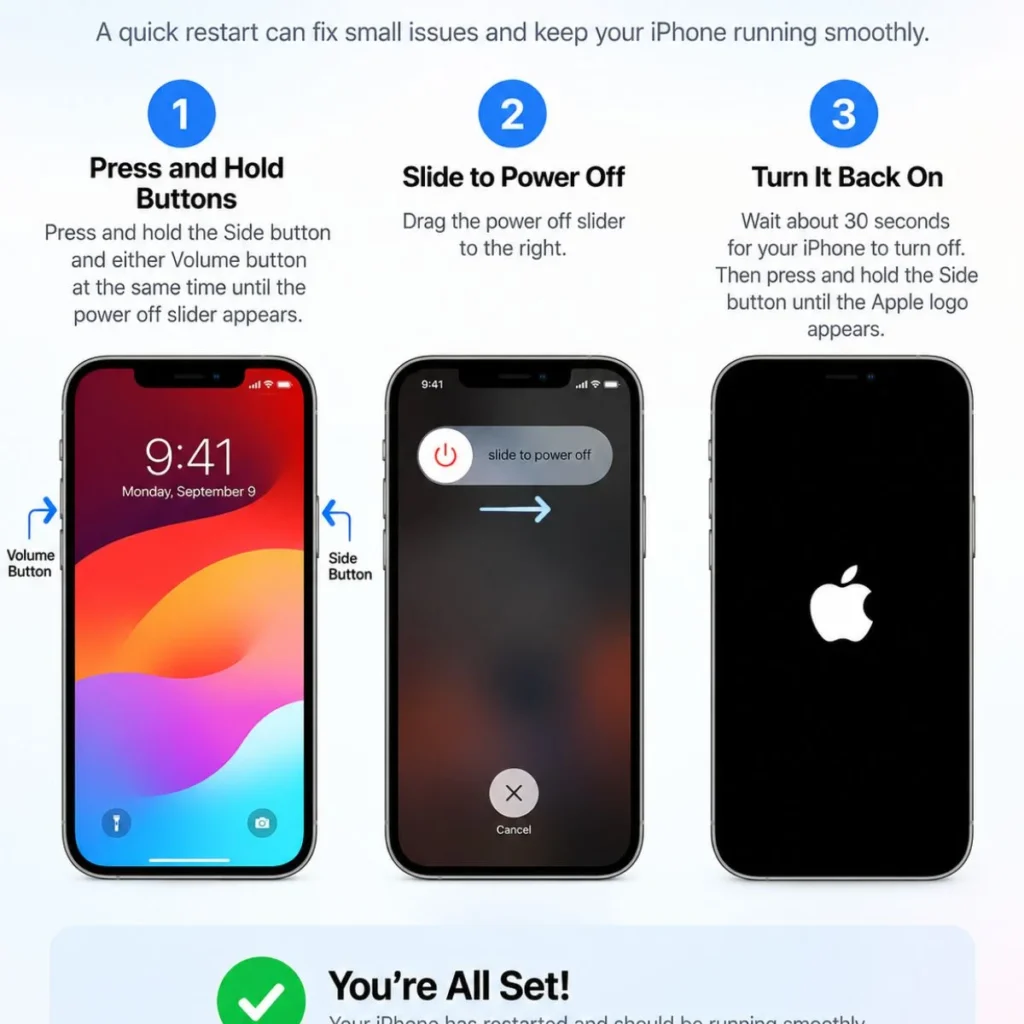
A restart is simple, but it can resolve temporary software and network communication problems.
Restart the iPhone normally, wait for it to reconnect to the cellular network, and then try sending a new message.
Do not repeatedly resend the same failed message while the phone is reconnecting.
Instead, wait until you can see that the phone has normal cellular service again.
If restarting fixes the problem temporarily but the warning repeatedly comes back, pay closer attention to your carrier connection or account status.
6. Check Your SIM or eSIM Connection
If you recently:
- Changed carriers
- Switched from a physical SIM to an eSIM
- Changed your phone number
- Transferred your number to another carrier
- Bought a new iPhone
- Restored your iPhone
- Updated your cellular plan
then your messaging service may need additional attention.
SMS and MMS depend on your cellular carrier. If your cellular line is not correctly configured or activated, ordinary text messaging may fail even though other parts of the iPhone appear normal.
Check that your intended cellular line is active under your iPhone’s cellular settings.
If you use dual SIM or dual eSIM, also make sure you’re sending from the correct line.
This matters because having multiple cellular lines can make it less obvious which number is being used for outgoing messages.
7. Check iMessage and SMS Settings
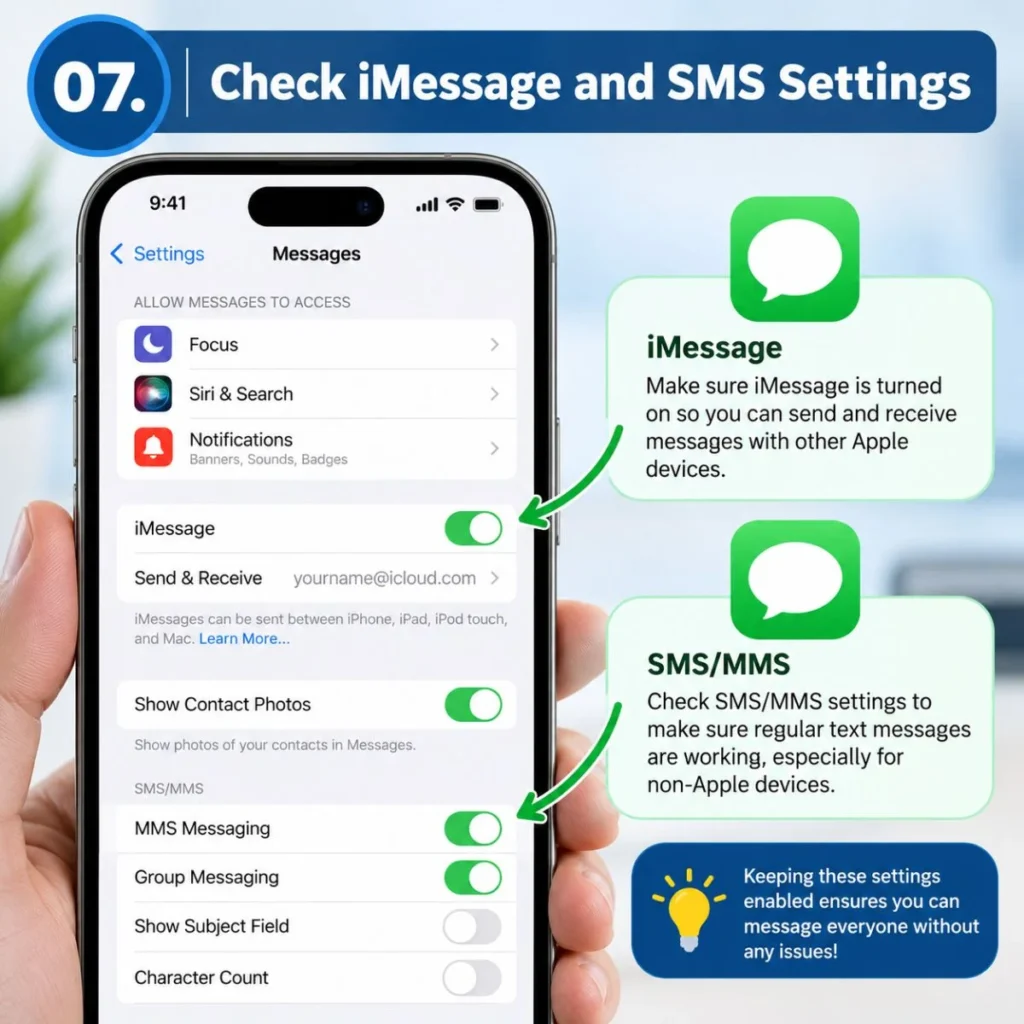
iPhone messages can be sent using different messaging systems.
iMessage works through Apple’s messaging service, while SMS/MMS messaging depends on your cellular carrier.
If iMessage is unavailable, your iPhone may need to use SMS when communicating with a non-iMessage recipient, depending on your settings and carrier support.
Look through your Messages settings and make sure the relevant messaging options are enabled.
One important setting is the option that allows an iPhone to send messages as SMS when iMessage is unavailable.
However, availability and behavior can depend on your carrier and account.
If the problem specifically occurs when messaging someone who uses Android, this distinction is particularly worth checking.
8. Check Whether Your Carrier Is Blocking SMS
If you have confirmed that the recipient is not blocked and you cannot send regular text messages, your carrier may be the next place to investigate.
Carrier-side restrictions can occur for several reasons, including:
- Account problems
- Service restrictions
- Recently activated lines
- Number transfers
- SIM/eSIM issues
- International messaging restrictions
- SMS or MMS service problems
- Temporary network problems
Your iPhone cannot remove a carrier-side restriction through the Messages app.
If calls work but SMS does not, tell your carrier specifically that outgoing SMS messages are failing and that your iPhone displays a message-blocking error.
That gives the carrier a much more useful starting point than simply saying, “My Messages app isn’t working.”
9. Check Screen Time Communication Limits
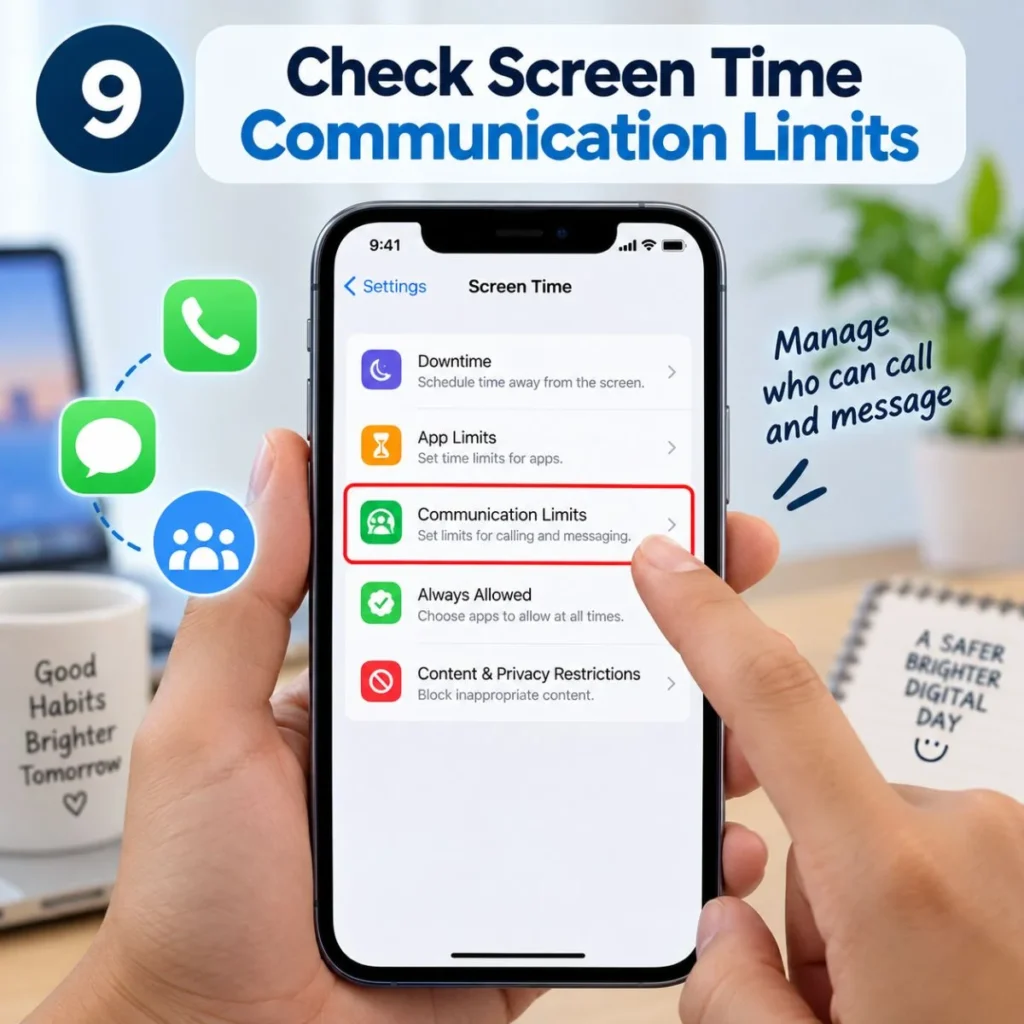
If the iPhone is configured with Screen Time communication restrictions, those settings can limit who can communicate through calls, FaceTime, and Messages.
Apple’s documentation says Screen Time can allow or block communication with specific contacts, including settings that control communication during particular periods.
If you’re troubleshooting an iPhone used by a child or an iPhone with communication limits enabled, check:
Settings → Screen Time → Communication Limits
Look for restrictions that could prevent communication with the person you’re trying to contact.
This is particularly important when only certain contacts are affected.
10. Check the Contact for Multiple Numbers or Email Addresses
Another easily overlooked problem is a contact containing multiple communication addresses.
Suppose a person has:
- One old phone number
- One new phone number
- An iMessage email address
Your conversation may be associated with an address you did not intend to use.
Open the contact and review the information stored there.
If necessary, start a new message and manually choose the person’s current mobile number.
Apple also points out that, in iOS 26, a person can appear to be affected by blocking if they share contact details with another blocked contact.
That means checking the actual phone number or email address being used can be more informative than simply checking the person’s name.
11. Update Your iPhone
If your iPhone is running an older version of iOS, check for available software updates.
Go to:
Settings → General → Software Update
Apple recommends keeping iPhone software updated, and its current personal-safety documentation specifically directs users to Software Update when checking for newer software.
An update is not guaranteed to fix a carrier or account problem, but keeping the operating system current can eliminate problems caused by outdated software.
Before updating, make sure you have a stable internet connection and enough available storage.
12. Reset Network Settings as a Last Resort
If messaging, cellular connectivity, Wi-Fi, or other network-related functions continue behaving incorrectly, resetting network settings can be considered.
This is more disruptive than restarting the phone.
A network reset can remove saved network-related configuration, so you should understand what will be affected before doing it.
Because the exact menu wording can vary by iOS version, check the reset options shown on your own iPhone before confirming anything.
If you’re uncomfortable changing network settings, contacting your carrier or Apple Support first may be the better option.
How to Tell Whether Someone Blocked You
This is one of the biggest questions people have when they see a message-blocking error.
The short answer is: you generally cannot conclusively determine from that warning alone that another person blocked you.
A failed message can have several explanations.
For example, the recipient could have:
- A disconnected number
- A carrier problem
- An inactive SIM/eSIM
- Messaging restrictions
- A different phone number
- A service interruption
Apple’s own blocking documentation explains what happens when a contact is blocked on an iPhone: messages from that blocked contact aren’t delivered, and the blocked sender isn’t notified that the message was blocked.
So you should not treat the “Message Blocking Is Active” warning as proof of a personal decision by the other person.
If calls, iMessages, and other communication methods also behave differently, there may be additional clues, but none of those signs should be treated as absolute proof without more information.
What If You Can Receive Messages but Can’t Send Them?
This situation points toward a different set of possibilities.
If incoming texts arrive normally but outgoing messages fail, investigate:
- Your carrier’s SMS service
- Your cellular line
- SIM/eSIM configuration
- Account restrictions
- The specific recipient
- SMS/MMS settings
- Whether you are sending from the correct phone number
Try messaging several different contacts.
If outgoing messages fail to multiple people while incoming texts work, contact your carrier and explain that incoming SMS works but outgoing SMS does not.
That distinction can help support staff identify the issue faster.
What If It Only Happens With One Person?
When one recipient is affected but everyone else works, avoid making broad changes to your iPhone.
Instead, focus on that contact.
Try these steps:
- Check your blocked contacts.
- Verify their phone number.
- Delete an outdated duplicate contact if necessary.
- Start a new conversation.
- Manually enter their current number.
- Ask them to confirm that their number is active.
- Check whether you accidentally saved their old number.
- Try another legitimate way of contacting them if appropriate.
Apple also recommends checking contact details when a person appears blocked unexpectedly, particularly if contact information overlaps with another blocked person.
What If Messages Work on Wi-Fi but Not on Cellular?
This can provide an important clue.
iMessage can use an internet connection, while SMS depends on your carrier’s cellular messaging service.
Therefore, if iMessages work when connected to Wi-Fi but ordinary SMS messages fail when you’re away from Wi-Fi, your cellular service deserves attention.
Check your cellular signal and line status first.
If everything looks normal but SMS continues to fail, contact your carrier.
Don’t assume that because internet-based messaging works, your cellular messaging service must also be working.
They are not exactly the same system.
How Blocking Works on Modern iPhones
Apple has changed the location and organization of blocking controls in newer versions of iOS.
On iOS 26, blocked contacts are managed centrally under:
Settings → Privacy & Security → Blocked Contacts
Apple says that blocking a phone number or contact affects communication through Apple’s supported apps, and blocking can also apply across Apple devices signed in to the same Apple Account.
Apple also explains that blocking is broader than simply preventing one text message. Depending on the service and situation, it can affect Phone, Messages, FaceTime, Mail, and other Apple communication features.
That is why the blocked-contact list is worth checking whenever communication suddenly stops with a particular person.
Quick Fix Checklist
If you want the shortest troubleshooting route, work through this list in order:
- Check Settings → Privacy & Security → Blocked Contacts.
- Make sure the recipient’s number is correct.
- Send a test message to another contact.
- Check your cellular signal.
- Turn Airplane Mode on and off.
- Restart your iPhone.
- Check your SIM or eSIM line.
- Review Messages settings.
- Check Screen Time communication limits.
- Install available iOS updates.
- Contact your carrier if SMS fails for multiple people.
- Consider resetting network settings only after simpler solutions fail.
This approach helps you identify whether the problem is contact-specific, iPhone-specific, or carrier-specific.
When Should You Contact Your Carrier?
Contact your carrier when the problem continues after you’ve checked blocking and basic iPhone settings, especially if:
- You cannot send SMS messages to multiple people.
- Cellular service is unreliable.
- Your SIM/eSIM was recently changed.
- You recently transferred your phone number.
- Calls or mobile data are also having problems.
- Your account was recently changed.
- You suspect SMS/MMS service is restricted.
Tell the carrier exactly what is happening rather than only saying that Messages doesn’t work.
A useful explanation is:
“My iPhone shows ‘Message Blocking Is Active’ when I try to send SMS messages. Incoming messages work, but outgoing messages do not.”
If the problem affects only one recipient, tell them that as well.
When Should You Contact Apple Support?
Apple Support is more appropriate when the problem appears to be isolated to the iPhone itself rather than the cellular account.
For example, consider Apple Support if:
- Your carrier confirms SMS service is active.
- Your SIM/eSIM and account are working correctly.
- Other phones using the same carrier can send messages normally.
- Your iPhone continues showing the warning after basic troubleshooting.
- Multiple Apple communication features are behaving unexpectedly.
- The problem began after a software or device configuration change.
Before contacting support, write down what you’ve already tried.
Mention your iPhone model, iOS version, whether the issue affects one or multiple contacts, and whether calls and cellular data work normally.
That information can make troubleshooting much more efficient.
Frequently Asked Questions
Is “Message Blocking Is Active” proof that someone blocked me?
No. The warning by itself does not prove that another person blocked you. A blocked contact, carrier restriction, account issue, incorrect number, SIM/eSIM problem, or other messaging issue can produce similar symptoms. Check your own blocked contacts and test another recipient before drawing conclusions.
How do I turn off message blocking on iPhone?
On iOS 26, open Settings → Privacy & Security → Blocked Contacts and check whether the relevant contact is blocked. If the contact is listed and you want to communicate with them, unblock them.
If no one is blocked, the issue may not be caused by your iPhone’s blocking list. Check cellular service, SMS settings, Screen Time restrictions, and your carrier account.
Why can I text everyone except one person?
When only one person is affected, start by checking their phone number and your blocked-contact list. They may have an old number, multiple contact entries, or a different active number. You can also try starting a new conversation and manually entering their current number.
Why can’t I send texts to anyone?
If messages fail for multiple recipients, the issue is less likely to be a single blocked contact. Check your cellular connection, SIM/eSIM, messaging settings, account status, and carrier service. If ordinary SMS messages continue to fail, your mobile carrier should investigate the line.
Does blocking someone on iPhone block them everywhere?
Apple’s current iOS 26 documentation explains that blocking a contact can affect communication across Apple’s supported apps and devices. On iOS 26, blocked contacts are centrally managed through Settings → Privacy & Security → Blocked Contacts.
Third-party messaging apps can have their own separate blocking systems, so blocking a person on iPhone does not automatically mean they are blocked inside every third-party app.
Will someone know if I blocked them on iPhone?
Apple says a blocked contact does not receive a notification that their call or message was blocked.
That does not mean the person can never suspect they have been blocked. They may notice communication behavior, but iPhone does not send them a direct “you have been blocked” notification.
Final Thoughts
The “Message Blocking Is Active” iPhone warning can look more serious than it actually is. In many cases, the solution comes down to identifying where the communication is being stopped rather than changing every setting on the phone.
Start with the simplest question: Does the problem happen with one person or everyone? If it affects one contact, check the blocked list and verify the recipient’s number. If it affects multiple people, look more closely at your cellular connection, SMS service, SIM/eSIM, account, and carrier.
On newer iPhones running iOS 26, Apple’s centralized Blocked Contacts section makes the first check especially straightforward.
Most importantly, don’t immediately assume that the recipient blocked you. The same symptom can have several technical causes.
Work through the checks calmly, test a new message after each meaningful change, and contact your carrier when the problem appears to involve SMS service rather than the Messages app itself.
A confusing error becomes much easier to solve once you know whether the problem is with the contact, the iPhone, or the network.

Muhammad Sarfraz is a content creator and author at Message Ideas Daily, passionate about creating heartfelt, practical, and meaningful message ideas that help people express their feelings and connect with others.