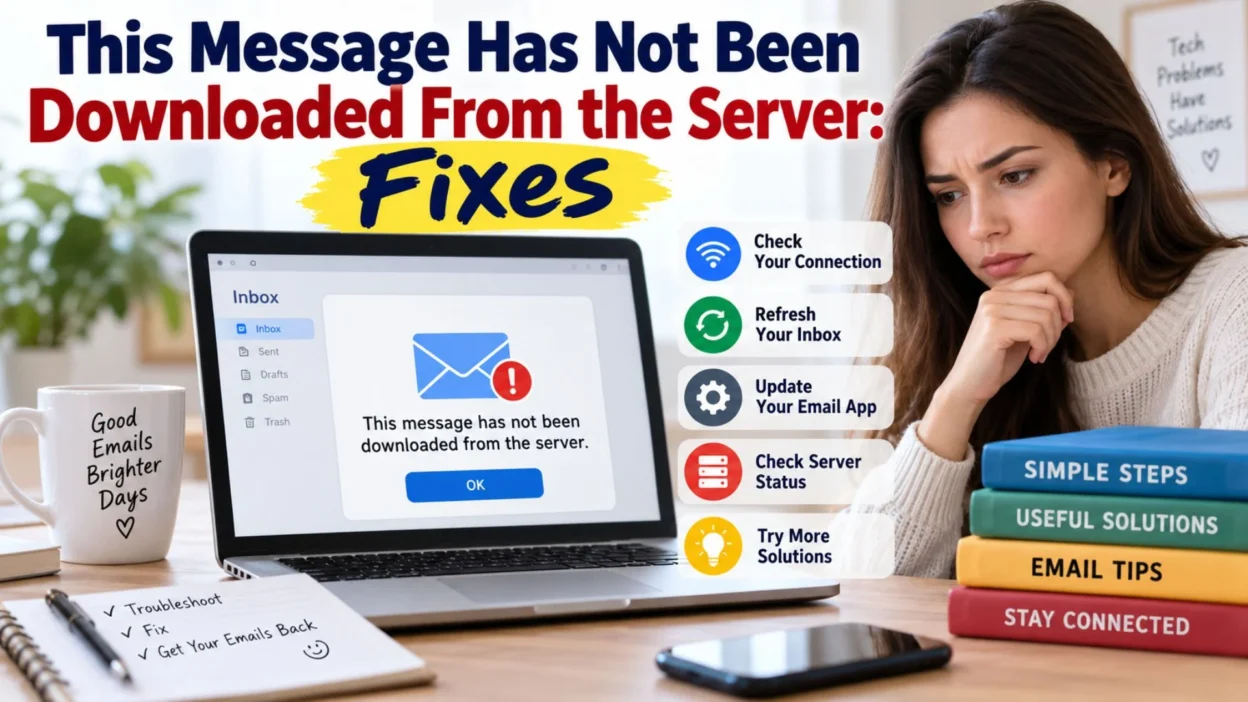
You tap an email expecting to read it, but instead of the message appearing, you see “This message has not been downloaded from the server.” It can be frustrating, especially when the email contains an attachment, an important conversation, a confirmation, or information you need immediately.
The message usually means your email app knows that an email exists, but the actual message content has not successfully been retrieved from the mail server. In many cases, the problem is temporary and can be resolved by checking your internet connection, refreshing the mailbox, reopening the app, or reviewing account synchronization settings.
Sometimes, however, the problem can involve an overloaded mailbox, incorrect account settings, an outdated app, server availability, or an email that was removed from the server before your device downloaded it.
This guide explains what the error means, why it happens, and what you can do to get the missing email back. The steps are written to be useful whether you are using a phone, tablet, computer, or another email client.
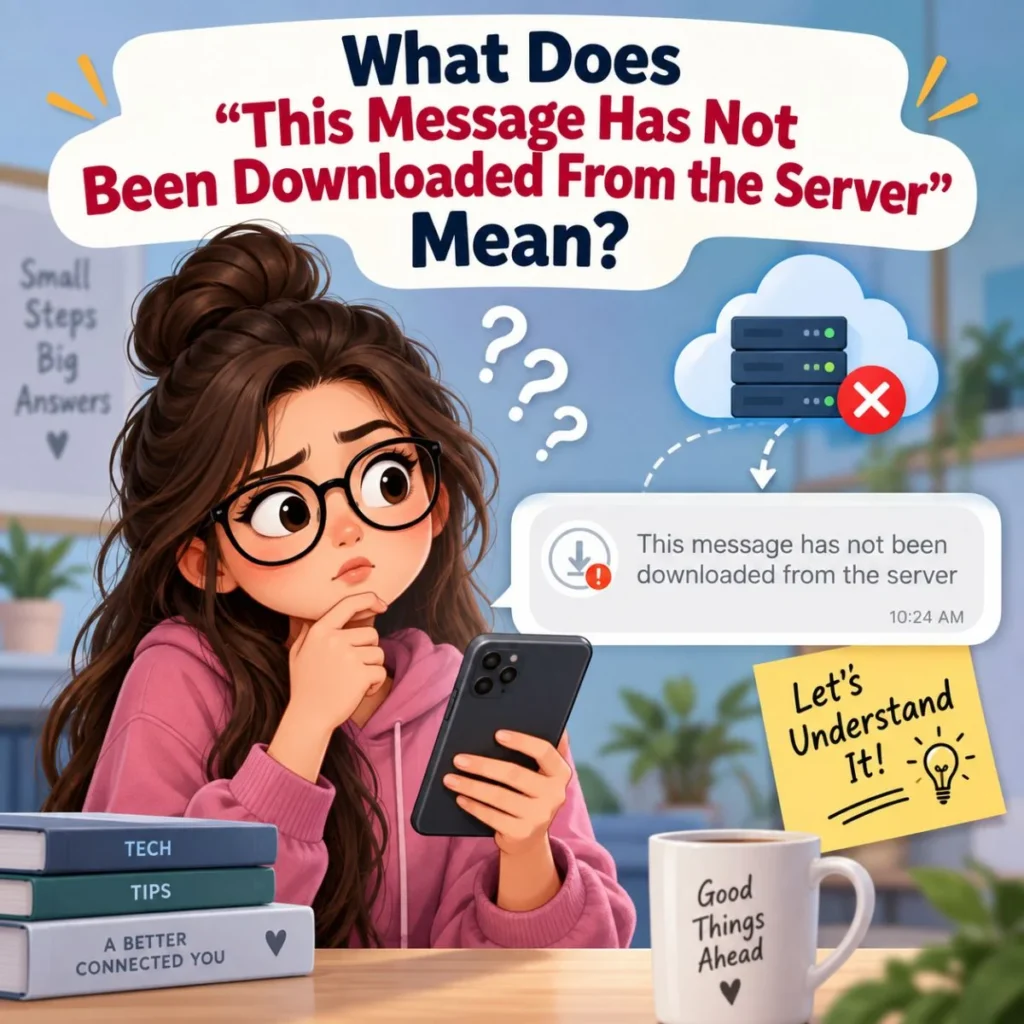
What Does “This Message Has Not Been Downloaded From the Server” Mean?
When an email arrives, your mail app does not necessarily store every part of every message permanently on your device. Depending on the account and app, the device may keep a local copy, download messages only when you open them, or synchronize selected folders and content.
The error appears when the app has information indicating that a message is available, but it cannot retrieve the complete message from the email server.
Think of it like seeing a label on a package without being able to access the package itself. Your inbox may show the sender, subject, or part of the message, but the full content is unavailable locally because the app could not complete the download.
Common reasons include:
- Your internet connection is unavailable or unstable.
- The email app has temporarily lost contact with the mail server.
- The account has stopped synchronizing correctly.
- The email server is experiencing an outage.
- Your account password or authentication information needs attention.
- The mailbox has storage or synchronization problems.
- The email was moved, deleted, or changed on the server.
- The email application is outdated or experiencing a software problem.
- A device setting is preventing the app from downloading mail.
- The message contains content that the app is struggling to retrieve.
The good news is that the error does not automatically mean the email is permanently lost. In many situations, the original message is still safely stored on the mail server.
Quick Fixes to Try First
Before changing account settings or removing your email account, start with the simplest solutions. A temporary connection or synchronization problem can often cause the error.
Check your internet connection
Open another website or app that requires an internet connection. If it does not load normally, your email app may simply be unable to reach the mail server.
Try switching between Wi-Fi and mobile data if both are available. If you are connected to public Wi-Fi, a sign-in page may also be required before internet access works properly.
Once the connection is stable, return to your email and try opening the message again.
Refresh your inbox
Manually refresh the mailbox instead of relying on automatic synchronization.
Pull down on the inbox if your email app supports that gesture, or use its refresh command. Give the app a few moments to contact the server and synchronize new messages.
Then open the affected email again.
Close and reopen the email app
A temporary application glitch can prevent a message from downloading correctly.
Completely close the mail app, wait a few seconds, and open it again. After the inbox reloads, try the message once more.
If you are using a computer, closing and reopening the browser or desktop mail application can accomplish the same thing.
Restart your device
A simple restart can clear temporary networking, memory, or application problems.
Restart your phone, tablet, or computer and allow it to reconnect to the internet before opening the email app.
This is particularly useful when other messages are also failing to load.
Why Your Email May Not Be Downloading
If the basic fixes do not work, the next step is to identify what is preventing synchronization.
The connection may be unstable
An internet connection can appear to work while still being unreliable enough to interfere with email synchronization.
For example, you may be able to load a lightweight webpage while an email containing images or attachments fails to download.
Try moving closer to your Wi-Fi router, switching networks, disabling a problematic VPN temporarily, or using mobile data to determine whether the connection is responsible.
The mail server may be temporarily unavailable
Your email provider’s server has to respond when your app requests the message.
If the service is experiencing an outage, maintenance, or unusually high traffic, messages may fail to download even though your device is working normally.
One useful clue is whether multiple emails are affected. If several recent messages cannot be opened, the problem may be account synchronization or server availability rather than one specific email.
If only one old message is affected, the cause may be different.
Your account may need to authenticate again
Email accounts use authentication to allow your device to communicate with the mail service.
If you recently changed your password, enabled additional security requirements, or signed out of the account elsewhere, the email app may need you to authenticate again.
Look for an account warning, password prompt, or notification inside the mail app or device settings.
Avoid repeatedly entering a password if you are unsure whether you are using the correct credentials. Instead, verify the account information through your email provider’s normal sign-in process.
Synchronization may be disabled
Many devices allow users to control how frequently email accounts synchronize.
If automatic mail synchronization is disabled, the device may display older account information without successfully downloading newer content.
Check your account’s synchronization settings and make sure mail synchronization is enabled.
The exact menu names vary between devices and email applications, so look for settings related to:
- Mail sync
- Account synchronization
- Fetch new data
- Background app refresh
- Automatic email retrieval
- Push mail
Fix “This Message Has Not Been Downloaded From the Server” on a Phone
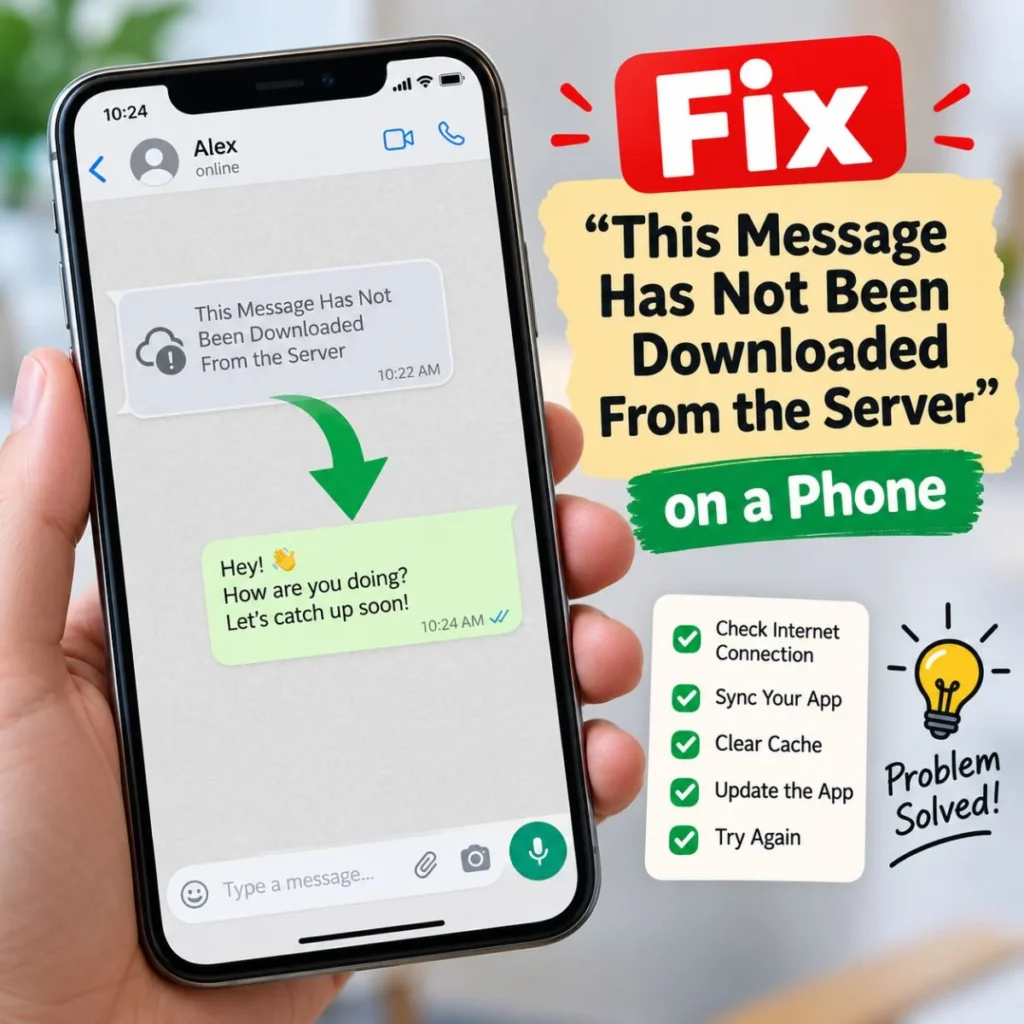
Phones commonly display this message because the email app is relying on synchronization between the device and the mail server.
Start with the least disruptive steps.
Update the mailbox manually
Open the affected inbox and perform a manual refresh. Wait until synchronization finishes before tapping the message.
If the email loads after refreshing, the problem was probably temporary.
Check background data or app restrictions
Some phones restrict apps from using data in the background to save battery or reduce mobile-data usage.
If your mail application cannot access the network while running in the background, synchronization may become inconsistent.
Check your phone’s battery, mobile-data, and background-activity settings for the email application.
Make sure automatic time is enabled
Incorrect device date or time settings can sometimes interfere with secure connections.
Use the device’s automatic date and time option where available. Then restart the email app and try downloading the message again.
Update the email application
An outdated application can contain bugs or compatibility problems that interfere with synchronization.
Check your device’s official app store for an available update. After updating, reopen the email and try again.
Restart the phone
If the application is still refusing to download messages, restart the device. This can resolve temporary networking and application-state problems without changing your account.
Fix the Problem on a Computer
If the email works on your computer but not your phone, that is an important clue.
It suggests the message itself may still be available on the server and that the problem is more likely related to the mobile app, device synchronization, or local account configuration.
Try opening your email through your provider’s webmail service.
If the missing message appears normally in webmail, you can often confirm that the server still has the email. You can then focus on repairing synchronization on the affected device.
If the email also fails to appear in webmail, investigate the mailbox itself, server status, folders, filters, deletion, or account access.
What to Do If Only One Email Is Affected
A particularly important distinction is whether the error affects one message or many messages.
If dozens of emails are unavailable, suspect a broader synchronization, connection, account, or server problem.
If only one message refuses to download, consider these possibilities:
- The message may have been deleted from the server.
- The message may have been moved to another folder.
- The email may have been corrupted or improperly synchronized.
- The message could be unusually large.
- The app may have trouble processing a particular attachment or message format.
- A server-side change may have affected that specific message.
Search your mailbox using the sender’s name, email address, subject, or distinctive words from the conversation.
Check folders such as Archive, Trash, Spam, Junk, and other custom folders.
If you can find the message through webmail, leave it on the server and then try synchronizing your device again.
What If the Email Contains an Important Attachment?
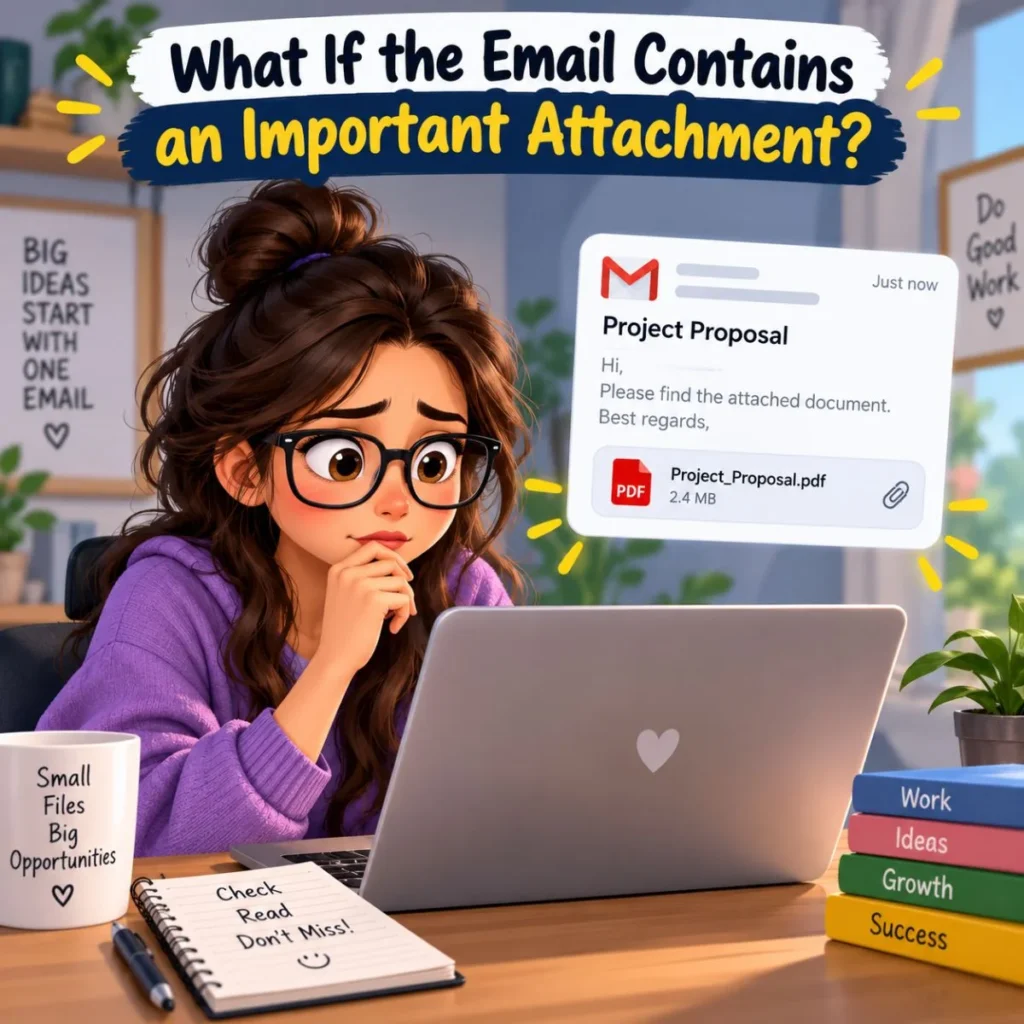
An attachment can make a synchronization problem more noticeable because the device may need to retrieve additional data before displaying the complete message.
If the email itself is important, avoid immediately deleting it or removing the account from your device.
First, try accessing the mailbox through webmail or another trusted device.
If the email opens there, save the attachment to a secure location. You can then troubleshoot the original device without worrying about losing access to the file.
For particularly important documents, consider keeping a separate backup after successfully downloading them.
Try Removing and Re-Adding the Email Account
If other troubleshooting methods fail, removing and re-adding the account can rebuild the local connection between the email application and the server.
However, this should not be your first step.
Before removing an account, make sure you understand whether your email is stored on the server or only locally on the device. Accounts using server-based synchronization generally allow messages to appear again after the account is added back, but locally stored information can behave differently.
Before proceeding:
- Confirm that you know the correct account credentials.
- Make sure important emails are available through webmail.
- Check whether contacts, calendars, notes, or other account data are connected to the account.
- Save important attachments separately.
- Confirm that the account can be accessed successfully online.
After re-adding the account, allow enough time for synchronization to finish. Large mailboxes may take some time to rebuild.
When the Problem Is Caused by Server-Side Email Settings
Sometimes the device is not the real problem.
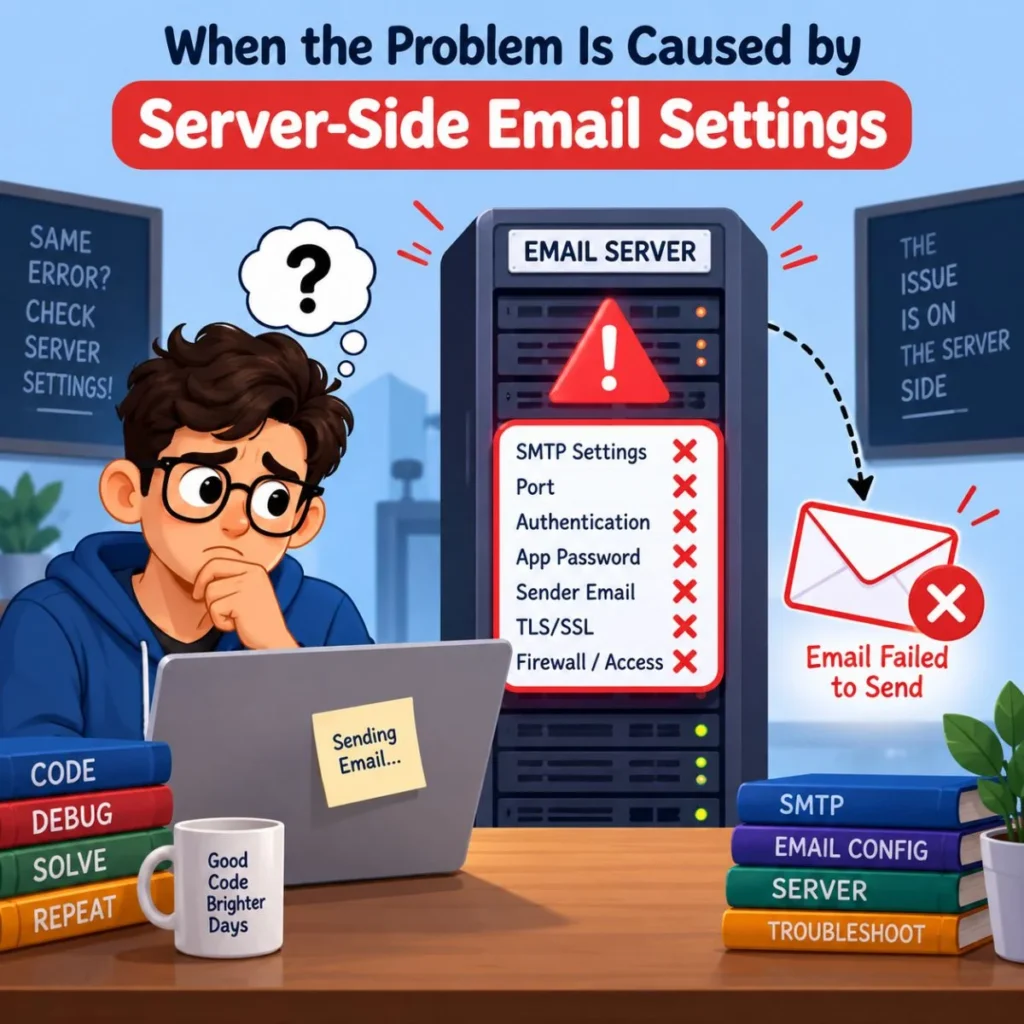
Email accounts can use different protocols and synchronization behaviors. Server-side settings may determine whether messages remain available across devices and how folders are synchronized.
For example, an account configured to remove messages from the server after downloading them can behave differently from an account designed to keep messages synchronized across multiple devices.
If you use the same email account on several devices, check whether the message is available elsewhere.
Also consider whether you recently changed:
- Passwords
- Mail forwarding
- Server settings
- Account security settings
- Synchronization preferences
- Email applications
- Device permissions
A recent change can provide a useful clue about when the problem started.
How to Tell Whether the Email Is Actually Lost
Seeing “this message has not been downloaded from the server” does not by itself prove that the message has been deleted.
To determine whether the email still exists, check the account through webmail.
If you can see and open the message there, the email is still on the server. Your device simply has not retrieved it successfully.
If the message is missing from webmail as well, search all relevant folders and use the provider’s search tools.
Look in:
- Inbox
- Archive
- Sent
- Trash
- Spam or Junk
- Custom folders
If the email was deleted recently, your provider may have a recovery or recently deleted area, depending on the service and account configuration.
If the message is not available anywhere, recovery options become more dependent on your email provider, retention settings, backups, and how the message was deleted.
How to Prevent the Error in the Future
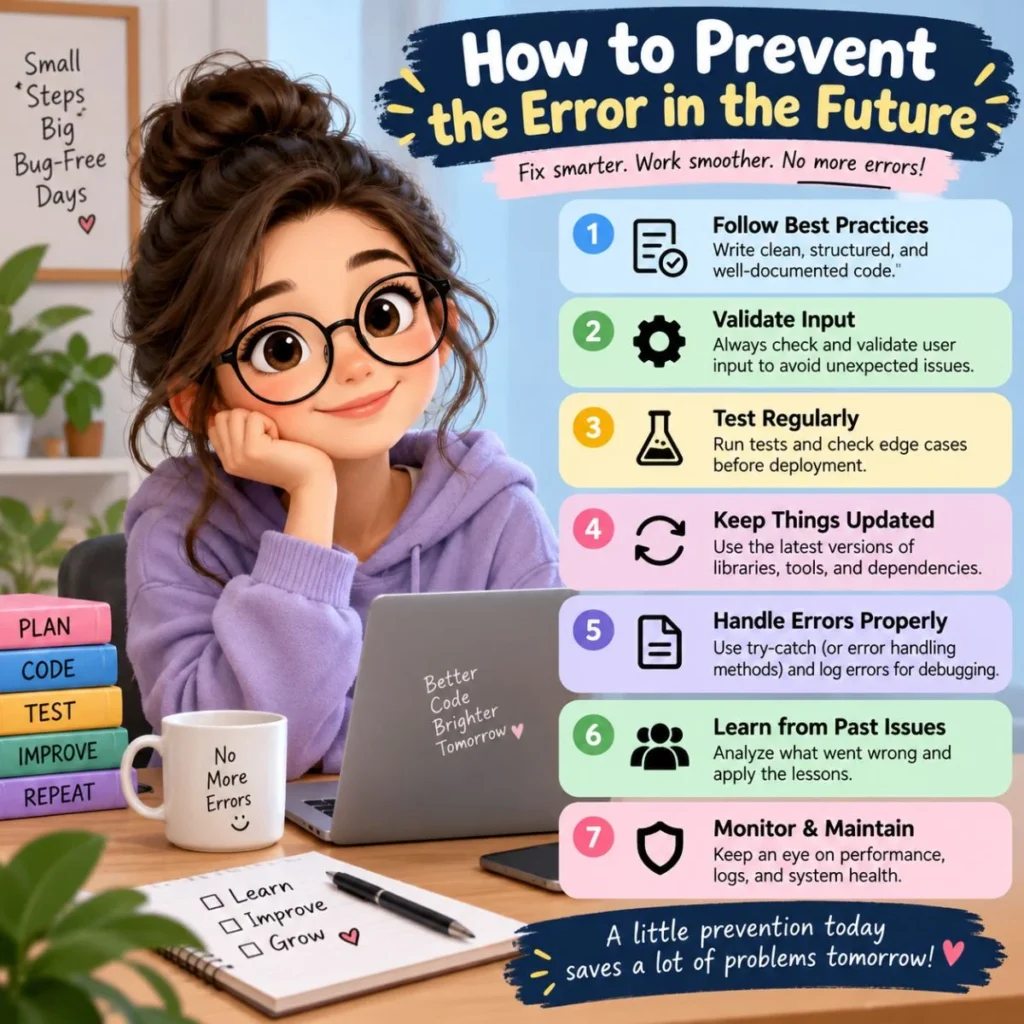
You cannot prevent every synchronization problem, but a few habits can make email access more reliable.
Keep your email app updated
Application updates often include bug fixes, compatibility improvements, and security changes.
Keeping the app current reduces the likelihood that an old software issue will interfere with mail synchronization.
Maintain a reliable connection
When downloading large emails or attachments, use a stable internet connection whenever practical.
If an important message fails to download, switching networks can quickly tell you whether connectivity is the problem.
Avoid deleting important emails too quickly
If an email is important, consider archiving it rather than deleting it. For critical documents, download the attachments and keep a separate copy.
Check important messages through webmail
For messages you cannot afford to lose, webmail provides a useful second point of access.
If the message is visible there, you know the server copy exists even if one device is having synchronization problems.
Keep enough device storage available
A device with very limited free storage may have trouble downloading and storing new mail content or attachments.
If your device is nearly full, free up some space and then retry synchronization.
How to Choose the Right Fix
You do not need to try every possible solution at once. Match the troubleshooting step to what you are seeing.
If one email will not open: Search for it through webmail and other folders first.
If email works on your computer but not your phone: Focus on the phone’s app, synchronization, permissions, and account configuration.
Simple Troubleshooting Checklist
When you see the error, work through this checklist in order:
- Confirm that your internet connection works.
- Refresh the inbox manually.
- Close and reopen the email app.
- Restart the device.
- Try another Wi-Fi or mobile-data connection.
- Check whether other messages are affected.
- Look for account or password warnings.
- Verify that mail synchronization is enabled.
- Update the email app.
- Check available device storage.
- Open the account through webmail.
- Search Archive, Trash, Spam, and other folders.
- Save important messages or attachments if you can access them elsewhere.
- Re-add the account only after confirming important server-based mail is safe.
- Contact the email provider if the message is missing across all access methods.
This approach helps you distinguish a simple temporary glitch from a genuine account or server problem.
Frequently Asked Questions
Why does my email say “this message has not been downloaded from the server”?
It generally means your email app knows the message exists but has not successfully retrieved its contents from the mail server. A weak connection, synchronization problem, account issue, server outage, or app problem can cause it.
Is the email permanently deleted?
Not necessarily. The message may still be stored safely on the email server. Check the account through webmail and search folders such as Archive, Trash, Spam, and other mail folders before assuming it is gone.
Why can I see the subject but not the email?
Your email application may have synchronized basic message information, such as the sender or subject, without successfully downloading the full message body. This can happen when the connection or synchronization process is interrupted.
Why does the email work on my computer but not my phone?
If the message opens on your computer, the server probably still has the email. The issue may be limited to your phone’s email app, account synchronization, network access, or local settings.
Should I delete and reinstall my email account?
Not immediately. First confirm that important messages are available through webmail and that you know your account credentials. Removing an account can trigger a fresh synchronization, but it should be treated as a later troubleshooting step rather than the first solution.
What should I do if none of these fixes work?
First determine whether the message exists through webmail or another device. If it is available elsewhere, the problem is likely local to the affected app or device. If it is missing everywhere, contact your email provider or administrator and ask about message recovery, retention, account synchronization, or server-side issues.
Final Thoughts
The error “this message has not been downloaded from the server” can look alarming, but it often points to a synchronization or connection problem rather than permanent email loss. The most important thing is to avoid making irreversible changes before checking whether the original message is still available on the server.
Start with the basics: confirm your connection, refresh the mailbox, restart the app, and check whether other emails are affected. If the message remains unavailable, open your account through webmail and search your other folders. That simple test can tell you whether you are dealing with a device problem or an issue with the email itself.
For important messages, attachments, receipts, documents, or conversations, save a copy as soon as you regain access. Once your email is working again, keeping your application updated, maintaining adequate device storage, and periodically checking important messages through your provider can reduce future headaches.
Most importantly, don’t assume the message is gone simply because your phone cannot display it. “This message has not been downloaded from the server” often means the email is still there—you just need to restore the connection between your device and the server.

Muhammad Sarfraz is a content creator and author at Message Ideas Daily, passionate about creating heartfelt, practical, and meaningful message ideas that help people express their feelings and connect with others.