You remember the message at the perfect moment—then realize it’s too early, too late, or simply not the right time to send it. Maybe you want to wish someone happy birthday at midnight, remind a friend about tomorrow’s plans, or send a work-related message first thing in the morning without setting an alarm to do it yourself.
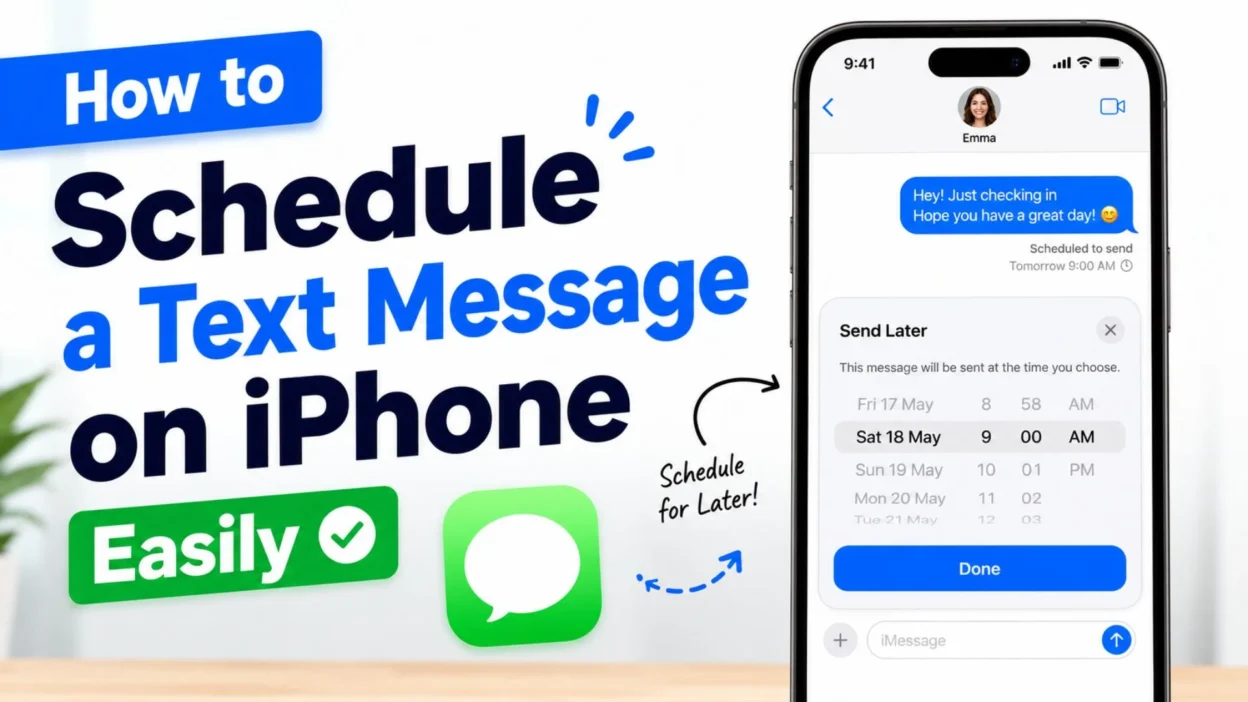
That’s where scheduled texting becomes useful. If you’ve wondered how to schedule a text message on iPhone, Apple now provides a straightforward option through the Messages app for supported iPhone software. You can write your message ahead of time, choose when it should be sent, and let your iPhone handle the timing.
This guide explains the process step by step, including how to schedule, edit, cancel, and troubleshoot scheduled messages. You’ll also find practical examples of when scheduling makes sense and tips for making sure your message arrives when you intend it to.
How to Schedule a Text Message on iPhone
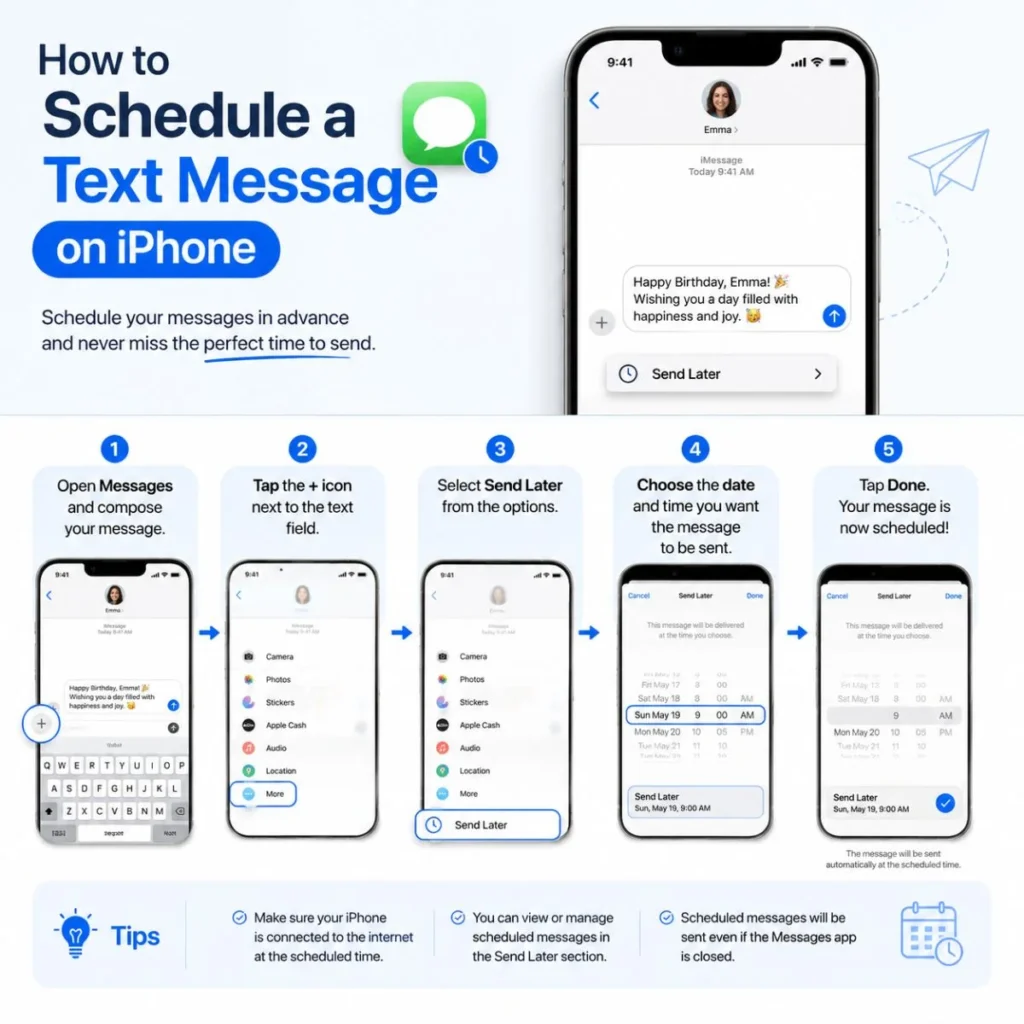
For supported iPhones running a compatible version of iOS, scheduled messages can be created directly in the Messages app. You don’t need to type the message again later or rely on your memory to send it at exactly the right time.
The basic process is simple:
- Open the Messages app.
- Open an existing conversation or start a new one.
- Tap the + button beside the text field.
- Choose the option for Send Later.
- Select the date and time you want the message sent.
- Type your message.
- Tap the send button.
The message will appear in the conversation as a scheduled message rather than being delivered immediately.
This is particularly useful when the timing matters. You can prepare a birthday wish the night before, write a reminder while you’re thinking about it, or prepare an important personal message without worrying about forgetting it later.
Step-by-step instructions
Open Messages. Launch Apple’s Messages app and select the person or group you want to contact.
Open the message options. Tap the + button next to the text-entry field. This opens additional messaging features.
Select Send Later. If your iPhone supports scheduled messaging, you’ll see Send Later among the available options.
Choose a date and time. Use the date and time controls to decide when your message should be delivered.
Write your message. Type the text normally. You can take your time because it won’t be sent immediately.
Schedule it. Tap the send button to save the message for the selected time.
Once scheduled, the message remains visible in the conversation so you can review it before it is delivered.
What Can You Use Scheduled Messages For?
Scheduling isn’t only about remembering birthdays. It can be useful whenever you know what you want to say but don’t want to send it yet.
Here are some everyday situations where it can save time:
- Sending a good-morning message at a specific time.
- Remembering a friend’s birthday without staying awake until midnight.
- Sending a reminder about an appointment.
- Preparing a message for a family member before a busy day.
- Sending a work-related reminder at an appropriate hour.
- Remembering an anniversary message.
- Preparing travel updates in advance.
- Sending a follow-up at a planned time.
- Reminding someone to bring something tomorrow.
- Preparing a motivational message for someone who has an important event.
The real advantage is separating writing from sending. You can write when the thought is fresh and choose a delivery time that makes sense.
For example, if you suddenly remember that your friend has an early appointment tomorrow, you don’t have to wait until morning. Write the reminder now and schedule it for a reasonable time.
How to Schedule a Birthday Text on iPhone
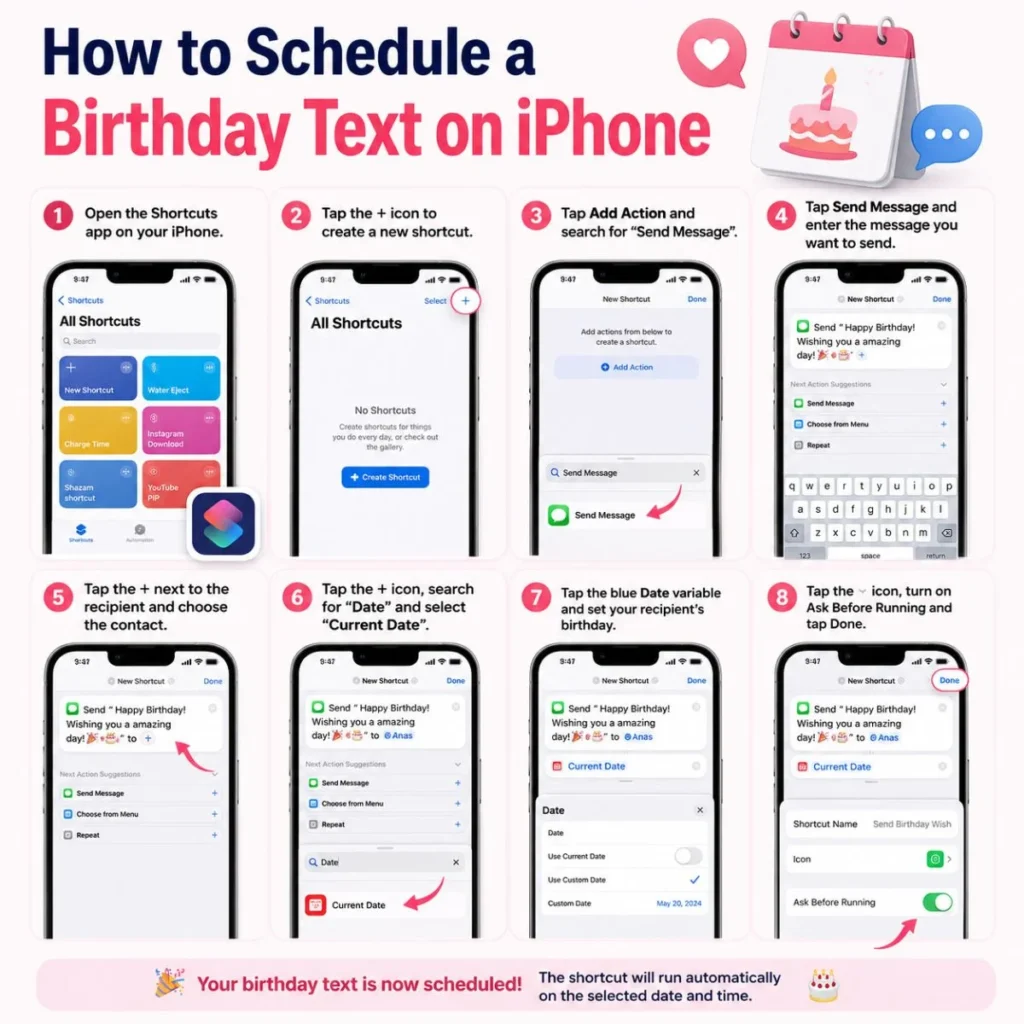
Birthdays are one of the easiest reasons to use scheduled texting.
If you want your message to arrive at a particular time, write it ahead of time and schedule the delivery. That way, you don’t have to depend on your memory—or stay awake just to send a midnight birthday wish.
A few natural birthday messages you could schedule include:
- “Happy birthday! 🎉 I hope this year brings you so many good moments and even more reasons to smile.”
- “Happy birthday! I’m really lucky to have you in my life. Enjoy every minute of your day.”
- “Wishing you a beautiful birthday and a year filled with everything you’ve been hoping for.”
- “Happy birthday! I hope today reminds you just how loved and appreciated you are.”
- “Another year, another collection of memories waiting to happen. Have an amazing birthday!”
- “Happy birthday to one of the people who can always make an ordinary day better.”
- “I hope your birthday is peaceful, joyful, and full of the people who matter most. ❤️”
- “Happy birthday! May this next chapter be kinder, brighter, and full of unexpected happiness.”
Scheduling lets you prepare the message when you have time while still delivering it when the occasion calls for it.
How to Schedule a Reminder Text
Scheduled messages can also function as simple personal reminders when another person needs to receive the information.
Imagine remembering on Sunday evening that your friend needs to bring documents to an appointment Monday morning. Instead of hoping you’ll remember to text them later, you can prepare the message immediately.
Try messages such as:
- “Quick reminder for tomorrow: don’t forget the documents we talked about.”
- “Just a reminder that we’re meeting at 9 tomorrow morning. See you then!”
- “Remember to bring your charger tomorrow—we’ll probably be out most of the day.”
- “Don’t forget about your appointment tomorrow. Hope everything goes smoothly!”
- “Reminder: we’re leaving at 7, so let’s try to be ready a little early.”
- “Just wanted to make sure this doesn’t get lost in the morning rush. Please bring the keys tomorrow.”
- “Friendly reminder about our plans tomorrow. Looking forward to seeing you!”
A scheduled reminder is especially helpful when you think of the task well before the recipient actually needs the reminder.
How to Schedule Good Morning or Good Night Texts
Scheduled texting can also add a thoughtful touch to relationships.
If you want someone to wake up to a message but know you’ll be busy or asleep at that time, prepare the text in advance.
For a good-morning message:
- “Good morning ☀️ I hope you wake up feeling rested and ready for a really good day.”
- “Morning! Just wanted you to start the day knowing someone is thinking about you.”
- “Good morning. Whatever today brings, I hope there’s at least one moment that makes you genuinely smile.”
- “Rise and shine! I hope today is lighter, happier, and better than you expect.”
For a good-night message:
- “Good night. I hope you can let go of everything stressful today and get the rest you deserve.”
- “Sleep well and take care of yourself. Tomorrow is another chance to begin again.”
- “Good night ❤️ I hope you fall asleep with a peaceful heart and wake up feeling refreshed.”
- “Rest well. You’ve done enough for today.”
The best scheduled personal messages don’t need to be long. A few sincere words can feel more meaningful than a paragraph that sounds copied.
How to Edit a Scheduled Message on iPhone
Sometimes you schedule a message and then notice a typo, realize the timing isn’t right, or decide you want to change the wording.
In supported versions of iOS, scheduled messages can be managed from the conversation where they were created.
To edit one:
- Open the relevant conversation in Messages.
- Locate the scheduled message.
- Tap or press the scheduled message to access its available options.
- Choose the option to edit or modify it.
- Change the text or scheduled delivery time as needed.
- Save the updated message.
It’s a good idea to review important scheduled texts before they are sent. This is particularly important for professional messages, invitations, dates, appointments, or anything containing a specific time or location.
A quick review can catch problems such as:
- Incorrect names.
- Wrong dates.
- Outdated meeting locations.
- Missing details.
- Accidental autocorrect changes.
- An inappropriate delivery time.
How to Cancel a Scheduled Text Message on iPhone
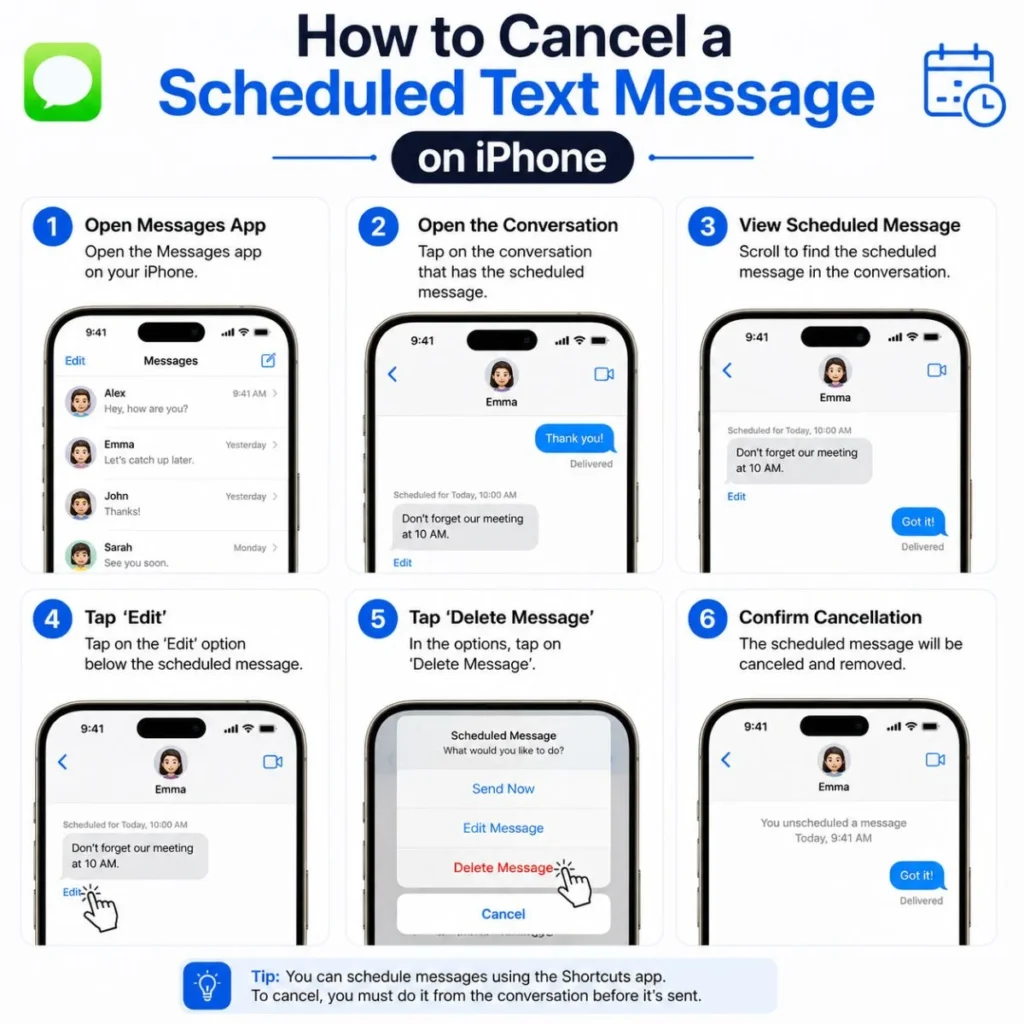
Plans change. You might schedule a message and then realize that the conversation has already happened, the reminder is no longer necessary, or the wording doesn’t feel right.
When that happens, you can manage the scheduled message from the conversation before its delivery time.
Generally, you should:
- Open Messages.
- Go to the conversation containing the scheduled message.
- Select the scheduled message.
- Use the available message options to delete or cancel it.
- Confirm the action if your iPhone asks you to.
Always check the conversation afterward to make sure the scheduled message is no longer waiting to be sent.
This is another reason scheduled messages are convenient: they don’t disappear into a separate reminder system. You can see them in the conversation and make changes when necessary.
What Happens When You Schedule a Message?
A scheduled text isn’t delivered immediately. Instead, your iPhone keeps it associated with the conversation until the chosen delivery time.
Before that time, you can typically recognize it as a scheduled message and manage it.
Once the scheduled time arrives, the message is sent according to Apple’s messaging system and the conditions of the conversation.
There are a few practical things worth remembering:
- Your iPhone needs to support the feature.
- Your software version matters.
- The recipient’s messaging setup can affect the type of message being sent.
- A scheduled message is different from a reminder to send a message.
- Scheduling doesn’t make the recipient’s phone display the message differently after delivery.
- A message scheduled for later can usually be reviewed before its delivery time.
If you’re scheduling something important, don’t assume that scheduling alone guarantees the recipient will immediately see it. Delivery and notification can still depend on connectivity, device settings, and other messaging conditions.
Can You Schedule a Message Without Using the Messages App?
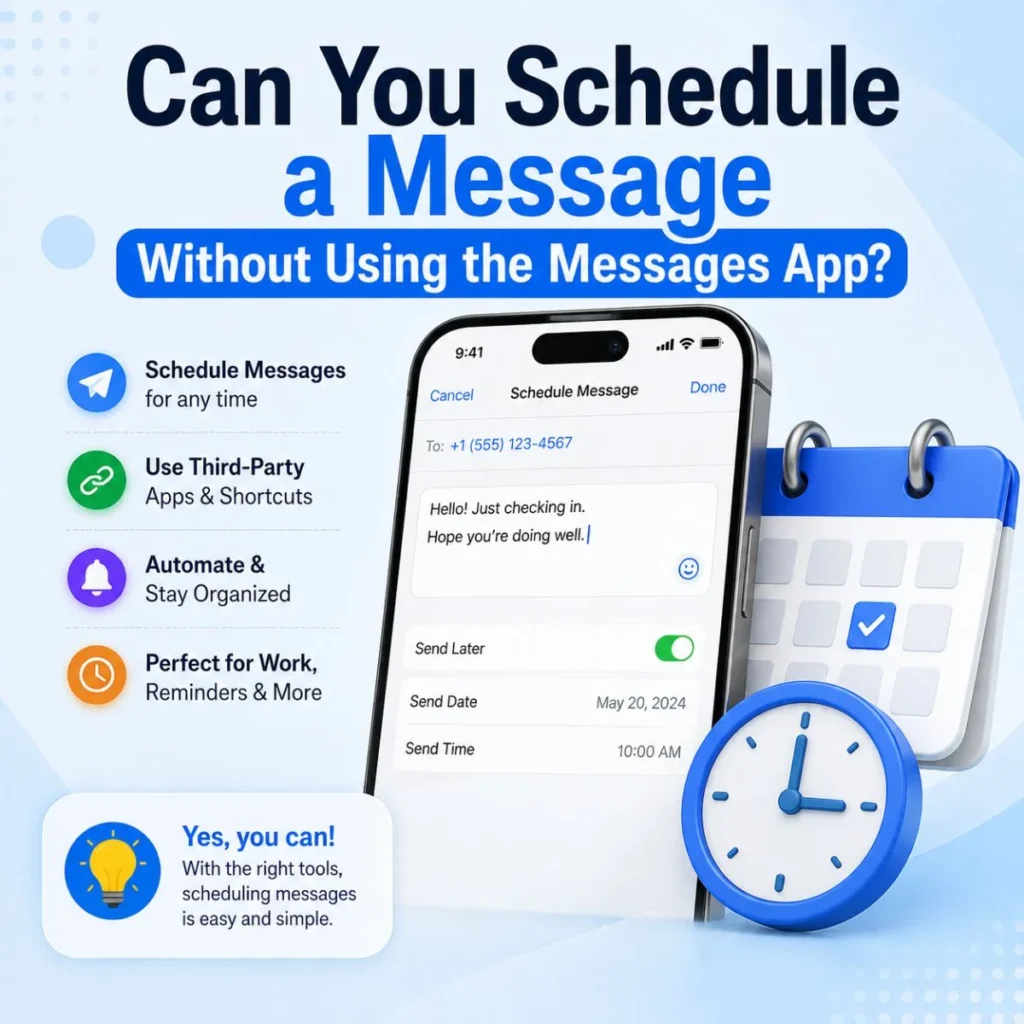
The built-in Messages feature is the simplest approach when your iPhone supports it. However, there have historically been other ways to create automated or reminder-based messaging workflows, including Apple’s Shortcuts app and third-party services.
These alternatives can be useful in situations where the built-in scheduling feature doesn’t provide what you need.
For example, someone might want a recurring workflow, such as preparing a reminder for a particular day each week. That’s different from simply scheduling one message for one future time.
However, automation can introduce additional steps and permissions. If your goal is simply:
“I want this one message to arrive tomorrow at 8:00 AM.”
the built-in scheduling option is generally the first place to look.
If you need more complicated recurring automation, then exploring Apple’s automation tools may make more sense.
Scheduled Messages vs. Reminders: What’s the Difference?
It’s easy to confuse a scheduled text with a reminder.
They serve different purposes.
A scheduled message means the text itself is prepared and intended to be sent at a selected time.
A reminder means your iPhone reminds you that you need to perform an action. You may still have to open Messages, write the text, and send it yourself.
For example:
Reminder: “Remind me tomorrow morning to text Sarah about dinner.”
Scheduled message: “Looking forward to dinner tonight! See you at 7.”
The first helps you remember to communicate. The second handles the communication timing itself.
That distinction matters if you’re trying to reduce the number of small tasks you have to remember during a busy day.
Best Practices for Scheduling Text Messages
A scheduled message can be incredibly useful, but good timing still matters.
Choose a realistic delivery time
Think about the recipient’s schedule. A technically perfect delivery time can still be socially awkward if it arrives at an unreasonable hour.
A birthday message at midnight may be appropriate for a close friend, while a professional reminder probably shouldn’t arrive at 2 AM.
Check the date carefully
When scheduling something days or weeks ahead, double-check the date. It’s surprisingly easy to select the wrong day when you’re thinking about the event rather than the calendar.
Keep important details accurate
If your text contains an address, appointment time, reservation information, or travel detail, verify it before scheduling.
Write naturally
Don’t make a scheduled text sound like an automated notification. If you’re texting someone you care about, write as you normally would.
Review before delivery
For an important message, take another look before its scheduled time. A message that seemed perfect yesterday may need an update today.
Don’t schedule emotionally charged messages too quickly
If you’re angry, upset, or frustrated, scheduling can create an opportunity to pause—but don’t use it as a substitute for thinking carefully.
Writing the message and waiting before sending it can be helpful. You may decide later that the wording should change or that the conversation would be better handled another way.
Common Reasons You May Not See “Send Later”
If you’re trying to figure out how to schedule a text message on iPhone but don’t see the scheduling option, don’t assume you’ve done something wrong.
The feature’s availability depends on factors such as your iPhone software version and messaging setup.
Try these checks:
- Make sure your iPhone is running a compatible version of iOS.
- Check that you’re using Apple’s Messages app.
- Look under the + button beside the message field.
- Confirm that you’re starting a normal conversation rather than looking in an unrelated messaging interface.
- Restart Messages if the interface appears unusual.
- Make sure your iPhone software is updated.
- Check Apple’s current documentation if the available options differ from those described here.
Apple changes its interface and feature availability across iOS releases, so the exact appearance of the buttons can vary.
If the option still isn’t available after updating, your particular device, software version, or messaging configuration may not support the feature in the way you’re expecting.
Creative Ways to Use Scheduled Texts
Once you know how scheduling works, you can use it for more than reminders.
For long-distance relationships
You can prepare a message at a convenient time and schedule it to arrive during a meaningful part of someone’s day.
For family
Schedule a reminder before a family event, travel day, appointment, or celebration.
For work
Prepare routine communications ahead of time so you don’t have to remember them during a busy morning.
For encouragement
If someone has an important exam, interview, presentation, or first day at a new job, schedule an encouraging message for the morning.
For special occasions
Birthdays, anniversaries, graduations, holidays, and other milestones can be easier to remember when you prepare your message ahead of time.
Here are a few ideas:
- “You’ve got this today. Take a breath, trust yourself, and go for it.”
- “Good luck with your presentation today! You know your stuff—just let it show.”
- “Thinking of you today. I hope everything goes beautifully.”
- “No matter how today goes, remember how far you’ve already come.”
- “Today is a big day, but you’re more prepared than you think. Go make it yours.”
The best use of scheduling isn’t simply saving time. It’s creating a small moment of thoughtfulness without relying entirely on memory.
How to Make Scheduled Texts Feel Personal
The technology may handle the timing, but you provide the meaning.
Instead of sending:
“Happy birthday. Have a good day.”
add one small detail that belongs to your relationship.
For example:
“Happy birthday! I hope today is as fun as that ridiculous road trip we still talk about. You deserve a great one.”
That personal detail makes the message feel written for one person rather than selected from a list.
Try adding:
- An inside joke.
- A shared memory.
- Something you’re proud of them for.
- A specific reason you appreciate them.
- A reference to plans you’ve made together.
- A small detail about what they’re currently working toward.
You don’t need a long message. Specificity creates warmth.
Quick Copy-and-Paste Scheduled Text Ideas
If you need something short, these are easy starting points you can personalize:
- “Just wanted you to know I’m thinking of you. Hope your day goes well.”
- “Good luck today! Take it one step at a time—you’ve got this.”
- “Reminder for tomorrow: don’t forget the thing we talked about! 😊”
- “Happy birthday! Hope your day is full of good people, good food, and good memories.”
- “Good morning! I hope today gives you plenty of reasons to smile.”
- “Just checking in and hoping everything is going well.”
- “Sleep well tonight. Tomorrow is a fresh start.”
- “Can’t wait to see you tomorrow!”
- “Wishing you a peaceful day and a happy heart.”
- “Thinking of you today. Sending a little encouragement your way.”
- “Don’t forget—we’re still on for tonight!”
- “Hope your big day goes exactly the way you’re hoping.”
- “I’m proud of you. Go show today what you can do.”
- “Just a little reminder that you’re doing better than you think.”
- “Have an amazing day. You deserve it.”
Frequently Asked Questions
Can I schedule a text message directly on my iPhone?
Yes, supported versions of iOS provide a Send Later option in Apple’s Messages app. You can choose a future delivery time and prepare the message in advance. The exact availability and interface depend on your iPhone’s software and messaging setup.
Can I schedule an iMessage for a future time?
Yes, Apple’s supported Messages scheduling feature can be used to schedule eligible messages for later delivery. The available behavior depends on the messaging conversation and your iOS version.
Can I edit a scheduled message before it sends?
On supported software, you can manage a scheduled message from the conversation before its delivery time. This can allow you to change the message or adjust its scheduled time.
Can I cancel a scheduled text?
Yes. If you no longer want the message to be sent, open the conversation and manage the scheduled message before its delivery time. Removing the scheduled message prevents that pending text from being sent.
Why don’t I have the Send Later option on my iPhone?
The most likely reasons relate to your iOS version, device support, or messaging setup. Check for software updates and look under the + button in Messages. If the option remains unavailable, check Apple’s current documentation for your specific software version.
Do I need to keep the Messages app open for a scheduled text?
No. You don’t normally need to leave the Messages app open for the entire period before a scheduled message is sent. The scheduling system is designed to handle the delivery later rather than requiring you to keep the conversation open.
Conclusion
Learning how to schedule a text message on iPhone can take a surprisingly small task off your mind. Instead of waiting for the right moment, setting an alarm, or worrying that you’ll forget, you can prepare the message when you think of it and choose an appropriate time for it to arrive.
It’s useful for birthday wishes, reminders, encouragement, family updates, professional communication, and everyday plans. More importantly, scheduling doesn’t have to make your texts feel robotic. The timing can be automated while the words remain completely personal.
Before scheduling an important message, check the recipient, date, time, and wording. A few extra seconds of review can prevent an embarrassing mistake.
And when the message is personal, don’t be afraid to make it sound like you. Mention the shared memory, the inside joke, or the little detail only the two of you understand.
Technology can decide when a message arrives, but the thought behind the message is still yours.

Muhammad Sarfraz is a content creator and author at Message Ideas Daily, passionate about creating heartfelt, practical, and meaningful message ideas that help people express their feelings and connect with others.