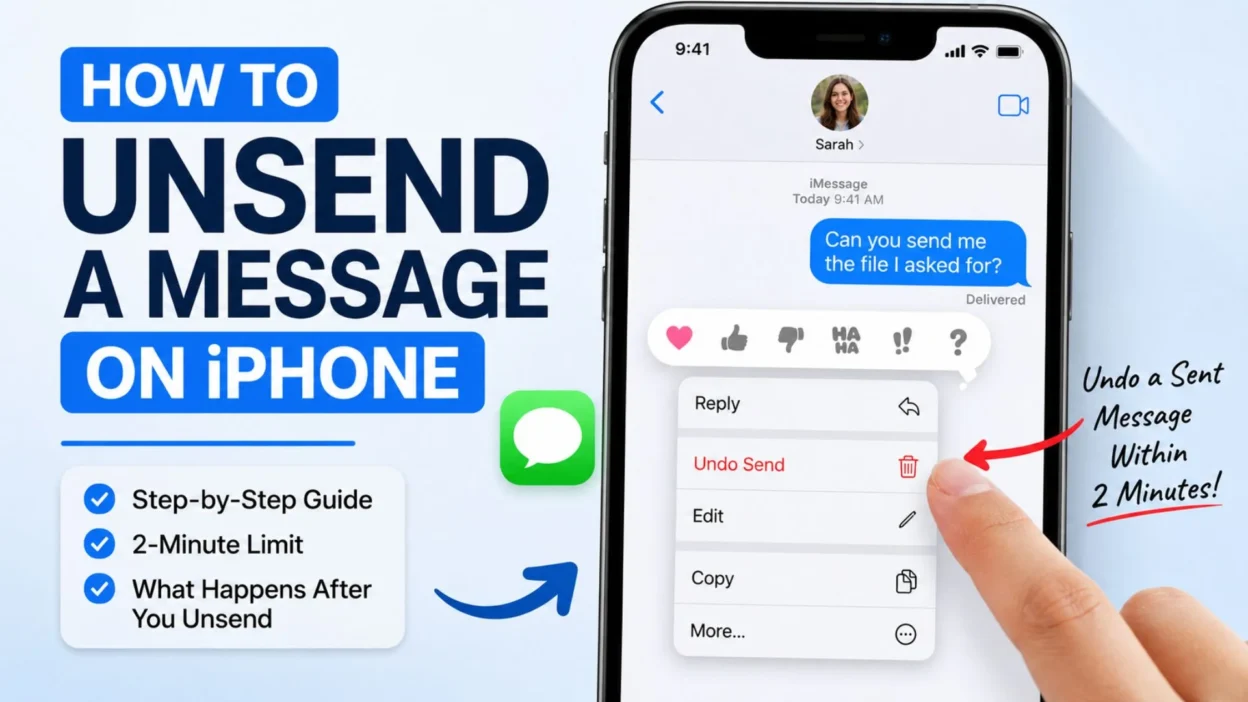
You know that awful moment when you hit Send and immediately realize you sent the message to the wrong person, included something you did not mean to say, or spotted an embarrassing typo? If you are wondering how to unsend a message on iPhone, there is good news: Apple gives you a built-in way to pull back certain recently sent messages.
The important part is timing. Apple’s Messages app lets you unsend an eligible iMessage for up to two minutes after sending it. The feature is available on iPhone with iOS 16 or later, and it works when the conversation is using iMessage.
In this guide, you will learn exactly where to find Undo Send, how to tell whether a message is eligible, what happens after you unsend it, why the option may be missing, and how unsending differs from simply deleting a message. You will also find practical solutions for situations where the two-minute window has already passed.
How to Unsend a Message on iPhone
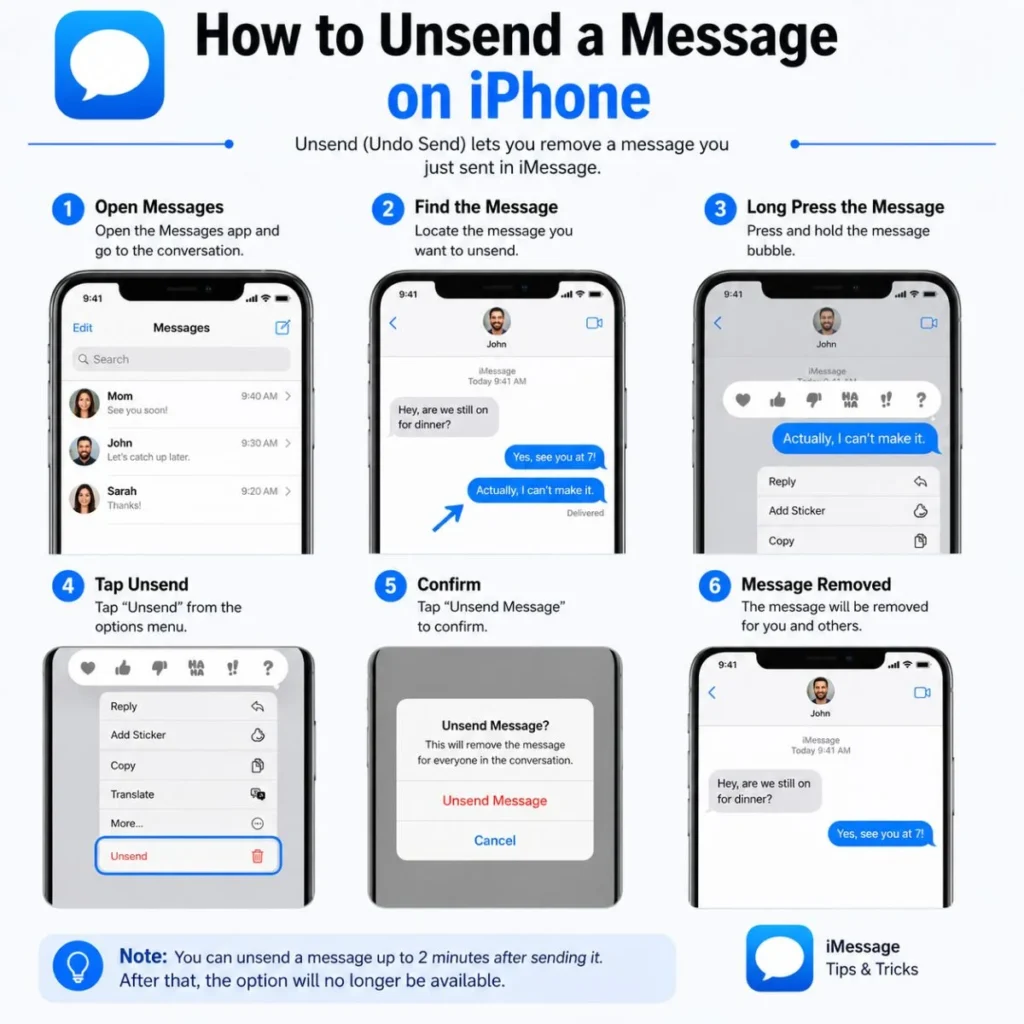
If you have just sent an iMessage and want to take it back, the process is quick. You do not need to open Settings or change a special preference first.
Follow these steps
- Open the Messages app on your iPhone.
- Open the conversation containing the message you want to retract.
- Find the recently sent message.
- Touch and hold the message bubble.
- Tap Undo Send.
- The message will disappear from the conversation.
Apple says an indication that a message was unsent appears in the conversation. The recipient also sees a notice that a message was unsent, so the action does not happen completely invisibly.
The key is to act quickly. You have up to two minutes from the time the iMessage was sent to use Undo Send. Once that period has expired, the option is no longer available for that message.
A simple example
Imagine you meant to send:
“I’ll be there at 8.”
But accidentally sent:
“I’ll be there at 8. I can’t wait to tell you what happened.”
If you notice the mistake immediately, press and hold the message and choose Undo Send. The original message is retracted instead of remaining in the conversation.
This can be especially useful when you accidentally message the wrong person, send an unfinished thought, reveal something too early, or simply regret pressing Send.
What You Need Before Undo Send Will Work
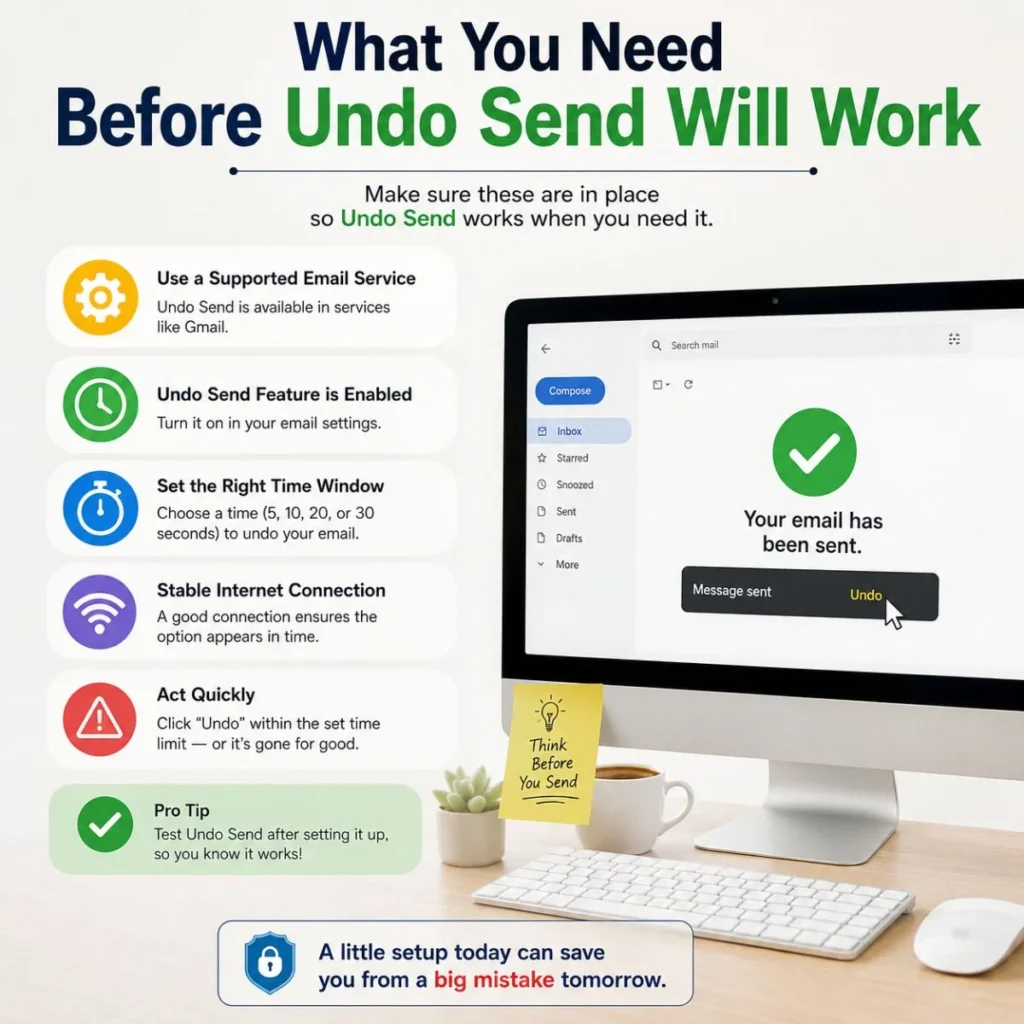
The biggest source of confusion is that the unsend feature does not work for every type of text message.
For the normal iPhone unsend feature, the conversation needs to use iMessage. Apple currently states that unsending requires iMessage and compatible software, including iOS 16 or later on iPhone.
One of the easiest ways to identify iMessage is by looking at the message bubbles. Apple explains that iMessages appear in blue bubbles, while SMS, MMS, and RCS messages appear in green bubbles.
That distinction matters because a green-bubble message cannot normally be retracted using Undo Send.
Check these things first
Before troubleshooting, ask yourself:
- Is the conversation using iMessage?
- Was the message sent less than two minutes ago?
- Is your iPhone running a compatible version of iOS?
- Are you pressing and holding the actual message bubble?
- Is Undo Send appearing in the menu?
If the answer to those questions is yes, you should normally be able to unsend the message.
If the message is green or the two-minute window has passed, you may not see the option.
How to Tell If You Sent an iMessage
If you are unsure whether your message qualifies, look at the conversation itself.
Apple says blue bubbles indicate iMessage, while green bubbles indicate SMS, MMS, or RCS.
This means:
Blue bubble: Usually an iMessage, which can support features such as unsending and editing when the software and timing requirements are met.
Green bubble: SMS, MMS, or RCS. These messages cannot normally be unsent through Apple’s Undo Send feature.
It is worth remembering that bubble color is not simply about whether the other person owns an iPhone. The color reflects the messaging technology being used for that conversation.
For example, an iPhone-to-iPhone conversation may use iMessage and appear blue. If iMessage is unavailable or the conversation is using another messaging method, the message may appear green instead.
What Happens When You Unsend a Message?
When you successfully use Undo Send, the original message is removed from the recipient’s device in a supported iMessage conversation. However, the recipient is not completely unaware that you did something.
Apple says a note confirming that a message was unsent appears in both the sender’s and recipient’s conversation transcript.
So, if you are hoping to make it look as though the message never existed, that is not quite how the feature works.
The important difference is:
The message content is removed, but an unsent-message notice remains.
That is useful because you can correct an accidental message without leaving the original text sitting in the conversation, but the recipient may still know that you retracted something.
Can the recipient still read the original?
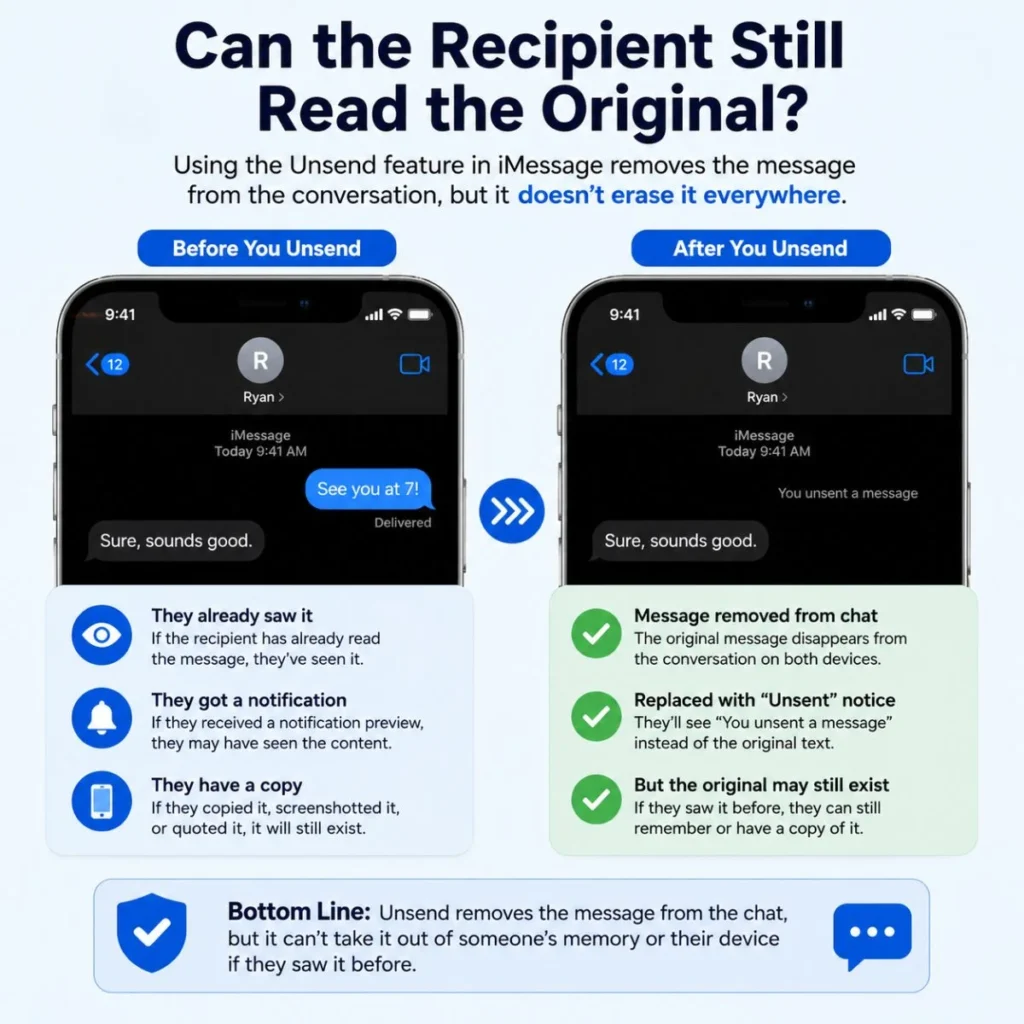
Under supported conditions, the message itself is removed from the recipient’s device. However, Apple warns that compatibility matters. If the recipient is using an older operating system, they may still be able to see the original message.
For that reason, you should not treat Undo Send as a guaranteed way to erase something that another person has already seen.
They may have:
- Read the message before you unsent it.
- Seen it in a notification.
- Used an older compatible-incompatible software version.
- Taken a screenshot.
- Remembered the content before it was retracted.
Undo Send is best understood as a way to retract a recent iMessage, not as a guarantee that nobody ever saw or saved it.
How Long Do You Have to Unsend an iMessage?
You have two minutes to unsend a recently sent iMessage.
That short window is one of the most important details to remember.
For example, if you send a message at 4:00 p.m., you have until approximately 4:02 p.m. to use Undo Send. Once the two-minute period has passed, you cannot rely on the unsend feature to retract it.
This is why acting quickly matters.
If you realize you made a mistake immediately, do not spend several minutes trying to decide what to do. Open the conversation, press and hold the message, and check for Undo Send.
What if the two minutes have passed?
Unfortunately, there is no normal Apple Messages setting that lets you extend the unsend period after the message has already been sent.
At that point, your practical options depend on what happened.
If it was something sensitive or embarrassing, you may need to send a short follow-up explaining the mistake.
If you simply want the message gone from your own iPhone, you can delete it from your conversation, but deleting a message is different from unsending it.
Unsend vs. Delete: What’s the Difference?
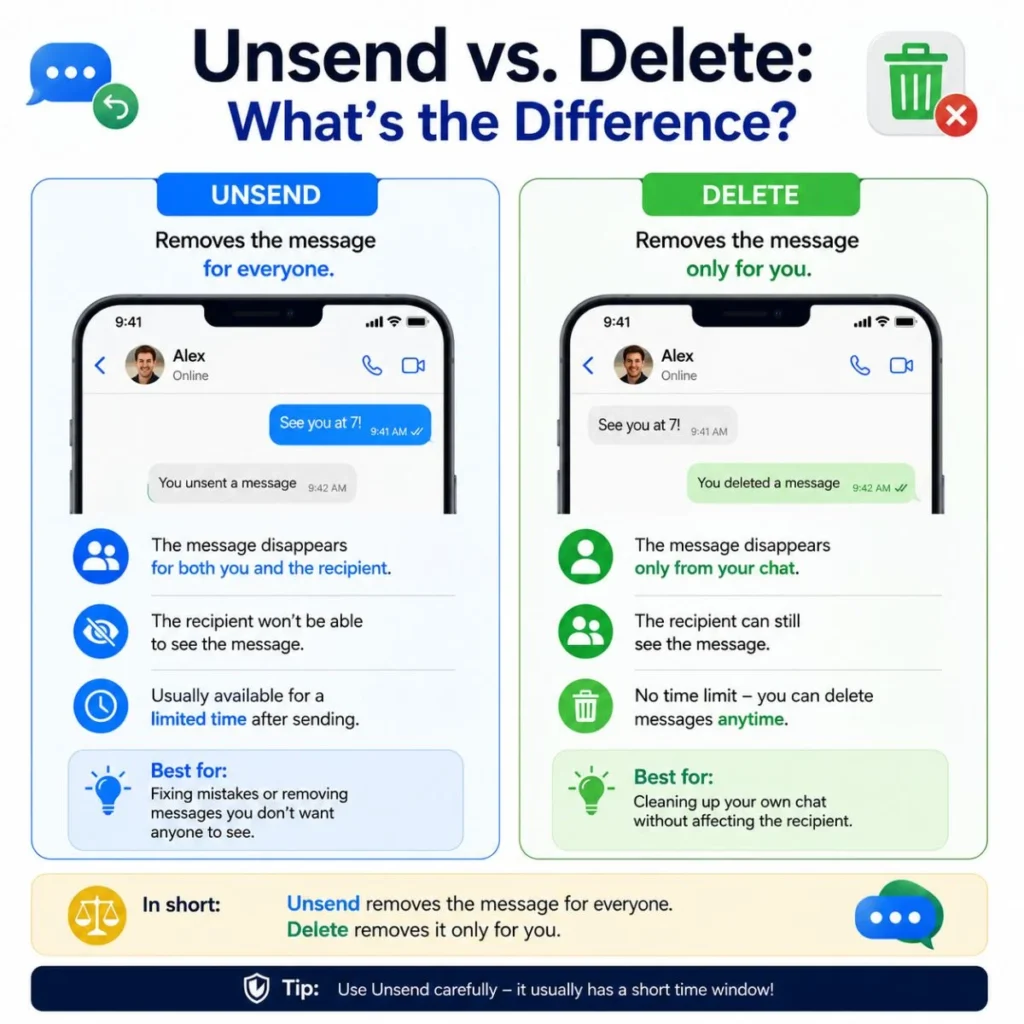
This is one of the most important distinctions when learning how to unsend a message on iPhone.
Undo Send
Undo Send is designed to retract a recently sent eligible iMessage.
When successful, the original message is removed from the recipient’s device, and an indication that the message was unsent appears in the conversation.
Delete
Deleting a message is different. Apple explains that deleting messages from your iPhone does not affect what the recipient sees.
So if you send:
“Please don’t tell anyone yet.”
and then simply delete that message from your own iPhone, the other person can still have the message in their conversation.
That is why pressing Delete is not a substitute for Undo Send.
The easiest way to remember it
Undo Send = attempt to retract the sent message.
Delete = remove the message from your own message history.
If your goal is to take back something you just sent, look for Undo Send, not Delete.
Why Can’t I See “Undo Send” on My iPhone?
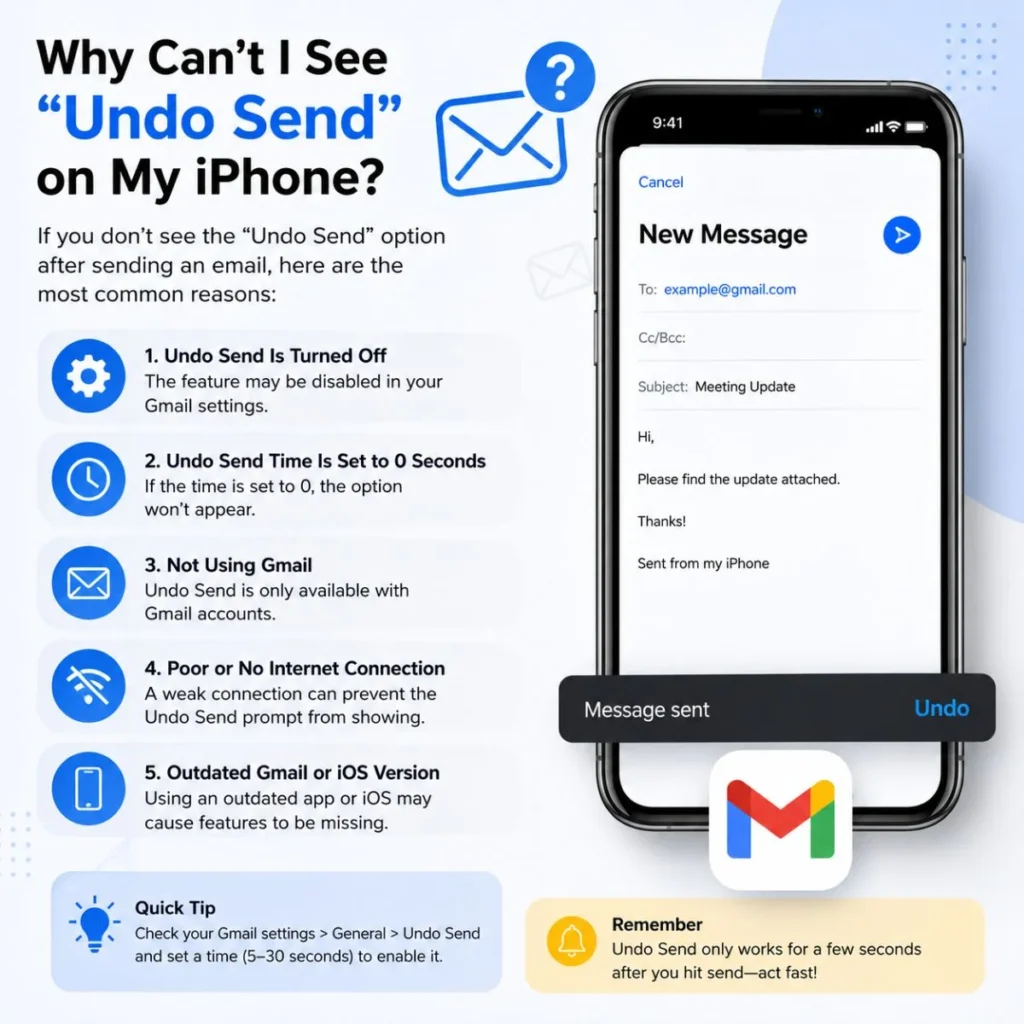
If you are holding down a message and the option is missing, there are several possible reasons.
1. More than two minutes have passed
This is the most straightforward explanation.
Apple limits unsending to two minutes after an eligible iMessage is sent.
If you waited too long, the option will not be available.
2. The message is not an iMessage
If the message is green and was sent as SMS, MMS, or RCS, Apple’s standard Undo Send feature does not apply. Apple specifically states that SMS, MMS, and RCS messages cannot be unsent.
3. The software is not compatible
Undo Send was introduced with iOS 16. Apple says unsending requires iMessage with iOS 16 or later on iPhone.
If your iPhone is running an older version of iOS, you may not have the feature.
4. You are deleting instead of unsending
The options available after pressing and holding a message can vary depending on the situation. Make sure you are looking for Undo Send, rather than selecting Delete or More.
5. The conversation is using another messaging service
The iPhone’s Messages app can handle multiple messaging technologies. Apple notes that iMessage, SMS, MMS, and RCS do not all have the same capabilities.
If the conversation is not using iMessage, the Apple unsend function may not be available.
What to Do If You Missed the Two-Minute Window
Missing the deadline can feel frustrating, especially if the message was genuinely sent by accident. Still, there are a few sensible approaches.
If it was just a typo
Use Edit if it is available.
Apple allows an eligible sent iMessage to be edited up to five times within 15 minutes of sending.
For example, suppose you wrote:
“Let’s meet at 7pm Tuesday.”
but meant:
“Let’s meet at 7pm Thursday.”
If the message is still eligible for editing, press and hold it, tap Edit, make the correction, and confirm the change.
The edited message is marked as edited, and Apple provides an option to view previous versions.
If it was sent to the wrong person
A quick, honest follow-up may be better than making the situation more awkward.
Something as simple as:
“Sorry, wrong conversation!”
may be enough.
If the original message was private or sensitive, keep the explanation brief and avoid adding more information that you did not intend to share.
If it was emotionally charged
Sometimes the problem is not a typo. You may have sent something while angry, upset, or overwhelmed.
If you missed the unsend window, resist the urge to send five more messages trying to explain the first one. A calm, direct follow-up is usually clearer.
For example:
“I sent that too quickly. I was frustrated and didn’t express myself well. Let me explain properly.”
The technology may not let you rewind the clock, but you can still control what you say next.
How to Edit a Sent Message Instead
Editing is useful when your problem is an error rather than a message you want completely removed.
Apple says you can edit an eligible iMessage up to five times within 15 minutes of sending it.
To edit a message:
- Open the Messages app.
- Open the relevant conversation.
- Touch and hold the message bubble.
- Tap Edit.
- Correct the text.
- Confirm the edit.
The message is marked as edited, and the conversation can show the edit history.
This is particularly helpful for:
- Typographical errors
- Incorrect dates
- Wrong times
- Missing words
- Autocorrect mistakes
- Small factual corrections
If the entire message was sent by mistake, however, Undo Send is the more appropriate option when it is available.
Can You Unsend a Green Message on iPhone?
No. Apple’s standard Messages Undo Send feature does not let you retract SMS, MMS, or RCS messages. Apple specifically identifies iMessage as the requirement for unsending and states that SMS, MMS, and RCS messages cannot be unsent.
This is why it is important not to assume that every message sent from an iPhone has the same controls.
Your iPhone can send different kinds of messages, and the available features depend on the messaging technology being used.
If the conversation is green, deleting the message from your own phone will not remove it from the recipient’s device.
In that situation, the best response is usually to address the mistake directly rather than looking for a hidden iPhone setting that can force the message to disappear.
Can You Unsend a Message After Someone Reads It?
You can use Undo Send during the two-minute window even if the recipient has already opened the message, provided the conversation and software meet Apple’s requirements.
But there is an important practical limitation: unsending does not undo the fact that the person may have already seen the message.
If someone read the message before you retracted it, removing the message afterward cannot erase their memory of it. They may also have seen the text in a notification or captured it another way.
So, if you accidentally send something embarrassing, do not assume that Undo Send means nobody saw it.
Think of the feature as a way to remove the message from the supported conversation—not a time machine.
Can You Recover a Message After Using Undo Send?
Apple’s current iPhone documentation states that a message removed using Undo Send is permanently deleted.
That makes sense if your intention was to retract it, but it also means you should use the feature carefully.
Regularly deleted messages are different. Apple says messages deleted from the Messages app can remain in Recently Deleted for up to 30 days and may be recoverable from there.
However, Apple specifically distinguishes messages removed using Undo Send from ordinary deleted messages.
In other words:
Regular deletion: may be recoverable from Recently Deleted.
Undo Send: the unsent message itself is permanently removed.
If you are unsure whether you actually want to retract something, take a moment before choosing Undo Send. Once you use it, you should not expect the message to return.
What If the Recipient Has an Older iPhone?
Software compatibility can affect what happens when you unsend a message.
Apple explains that everyone involved needs supported software for the unsend behavior to work as intended. If you unsend a message sent to someone using an older version of iOS, iPadOS, or macOS, that person may still be able to see the original message.
This is an important reason not to treat Undo Send as a guaranteed privacy solution.
If you regularly communicate with people who use older Apple devices or software, be particularly careful about sending sensitive information. The safest approach is always to assume that a message could potentially be seen once you press Send.
Quick Troubleshooting Checklist
If Undo Send is not appearing, work through this short checklist:
- Check the time: Was the message sent within the last two minutes?
- Check the bubble: Is it blue, indicating iMessage?
- Check your software: Is your iPhone running iOS 16 or later?
- Press and hold: Make sure you are holding the actual message bubble.
- Look for Undo Send: Do not confuse it with Delete.
- Check the recipient: Older Apple software can affect unsending behavior.
- Consider editing: If you only need to correct the wording, Edit may be available for longer than Undo Send.
Apple’s documentation confirms the two-minute unsend window and the iMessage requirement, while its Messages guide explains the distinction between iMessage and green-bubble messaging.
Common Mistakes to Avoid
Knowing the steps is useful, but knowing what not to do can save you from another mistake.
Don’t wait while deciding
If you know you want to retract the message, check for Undo Send immediately. The window is only two minutes.
Don’t assume Delete means Unsend
Deleting a message from your own conversation does not remove it from the recipient’s device.
Don’t assume every message is retractable
Green-bubble SMS, MMS, and RCS messages do not support Apple’s normal unsend feature.
Don’t rely on unsending for sensitive information
Even when the feature works, someone may have already read or captured the message. Unsend is helpful, but it cannot guarantee that the information was never seen.
Don’t send a long explanation after a simple mistake
If you sent something to the wrong person, a short correction is often better than creating an entire second conversation about the accident.
Frequently Asked Questions
How do I unsend a message on iPhone?
Open the Messages app, open the conversation, touch and hold the recently sent iMessage, and tap Undo Send. Apple allows an eligible iMessage to be unsent for up to two minutes after sending.
Why don’t I have an Undo Send option?
The most common reasons are that more than two minutes have passed, the message is not an iMessage, or your iPhone is running software that does not support the feature. Apple states that SMS, MMS, and RCS messages cannot be unsent using this feature.
Can I unsend a green text message?
No. Green-bubble SMS, MMS, and RCS messages cannot be unsent through Apple’s standard Undo Send feature.
Does the other person know when I unsend a message?
Yes. Apple says a notice confirming that a message was unsent appears in the conversation, including on the recipient’s side.
Can I unsend a message after two minutes?
No. Apple’s current Messages feature limits Undo Send to two minutes after an eligible iMessage is sent. After that period, you may need to edit the message if it remains eligible or send a correction.
Does deleting a message delete it for everyone?
No. Deleting a message from your iPhone does not affect what the recipient sees. Undo Send is the feature intended to retract an eligible recently sent iMessage.
Final Thoughts
Learning how to unsend a message on iPhone is thankfully simple once you know the two things that matter most: timing and message type. For an eligible iMessage, press and hold the message and choose Undo Send within two minutes.
The feature can be a lifesaver when autocorrect goes wrong, a private message lands in the wrong conversation, or you realize seconds after sending that your words need a second thought. Just remember that unsending is not the same as deleting, and it does not guarantee that nobody saw the original message.
If you miss the two-minute window, check whether Edit is available for the message. Apple currently allows eligible iMessages to be edited up to five times within 15 minutes.
Most importantly, do not panic when you make a texting mistake. Check your options, act quickly, and if the message cannot be retracted, respond calmly rather than making the situation bigger. Sometimes the best fix is not a perfect technical solution—it is simply a clear, honest follow-up.

Muhammad Sarfraz is a content creator and author at Message Ideas Daily, passionate about creating heartfelt, practical, and meaningful message ideas that help people express their feelings and connect with others.