You know that moment when typing a long text feels like more work than simply saying what you mean? Maybe you are walking somewhere, explaining a story to a friend, or trying to send a thoughtful message without spending five minutes typing. That is where a voice message can make communication much easier.
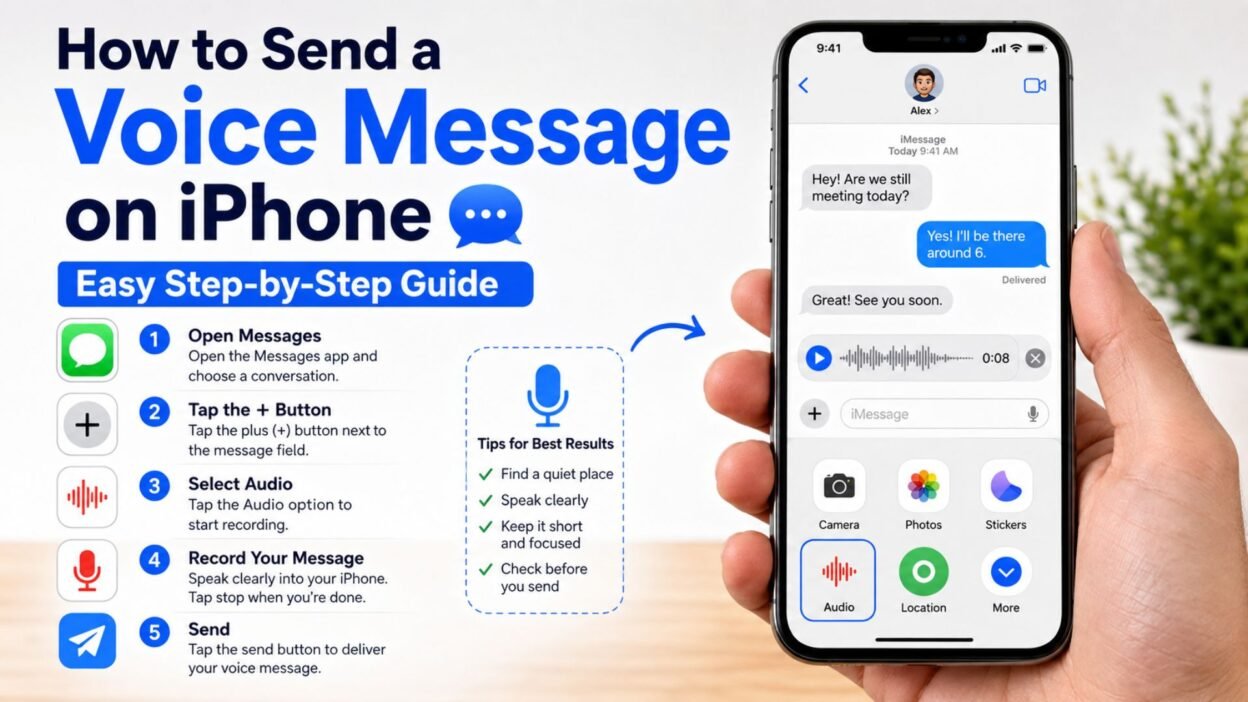
If you are wondering how to send voice message on iPhone, the good news is that the process is simple. Apple’s Messages app lets you record your voice directly inside a conversation and send the recording to another person. You can also use voice messaging through apps such as WhatsApp, Messenger, Telegram, and other communication platforms.
This guide focuses mainly on sending an audio message through the iPhone Messages app. It also explains what to do if the microphone button seems missing, how to cancel a recording, how to listen to received audio, and how to avoid common mistakes.
Whether you are using an iPhone for the first time or simply cannot find the voice-message option, you should be able to follow these steps without any technical experience.
How to Send a Voice Message on iPhone Using Messages
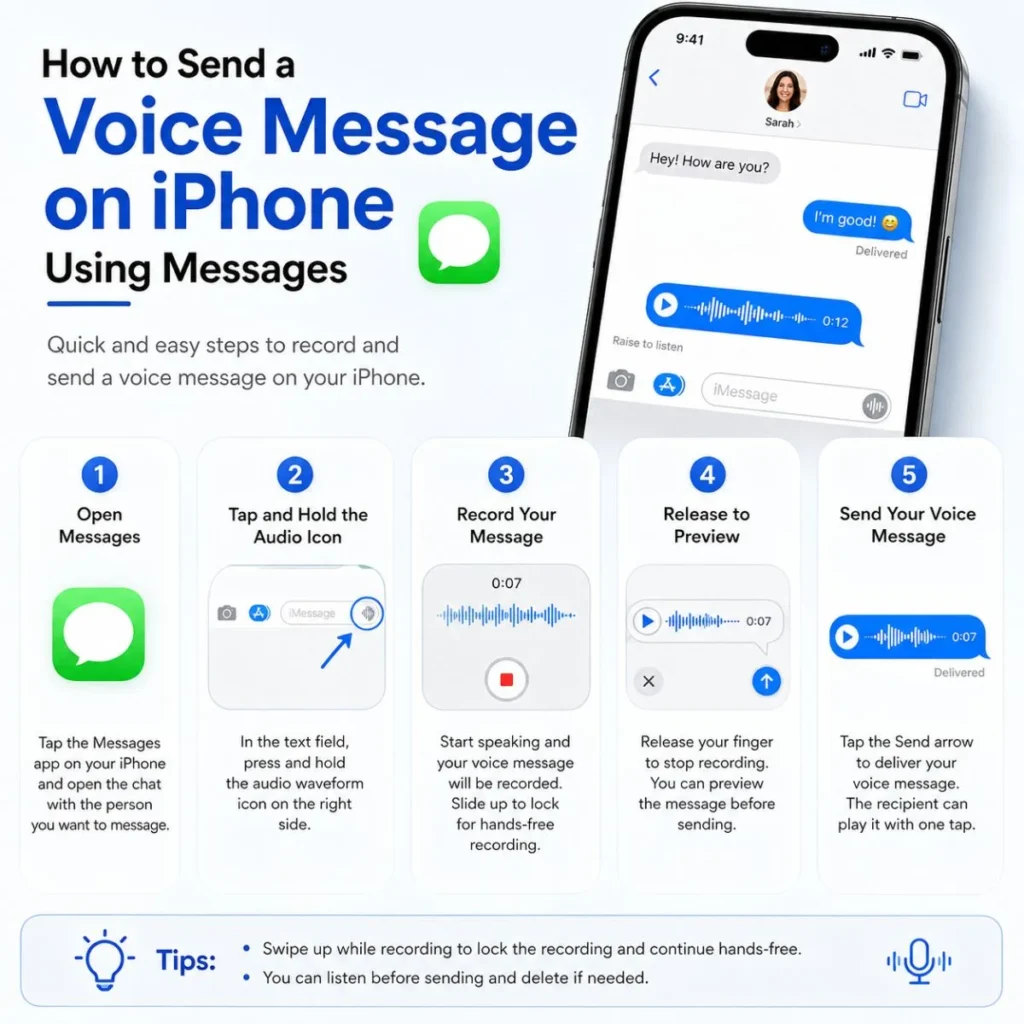
The easiest way to send an iPhone voice message is through the built-in Messages app. You can record your voice directly inside an individual or group conversation.
The exact appearance of the buttons can vary slightly depending on your iOS version, but the basic process remains straightforward.
Step 1: Open the Messages app
Find the Messages app on your iPhone and open it.
You can either:
- Open an existing conversation.
- Tap the compose button to start a new message.
- Select the person or group you want to contact.
Make sure you are messaging the correct person before recording. This is especially important if you are sending something personal or sensitive.
Step 2: Find the audio or voice-message button
Inside the conversation, look around the message-composition area for the option that lets you record an audio message.
On recent versions of iOS, Apple has changed the Messages interface, so the voice-message control may not look exactly like it does in older tutorials.
If you do not immediately see the audio option, tap the plus (+) button beside the text field. This opens additional Messages features, where the audio-message option can be available.
Step 3: Start recording
Tap the audio recording option and begin speaking.
You do not need to shout or hold the iPhone directly against your mouth. Speak naturally and keep the phone at a comfortable distance.
For a clearer recording:
- Move somewhere with less background noise.
- Speak at your normal volume.
- Avoid covering the microphone with your hand.
- Pause briefly if you need to collect your thoughts.
- Keep your message focused if the recipient needs specific information.
A voice message does not have to sound perfectly rehearsed. In many situations, the natural quality of your voice is exactly what makes an audio message feel personal.
Step 4: Review or send the recording
Depending on your iOS version and the Messages interface, you may be able to stop or cancel the recording before sending it.
If the recording sounds good, use the send control to deliver it.
If you change your mind, cancel or discard the recording instead of sending it.
That is the basic answer to how to send voice message on iPhone: open Messages, select the conversation, access the audio-message feature, record your voice, and send the recording.
How to Record a Better Voice Message on iPhone
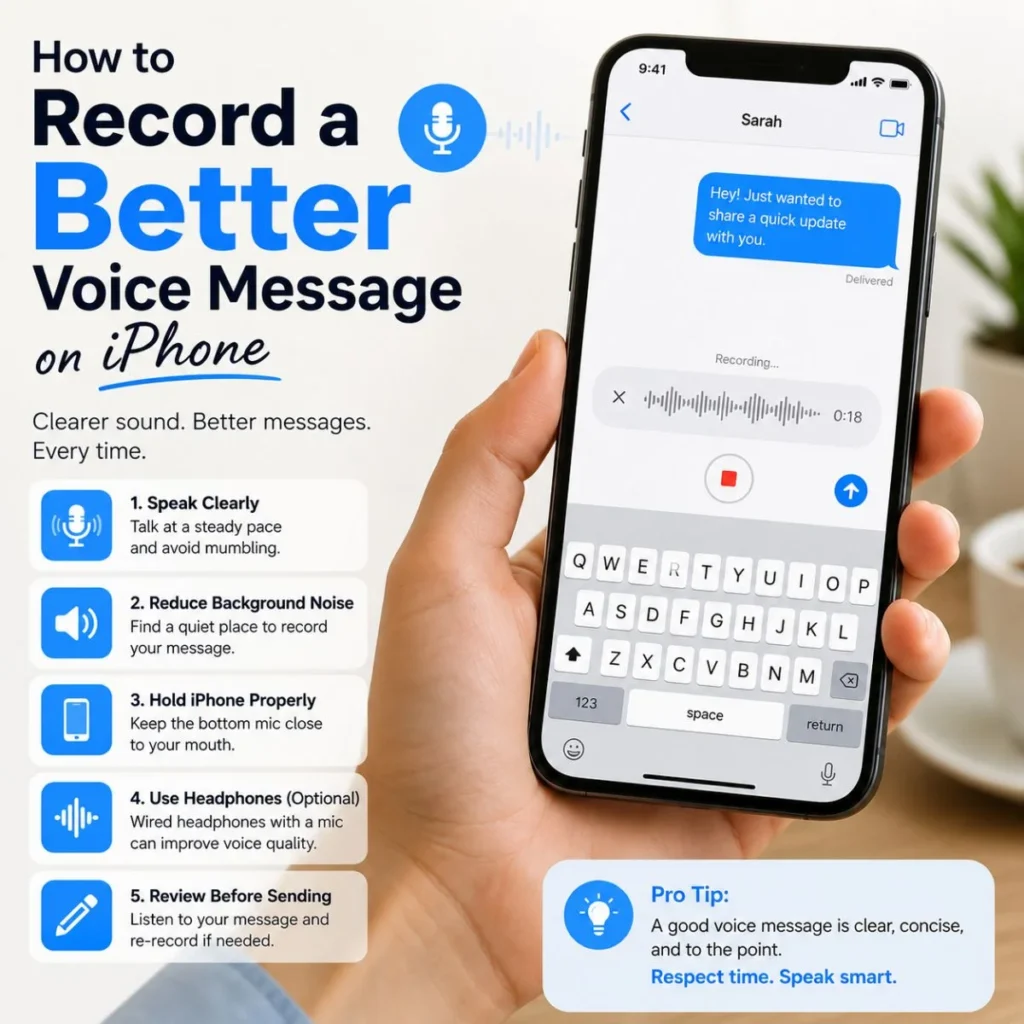
Knowing which button to press is only half the process. A technically successful recording can still be difficult to understand if there is too much noise or the speaker talks too quickly.
A few small changes can make your voice messages much better.
Find a quiet place
Background sounds such as traffic, television, fans, music, or people talking can make a recording difficult to understand.
You do not need a completely silent room. Just move away from the loudest source of noise when possible.
Speak naturally
Do not force yourself to speak like you are recording a professional podcast.
A relaxed, natural voice usually sounds clearer and more personal.
Keep the message organized
If you have several things to say, briefly organize your thoughts before pressing record.
For example:
- “Hey, I wanted to tell you three things. First, I got the tickets. Second, I’ll meet you around seven. And finally, don’t forget to bring your ID.”
This is easier to follow than jumping between unrelated topics.
Avoid unnecessary length
Voice messages can be convenient, but extremely long recordings can become difficult for the recipient to listen to.
If your message contains several unrelated subjects, consider sending two or three shorter recordings instead.
Check your surroundings
Remember that a voice message captures sound from your environment. Before recording something private, make sure other people cannot overhear you or unintentionally become part of the recording.
How to Send a Voice Message on iPhone Without Typing
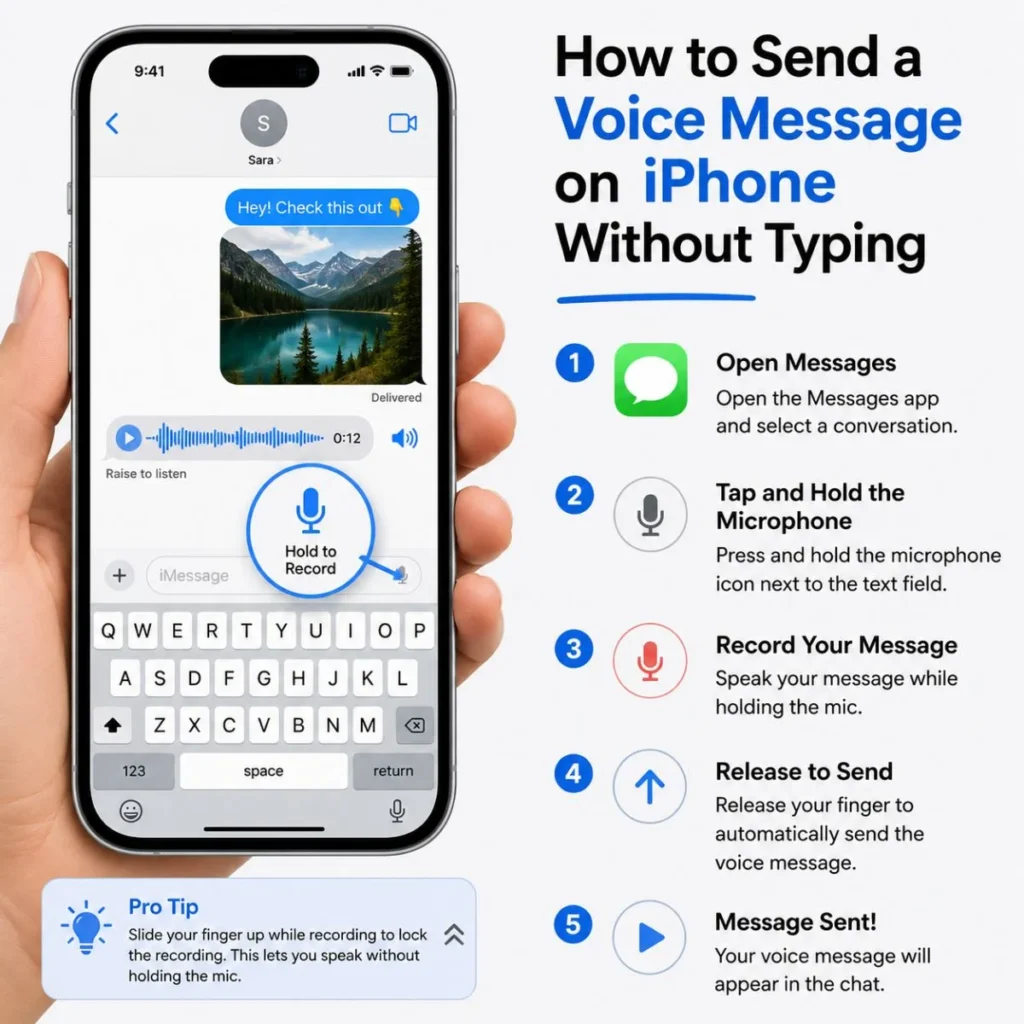
One of the biggest advantages of voice messaging is that you do not have to type.
This can be particularly useful when:
- Your hands are busy.
- You are explaining something complicated.
- You want to communicate emotion through your voice.
- You are sending a quick update.
- You are uncomfortable typing a long message.
- You want the recipient to hear your tone.
For example, typing “I had such a great time today” communicates the words, but saying it naturally can communicate excitement, affection, or humor that plain text may not capture as easily.
Voice messages are therefore not simply a faster alternative to typing. They can add personality to ordinary conversations.
How to Cancel a Voice Message Before Sending It
Sometimes you begin recording and immediately realize that you said the wrong thing. Perhaps someone walked into the room, your phone picked up unwanted background noise, or you simply want to start over.
In that situation, look for the cancel, discard, or delete control shown while recording or before sending.
The exact gesture and icon can depend on the current iOS version and Messages interface.
The important thing is simple: do not press Send if you are unhappy with the recording.
If you have already sent it, the available options are different. You may be able to unsend a recently sent message under Apple’s applicable messaging rules and time limits, but you should not assume that an unsent message can always be recovered or that the recipient has not already heard it.
When sending something sensitive, always take a moment to confirm the recipient before pressing send.
How to Listen to a Voice Message You Receive on iPhone
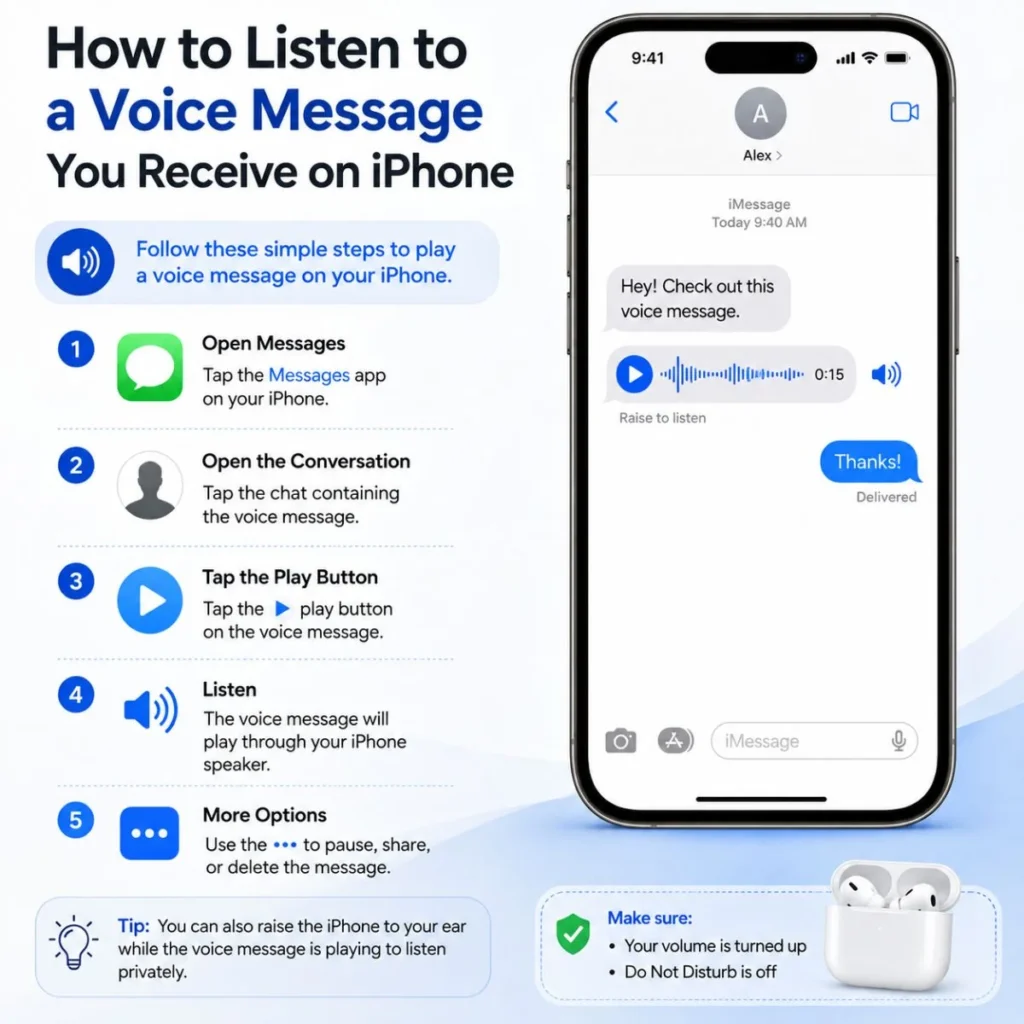
Sending audio is only one side of voice messaging. You may also receive an audio message from someone else.
When someone sends you a voice message through Messages, you can tap the audio message to play it.
Depending on the interface and message state, you may see controls for playing, pausing, or interacting with the recording.
If you are somewhere noisy, headphones can make the recording easier to understand.
You can also adjust your iPhone’s volume using the physical volume buttons or Control Center, depending on your situation.
What if the voice message is too quiet?
First, check your iPhone volume.
Then make sure the speaker or relevant microphone openings are not blocked by a case, dirt, or another object.
If other audio on your iPhone is also unusually quiet, the issue may not be specific to Messages.
How to Send a Voice Message on iPhone to a Group
You can send an audio message inside a group conversation in Messages in much the same way as you would in an individual chat.
The main difference is that multiple people may receive and listen to your recording.
Before sending, think about whether the message is appropriate for everyone in the group.
For example, a quick plan such as:
- “I’ll be at the restaurant around 7:15. If anyone gets there first, grab a table.”
works well in a group chat because everyone receives the same information.
For personal conversations, however, it may be better to send the recording directly to the intended person.
How to Send Voice Messages on iPhone Using WhatsApp
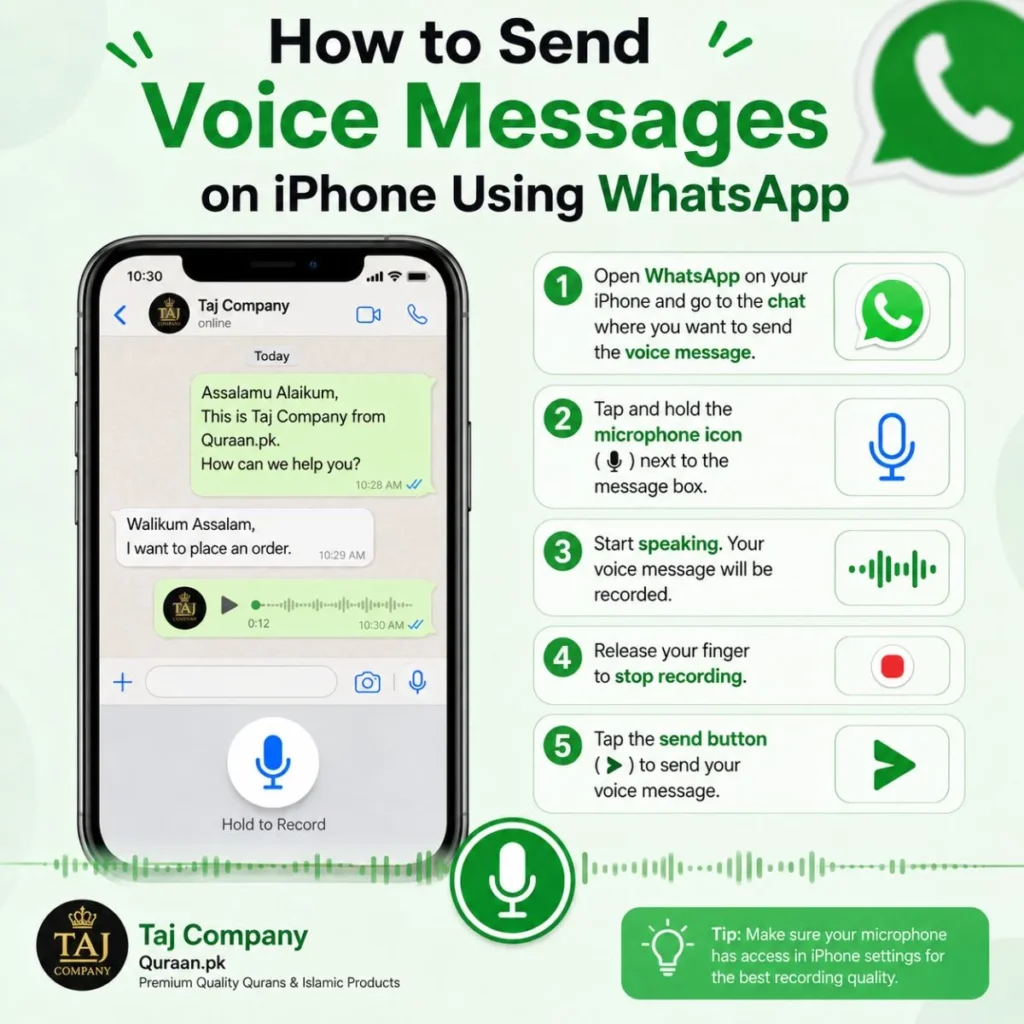
Many iPhone users use WhatsApp rather than Apple Messages for everyday communication.
The basic process in WhatsApp is also simple.
Open WhatsApp and select the conversation where you want to send the recording. Look for the microphone control near the message field.
Depending on the current WhatsApp interface, you can generally press and hold the microphone button to record. WhatsApp also provides a way to lock a recording so you do not have to keep your finger pressed throughout a longer message.
After recording, review the controls shown on screen and send the audio when you are satisfied.
If you want to cancel a recording, use the cancellation control before sending it.
The important distinction is that iMessage voice messages and WhatsApp voice messages are handled by different apps, even though the basic idea is the same.
How to Send Voice Messages Through Other iPhone Apps
Voice messaging is not limited to Messages and WhatsApp.
Many communication apps provide their own audio-recording controls.
The general pattern is usually:
- Open the messaging app.
- Select a conversation.
- Locate the microphone or audio-message button.
- Record your message.
- Release or stop recording.
- Review the recording if the app provides that option.
- Send it.
The exact controls vary from one app to another, so an instruction written specifically for Messages may not apply to another service.
If you cannot find the microphone button, check the app’s current interface rather than assuming your iPhone microphone is broken.
Why Can’t I Send a Voice Message on My iPhone?
If the audio-message option is missing or your recording does not work, several things could be responsible.
Check microphone permissions
An app may need permission to use your microphone.
Open your iPhone’s privacy settings and review which apps have microphone access. If the relevant messaging app does not have permission, its audio-recording feature may not work correctly.
Check whether the microphone works elsewhere
Try recording audio in another app that uses the microphone.
This helps determine whether the problem is related specifically to the messaging app or to the iPhone itself.
If the microphone works normally in other apps, the messaging app may need attention.
Restart your iPhone
A simple restart can sometimes resolve temporary software problems.
After restarting, open Messages again and test the voice-message feature.
Check for software updates
Apple periodically changes the Messages interface and system behavior through iOS updates.
If a tutorial you watched shows a button in a different location, your iPhone may simply be running a newer or older version of iOS.
This is one reason you should not rely entirely on screenshots from old tutorials.
Check your internet connection
Depending on the type of message and messaging service you are using, connectivity can affect whether the message is delivered.
If other messages are also failing to send, check your Wi-Fi or cellular connection.
How to Make Your Voice Message More Personal
A voice message can feel more genuine than a standard text when you use your natural voice and add a little context.
Instead of simply saying:
“Thanks.”
you could say:
“Hey, I just wanted to say thank you. You really helped me out today, and I appreciate it more than you know.”
The second version does not require complicated words. It simply gives the recipient more of a sense of what you mean.
For friends, you can add humor.
For family, a warm greeting can make a short update feel more thoughtful.
For professional communication, keep your tone clear and respectful.
For someone you care about, your voice can communicate warmth that text sometimes struggles to express.
Add the person’s name
Starting with someone’s name can immediately make a recording feel more direct.
For example:
“Hey Sarah, I wanted to give you a quick update about tomorrow.”
That feels more personal than beginning abruptly with the main information.
Say why you are sending the recording
A short introduction can make the message easier to understand.
Try:
“I thought it would be easier to explain this by voice.”
That tells the recipient why you chose an audio message instead of text.
When a Voice Message Is Better Than a Text
Voice messages are especially useful when tone and explanation matter.
Use voice when the story is complicated
If explaining something would require several paragraphs, speaking may be much easier.
Use voice when emotion matters
Apologies, congratulations, gratitude, excitement, and encouragement can sometimes sound more sincere when the recipient hears your voice.
Use text when the information needs to be saved
If you are sharing an address, appointment time, phone number, list, password reset instruction, or other information the person may need to reference later, text can be more practical.
A useful rule is:
Use voice for expression and explanation; use text for information that needs quick reference.
Of course, there are exceptions. The best format depends on the recipient and situation.
Common Mistakes to Avoid When Sending Voice Messages
Voice messaging is easy, but a few mistakes can make it less useful.
Sending without checking the recipient
Always make sure the recording is going to the intended person or group.
Recording in a noisy environment
Your voice may be understandable to you while the recipient hears mostly traffic, wind, or conversations.
Speaking too quickly
When people record casually, they often speak faster than they realize. Slow down slightly.
Sending a very long recording
If the message becomes a ten-minute story, consider whether several shorter recordings or a text would be easier.
Sharing sensitive information
Avoid casually sending private information in audio messages simply because recording feels convenient.
Assuming the recipient can listen immediately
The other person may be at work, in a meeting, on public transportation, or somewhere where playing audio is inconvenient.
If the information is urgent, consider sending a short text alongside the voice message.
Voice Message Ideas for Everyday Conversations
You do not always need a long explanation. A short recording can be enough.
Here are practical examples of situations where an audio message works naturally:
- “Hey, I’m running a few minutes late. I’ll call you when I get there.”
- “I wanted to explain what happened because it’s easier to say than type.”
- “Just checking in to see how your day is going.”
- “I have an idea for the weekend. Let me know what you think.”
- “I’m on my way now. See you soon!”
- “I’m sorry I missed your call. Everything okay?”
- “Thanks again for helping me today. I really appreciate it.”
- “I just remembered something important I wanted to tell you.”
- “Call me when you get a chance. I have a funny story to tell you.”
- “I’m sending this as a voice message because I’m terrible at explaining this by text.”
These examples are intentionally conversational. The best voice messages usually sound like something you would actually say rather than something written for an article.
Tips for Professional Voice Messages
Voice messages can also be useful for work, but the expectations are different.
Before sending one to a colleague, client, manager, or professional contact, consider whether audio is appropriate for the situation.
Keep the recording concise and structured.
A professional voice message might sound like:
“Hi James, I wanted to give you a quick update on the project. The first section is finished, and I’m reviewing the remaining details this afternoon. I’ll send you the updated file once that’s complete.”
That is more useful than an unstructured recording that jumps between several topics.
For professional communication:
- Introduce yourself if necessary.
- State the purpose immediately.
- Keep the recording focused.
- Mention important dates or deadlines clearly.
- Follow up with text when the recipient needs written details.
- Avoid sending unnecessarily long recordings.
If the information is formal, contractual, or especially important, written communication may be preferable.
How to Personalize an iPhone Voice Message
The easiest way to make an audio message feel personal is to speak naturally instead of reading a script word-for-word.
Before recording, think about three things:
What happened?
Give the recipient enough context.
Why am I telling them?
Explain the purpose if it is not obvious.
What do I want them to do next?
If you need a response, make that clear.
For example:
“Hey, I checked the restaurant for Friday. They have a table at eight, so I went ahead and held it. Let me know if that time works for you.”
The message is short, but it contains context, an update, and a clear next step.
That is much more useful than simply saying, “I checked the restaurant.”
Frequently Asked Questions
How do I send voice message on iPhone?
Open the Messages app and select the conversation where you want to send the recording. Use the audio or voice-message option in the message area, record your message, and send it. On newer iOS versions, you may need to tap the + button to access additional Messages features.
Where is the voice-message button on iPhone?
The location can depend on your iOS version. In newer Messages interfaces, tap the + button next to the text field to view additional options. Look for the audio or voice-message feature there.
Can I send a voice message instead of typing?
Yes. Voice messaging lets you record your speech and send it as audio. It can be particularly useful for long explanations, quick updates, or situations where tone and emotion matter.
Why can’t I record a voice message on my iPhone?
Check that the messaging app has permission to access your microphone. You can also test the microphone in another app, restart your iPhone, check your internet connection, and make sure your software is up to date.
Can I send a voice message to a group on iPhone?
Yes. You can record and send an audio message within a supported group conversation. Remember that everyone in the group may receive and listen to the recording.
Is a voice message better than a text message?
Neither is always better. Voice messages are useful for emotion, explanation, and conversational updates, while text is often better for information that someone needs to read, search, or reference later. Choose the format that fits the situation.
Final Thoughts
Learning how to send voice message on iPhone is a small skill, but it can make everyday communication much easier. Instead of typing a long explanation, you can speak naturally and let the recipient hear your tone, excitement, humor, concern, or appreciation.
The process is generally simple: open your messaging conversation, find the audio-message feature, record what you want to say, and send it. If you cannot find the option, remember that the Messages interface can change between iOS versions, so checking the + menu may help.
The best voice messages are not necessarily the longest or most polished. They are clear, appropriate, and genuine. Take a second to check who you are sending the recording to, move somewhere reasonably quiet, and say what you actually mean.
Once you get comfortable with the feature, voice messages can become a natural part of your conversations—especially when a few spoken words can express something that would take a whole paragraph to type.

Muhammad Sarfraz is a content creator and author at Message Ideas Daily, passionate about creating heartfelt, practical, and meaningful message ideas that help people express their feelings and connect with others.