
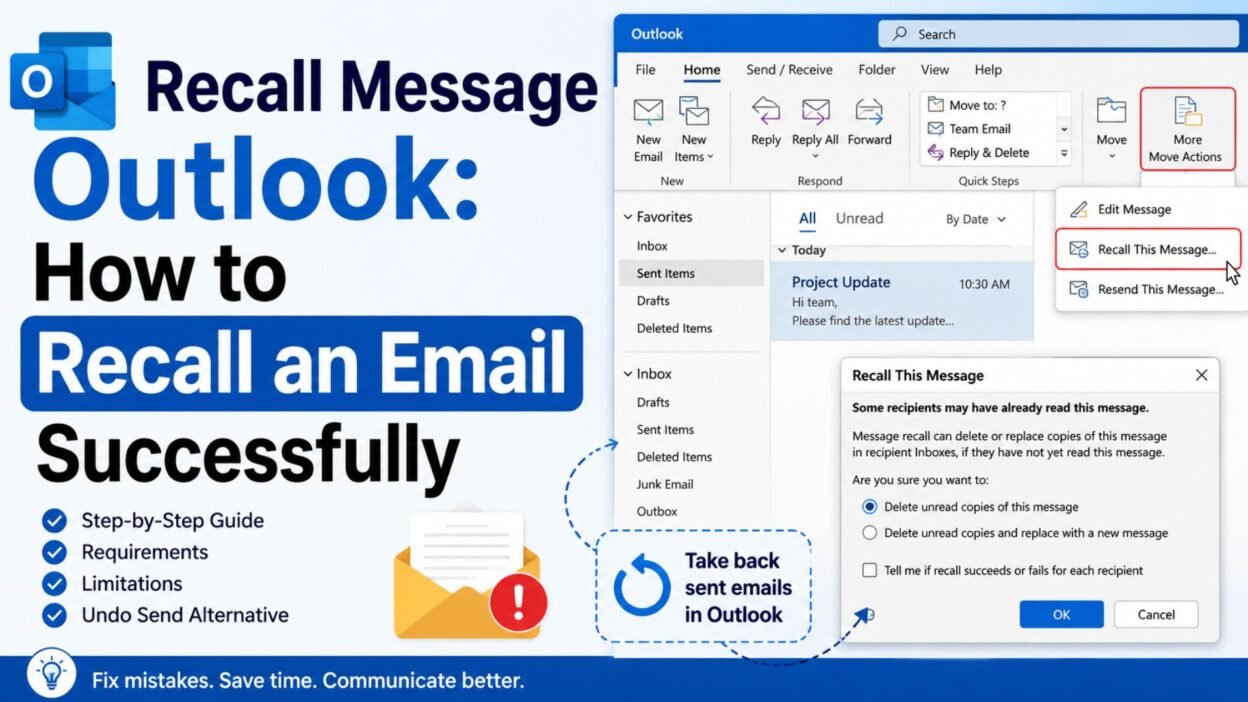
You click Send, and then notice the wrong attachment, an embarrassing typo, an outdated figure, or—worst of all—the wrong recipient. If you’ve ever had that moment of instant regret, you have probably searched for recall message Outlook hoping there is a way to pull the email back.
Fortunately, Outlook does have a Message Recall feature, but it does not work like deleting a message from a chat app. Whether you can recall an email depends on the type of Outlook account you use, your recipient’s account, your organization, and whether the recipient has already opened the message. Microsoft currently supports message recall for qualifying Microsoft 365 work or school accounts, including supported versions of new Outlook, Outlook on the web, classic Outlook, and Outlook for Mac.
This guide explains exactly how Outlook recall works, how to use it, why it sometimes fails, and what you can do when recall simply isn’t available. If you are staring at a sent email and wondering whether you can undo the mistake, start with the requirements below.
What Does “Recall Message” Mean in Outlook?
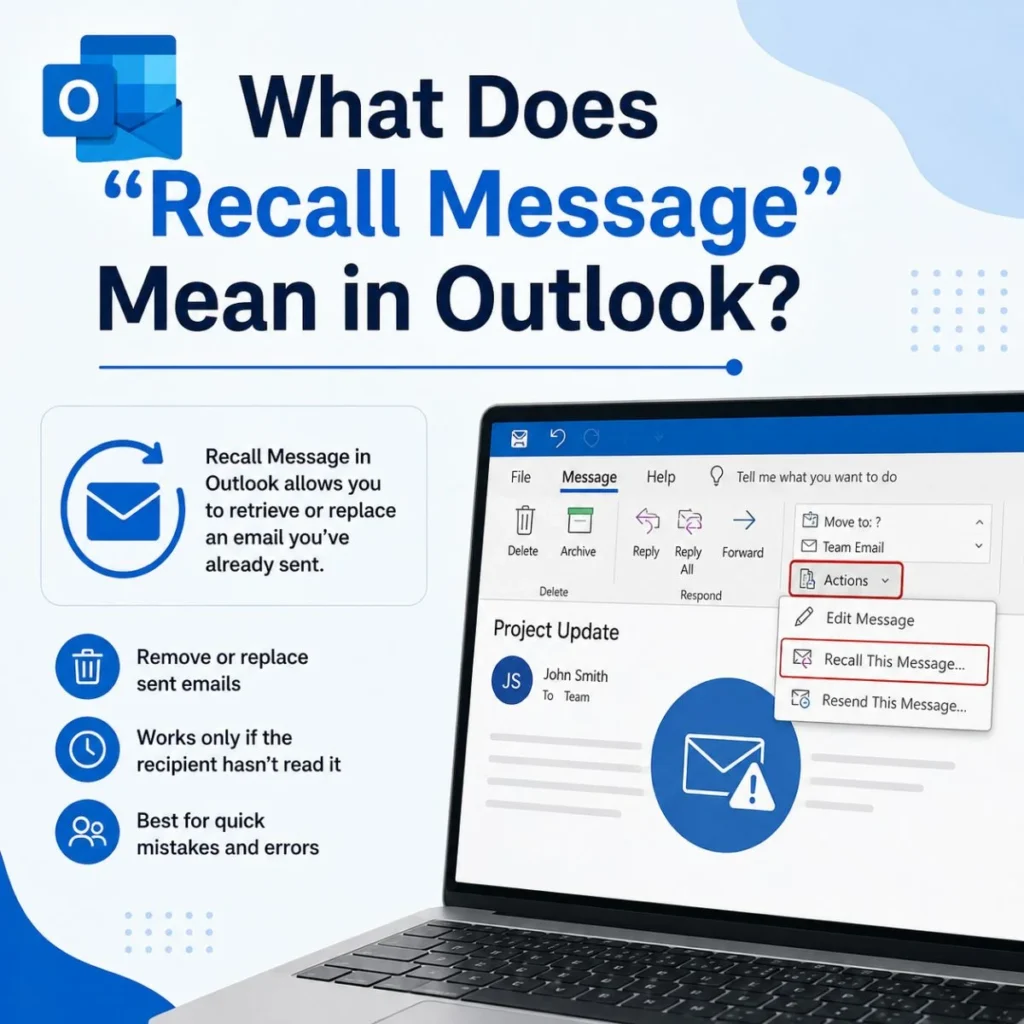
An Outlook message recall is an attempt to retrieve a sent email from a recipient’s mailbox before they open it. In supported Microsoft 365 environments, you can also choose to replace the original message with a corrected version—for example, when you forgot an attachment or need to fix important information.
It is important to understand that recall is not the same as deleting an email from your Sent Items folder. Deleting your copy does not remove the recipient’s copy.
Recall is also not a guaranteed “take it back” button. Outlook must be able to process the recall under the conditions required by Microsoft’s messaging system. If the recipient has already opened the message or the accounts do not meet the requirements, the recall may not succeed.
That is why the first question should not be “Where is the recall button?” It should be:
“Is my email eligible to be recalled?”
Can You Recall a Message in Outlook?
Yes, but only in supported situations.
According to Microsoft, message recall is available when both you and the recipient have Microsoft 365 work or school email accounts in the same organization, and the recipient has not opened the message. Personal accounts such as Gmail, Hotmail, Outlook.com, Live.com, and MSN.com do not support traditional message recall.
Here is the simplest way to think about it:
SituationCan recall work?Microsoft 365 work account to colleague in the same organizationYes, if other requirements are metMicrosoft 365 school account to another user in the same organizationYes, if other requirements are metPersonal Outlook.com accountNo traditional recallHotmail accountNo traditional recallGmail recipientNo traditional recallRecipient has already opened the emailRecall may not succeedDifferent organizationsGenerally not supportedMAPI or POP accountRecall does not work
Microsoft specifically notes that MAPI and POP accounts cannot use message recall.
So if you sent an email from a personal Outlook.com address to a Gmail address, repeatedly searching through Outlook settings will not make the recall feature appear. In that situation, your better option is to send a correction or use Undo Send in the future.
How to Recall a Message in New Outlook
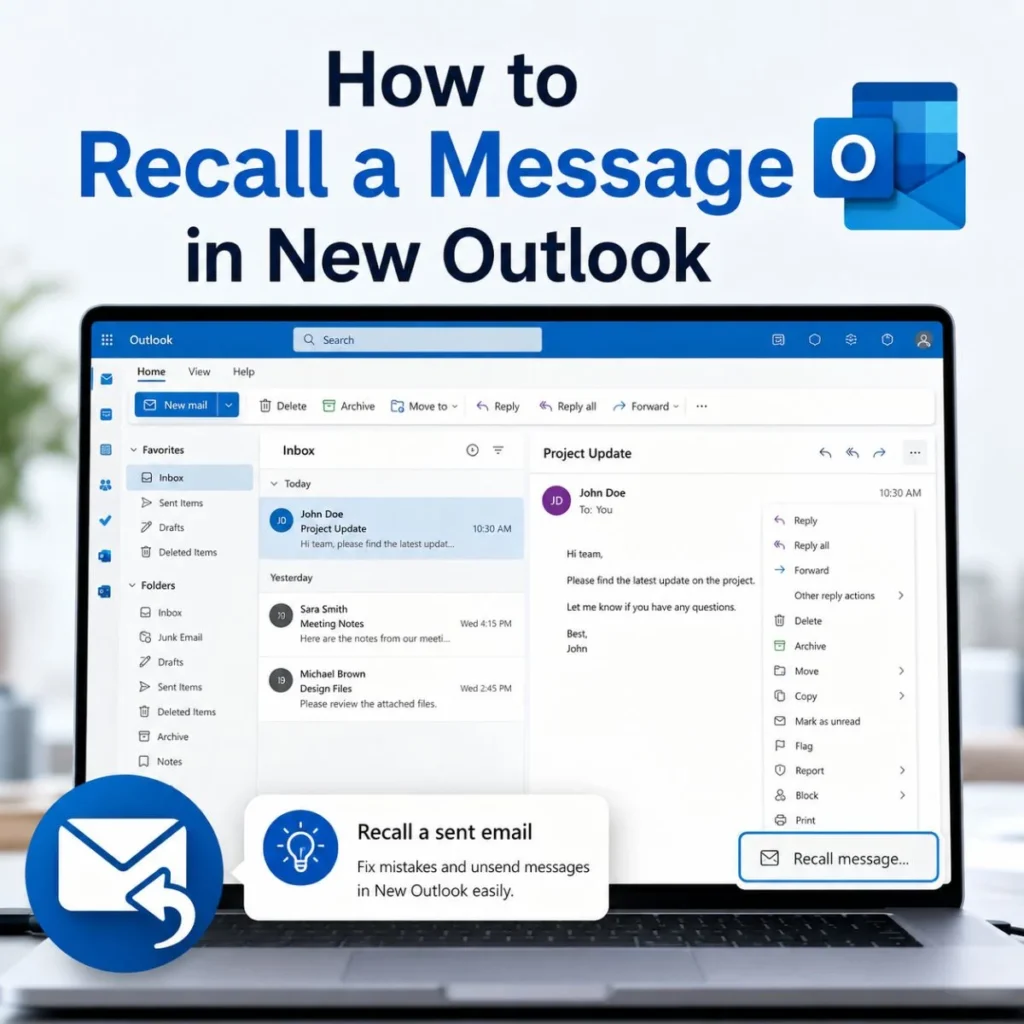
If you’re using the current version of Outlook for Windows and have a qualifying Microsoft 365 work or school account, the process is straightforward.
Step 1: Open Sent Items
Open Outlook and select Sent Items from the folder list.
Find the email you want to recall.
Step 2: Open the Sent Email
Double-click the message so it opens in its own window.
This matters because simply selecting an email in the message list may not expose all of the required commands in some Outlook versions. Microsoft’s instructions specifically tell users to open the sent message.
Step 3: Select Recall Message
In new Outlook, choose Recall Message from the message controls.
Depending on the interface and version, you may find the command through the message’s additional actions.
Step 4: Confirm the Recall
Confirm that you want Outlook to recall the message.
Outlook then attempts to retrieve the message from recipients who have not opened it.
Step 5: Check the Recall Report
After submitting the request, Outlook sends a Message Recall Report to your inbox. The report tells you whether the recall succeeded, is still pending, or failed.
Do not assume that clicking Recall Message means the email has definitely disappeared. The report is what tells you what happened.
How to Recall an Email in Classic Outlook
Classic Outlook has a slightly different interface.
Start by opening Sent Items and double-clicking the message you want to recall.
Then:
- Open the Message tab.
- Look for More Move Actions or the relevant actions menu.
- Select Recall This Message.
- Choose whether to delete unread copies or delete unread copies and replace the message.
- Select OK.
- If you chose replacement, edit the new message and send it.
Microsoft notes that if you do not see Recall This Message, your account may not be an Exchange account or the feature may not be available in your organization.
Classic Outlook also provides a recall report so you can determine whether the operation succeeded or failed.
Delete or Replace: Which Should You Choose?
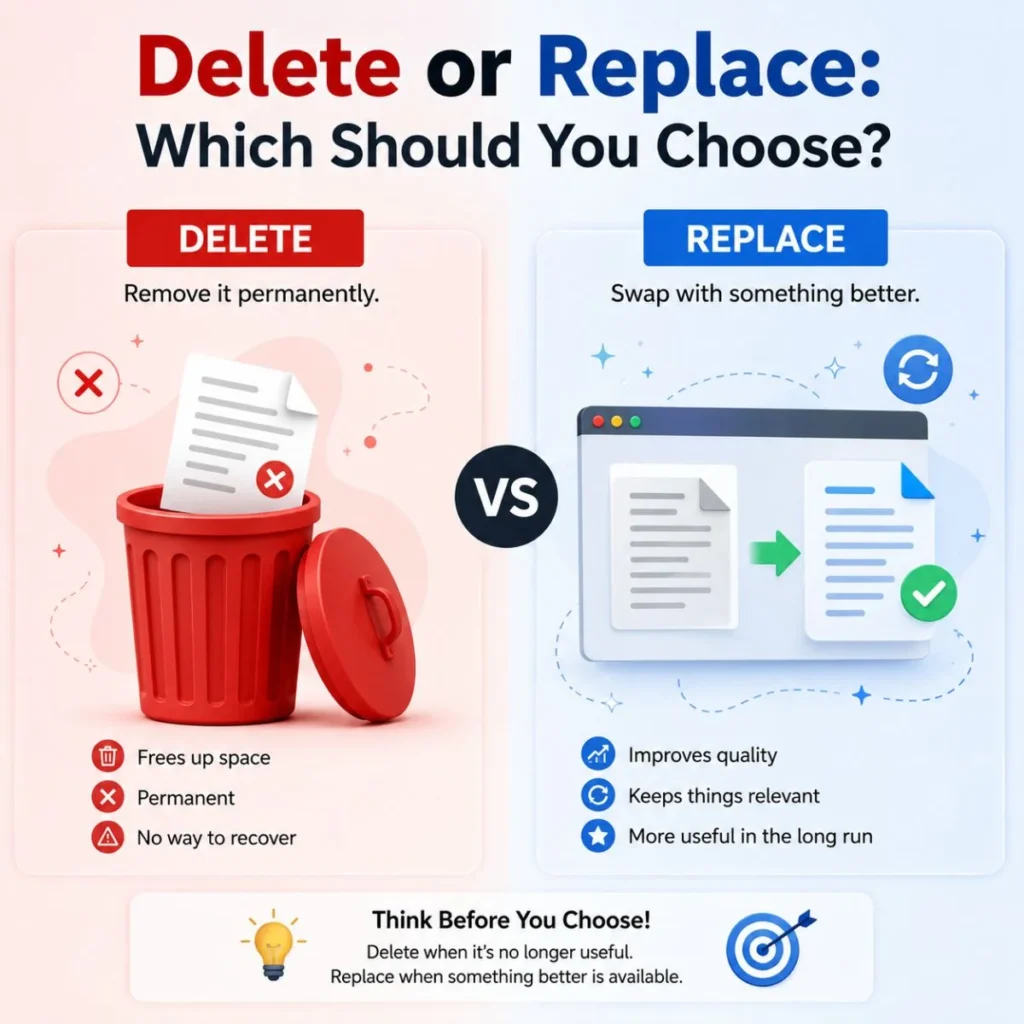
You generally have two choices.
Delete unread copies: Use this when the original email should not be seen at all.
Delete unread copies and replace with a new message: Use this when the original contains a mistake but you still need the recipient to receive the corrected information.
For example, imagine you sent a project proposal but forgot the PDF attachment. A replacement message can be more useful than simply deleting the original. You can correct the problem and send the updated version.
How to Recall a Message in Outlook on the Web
For supported Microsoft 365 work or school accounts, Outlook on the web also provides message recall.
Open Sent Items, then double-click the email you want to recall.
From the message controls, choose Recall Message and confirm the action. Microsoft says you should subsequently receive a Message Recall Report showing whether the request succeeded, is pending, or failed.
This is especially important because “Outlook on the web” and “Outlook.com” are not necessarily the same thing.
Outlook on the Web vs. Outlook.com
This distinction causes a lot of confusion.
Outlook on the web can refer to the web version of Outlook used with a qualifying Microsoft 365 work or school account.
Outlook.com is Microsoft’s personal email service.
Microsoft states that traditional message recall is not available for personal Outlook.com, Hotmail.com, Live.com, or MSN.com addresses.
Therefore, if you are signed into a personal Outlook.com account, you should not expect to find the same recall functionality available to an organization’s Microsoft 365 users.
How to Recall an Email in Outlook for Mac
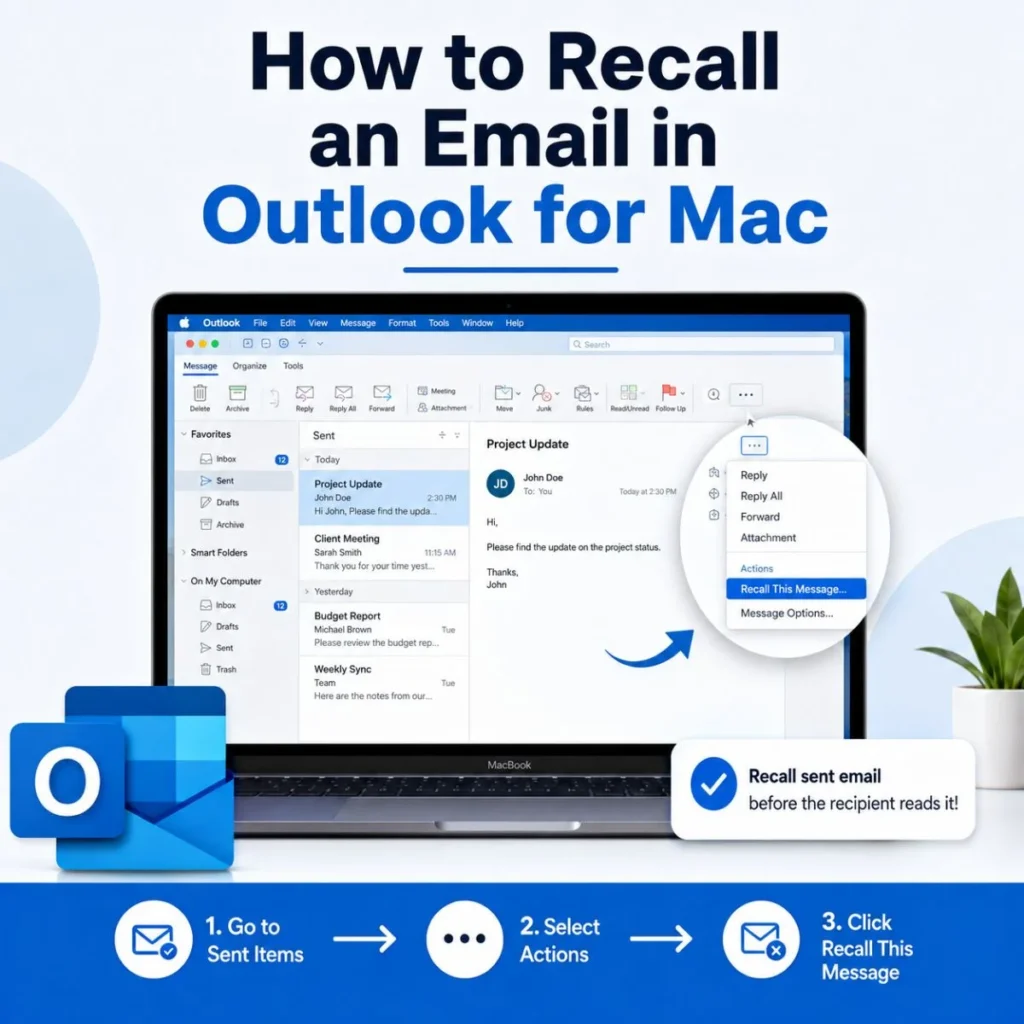
Outlook for Mac now supports message recall for qualifying Microsoft 365 work or school accounts.
Microsoft says the feature is available in Outlook for Mac 16.94 (Build 25010522) or later and is not supported in legacy Outlook for Mac.
To recall a message:
- Open the Sent folder.
- Double-click the sent message.
- Select Recall from the ribbon.
- Confirm the recall.
- Watch for the Message Recall Report.
If you do not see the Recall button, Microsoft notes that you can customize the toolbar to add it when supported.
The same major restriction still applies: both sender and recipient need qualifying Microsoft 365 work or school accounts within the same organization.
What Happens If the Recipient Already Opened the Email?
This is one of the most important limitations of Outlook recall.
A recall is intended to retrieve a message that the recipient has not yet opened. Microsoft’s current guidance describes recall as retrieving a sent message from recipients who have not opened it.
If someone has already read the email, you should not count on recall to erase what they saw.
Think about it practically. Once someone has read your message, they may have:
- Seen the contents
- Downloaded an attachment
- Copied information
- Taken a screenshot
- Forwarded the message
- Written down important details
Even a successful technical recall cannot undo something the recipient has already seen or saved elsewhere.
If the information is sensitive or genuinely important, send a clear correction rather than relying entirely on recall.
Why Is “Recall Message” Missing in Outlook?
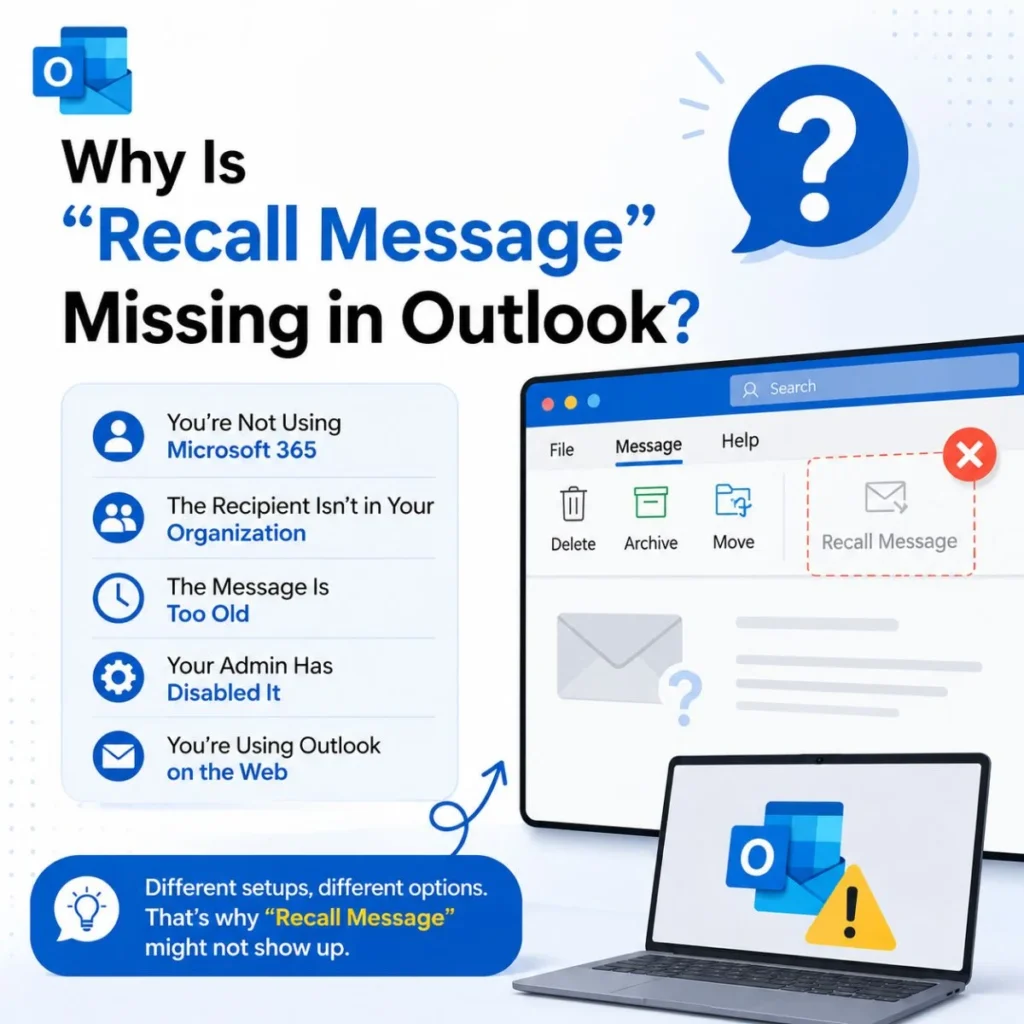
There are several reasons the recall option may not appear.
You’re Using a Personal Account
If you’re using an Outlook.com, Hotmail.com, Live.com, or MSN.com address, traditional message recall is unavailable.
The Recipient Is Outside Your Organization
Traditional recall is designed for supported Microsoft 365 environments within the same organization. Sending a message to an external address can prevent recall from working.
You’re Using an Unsupported Account Type
Microsoft specifically states that recall does not work for MAPI or POP accounts.
You’re Using an Older Outlook Version
Features and menus vary between classic Outlook, new Outlook, Outlook for Mac, and web Outlook. If instructions do not match what you see, first identify which version you’re using.
Your Organization Doesn’t Allow the Feature
In a business or school environment, administrators and account configuration can affect available functionality.
You’re Looking at the Message Without Opening It
In some Outlook versions, the recall command requires the sent message to be opened in its own window rather than merely selected in the reading pane.
Can You Recall an Email Sent to Gmail?
Generally, no.
If you send an Outlook email to someone using Gmail, you should not expect Outlook’s traditional Message Recall feature to retrieve that message.
The same applies when sending to other personal email services.
If you made a mistake, the practical solution is to send a follow-up message such as:
Please disregard my previous email. I noticed an error in the information and will send the corrected version shortly.
If the mistake is minor, a direct correction can actually be less awkward than trying to explain a failed recall.
What If Outlook Recall Fails?
A failed recall does not necessarily mean you have no options.
First, read the Message Recall Report. Microsoft says the report identifies whether the recall succeeded, is pending, or failed.
If it failed, consider the seriousness of the original email.
For a simple typo, send a short correction.
For a missing attachment, send the attachment immediately.
For incorrect information, clearly identify what needs to be corrected.
For a sensitive message, contact the recipient or the appropriate person in your organization rather than assuming the failed recall has solved anything.
A Simple Correction Message
Hi, please disregard my previous email. I noticed an error in the information I sent. I’ve corrected it below and apologize for the confusion.
Missing Attachment
Hi, I realized I forgot to include the attachment in my previous email. Please find the correct file attached here. Sorry about that!
Wrong Information
Quick correction to my previous message: the correct date is Thursday, not Wednesday. Apologies for the confusion.
These messages are often more useful than sending a long explanation about what went wrong.
Recall vs. Undo Send in Outlook
Recall and Undo Send sound similar, but they work differently.
Message Recall happens after an email has been sent and attempts to retrieve a qualifying message from a recipient’s mailbox.
Undo Send works by delaying the actual sending process, giving you a short window to cancel the message before it leaves.
For personal Outlook.com accounts, Microsoft recommends using Undo Send because traditional recall is unavailable. Outlook.com allows a sending delay of up to 30 seconds.
Outlook for Mac also offers Undo Send. Microsoft explains that it delays sending for a selected period, with available delays ranging from 5 seconds up to 120 seconds depending on the supported setup.
Why Undo Send Can Be Better
If you frequently catch mistakes seconds after pressing Send, Undo Send may be more useful than recall.
You might notice:
- A missing attachment
- A spelling mistake
- An incorrect recipient
- A sentence that sounds too harsh
- An outdated number
- A forgotten CC recipient
With a send delay, you have a brief opportunity to stop the message before it actually goes out.
That makes prevention easier than relying on recall afterward.
How to Use Outlook Recall Without Making the Situation Worse
The best approach is to act quickly but calmly.
Check the Recipient First
If the email went to the wrong person, don’t spend several minutes searching menus while worrying about the situation. Determine immediately whether your account supports recall.
Submit the Recall Quickly
If the message is eligible, submit the recall request as soon as possible.
The sooner you act, the less chance there is that the recipient has opened the email.
Check the Recall Report
Do not stop at the confirmation screen. Check the report to find out whether the recall actually succeeded.
Send a Correction When Necessary
If the recall fails, communicate clearly.
A calm correction is usually better than pretending the email never happened.
Don’t Overexplain
If you sent an email with a small mistake, you usually don’t need a five-paragraph apology.
A short, professional correction is enough.
How to Prevent the Need for an Outlook Recall
Recalling an email is useful, but prevention is even better.
Before sending an important message, take a few seconds to check four things:
Recipient: Is the email going to the correct person?
Attachment: Did you attach every file you mentioned?
Content: Are names, dates, numbers, and links correct?
Tone: Does the message sound the way you intend?
For sensitive or high-stakes emails, add one more step: pause before clicking Send.
If your Outlook version supports Undo Send, consider enabling a short delay. This creates a safety window for catching mistakes before the message is actually sent. Microsoft documents Undo Send as a delay-based feature rather than a true message recall.
Frequently Asked Questions
Can I recall an email in Outlook after sending it?
Yes, if your account and recipient meet Microsoft’s recall requirements. Traditional recall is intended for Microsoft 365 work or school accounts in the same organization, and the recipient should not have opened the message.
Can I recall an Outlook.com email?
No. Traditional message recall is not available for personal Outlook.com, Hotmail.com, Live.com, or MSN.com accounts. Microsoft instead provides Undo Send, which delays sending and gives you a short period to cancel the message.
Can I recall an email after the recipient reads it?
You should not rely on recall once the recipient has opened the message. Outlook’s recall feature is designed to retrieve messages that recipients have not opened.
Why can’t I find the Recall Message option?
Your account may not support recall, the recipient may be outside your organization, you may be using an unsupported account type, or your Outlook version may use a different interface. MAPI and POP accounts cannot use recall.
Can I recall an email sent to Gmail?
Traditional Outlook message recall is not designed to retrieve messages sent to Gmail or other external personal email accounts. If the message contains a mistake, send a correction instead.
Is Outlook recall the same as Undo Send?
No. Recall attempts to retrieve an already-sent message in supported Microsoft 365 environments. Undo Send delays sending so you can cancel the message before it is actually sent.
Final Thoughts
Searching for recall message Outlook usually means one thing: you sent an email and immediately realized something needs to change. The good news is that Outlook does provide a recall feature, but it has important conditions. Traditional recall is primarily intended for qualifying Microsoft 365 work or school accounts within the same organization, and success depends in part on whether the recipient has opened the message.
If you have access to recall, open the message from Sent Items, choose Recall Message, confirm the request, and then check the Message Recall Report. If you’re using a personal Outlook.com account or sending to an unsupported external address, don’t waste time looking for a recall option that isn’t available.
Instead, send a concise correction and consider enabling Undo Send for future emails. A short delay can give you valuable time to catch a missing attachment, wrong recipient, or embarrassing typo.
Most importantly, don’t panic after sending the wrong email. Check your options, act quickly, and communicate clearly if a correction is necessary. Sometimes the most professional response isn’t trying to make the mistake disappear—it’s simply fixing it well.

Muhammad Sarfraz is a content creator and author at Message Ideas Daily, passionate about creating heartfelt, practical, and meaningful message ideas that help people express their feelings and connect with others.