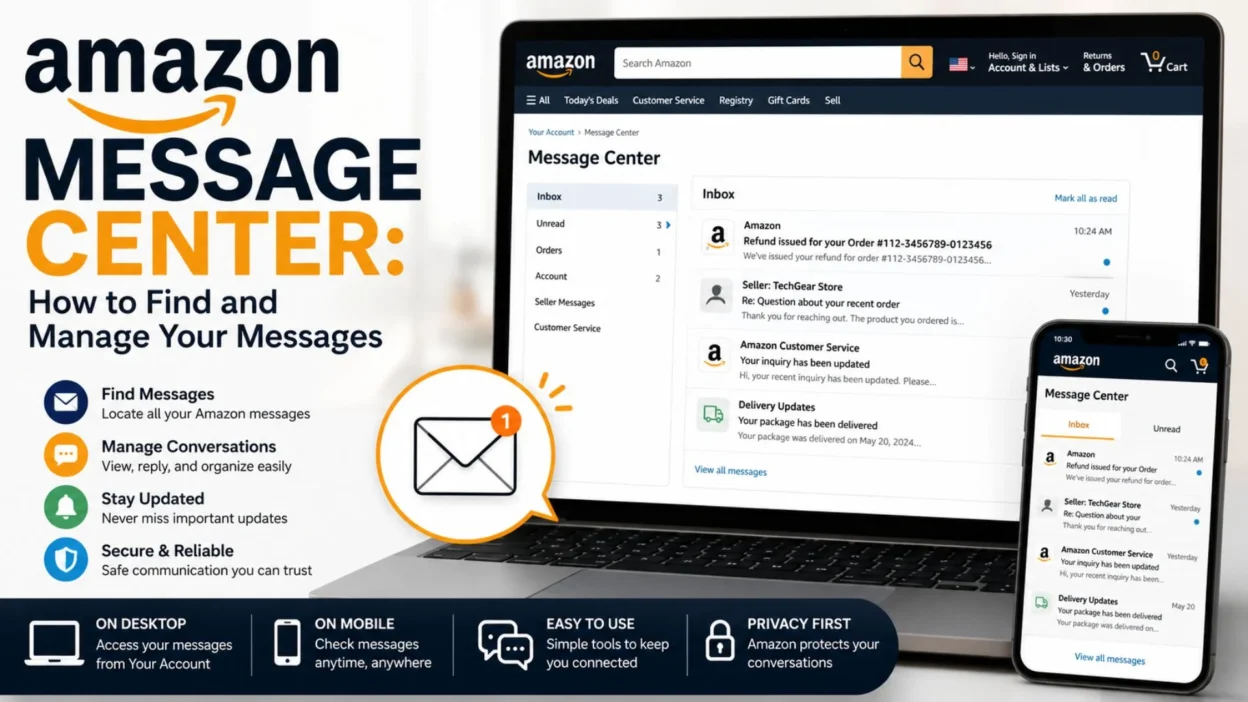
You’re waiting for an answer about an Amazon order, a seller has contacted you, or you remember receiving an important notification but can’t seem to find it. You check your email, look through your orders, and still don’t see the conversation. That’s where the Amazon Message Center can become useful.
Amazon’s messaging system can contain communications related to your account, orders, sellers, buyers, and other Amazon services. However, finding the right message isn’t always obvious because the location and available options can differ depending on whether you’re shopping as a customer or managing orders as a seller.
For shoppers, Amazon messages can be useful when you want to review communication connected with your Amazon account or seller interactions. For sellers, Amazon’s Buyer-Seller Messaging system is designed for communicating with buyers about orders and customer-service matters. Amazon says sellers generally cannot use this system for marketing or promotional messages.
In this guide, you’ll learn what the Amazon Message Center is, where to find it, how to check messages on desktop and mobile, what to do when messages seem to disappear, and how Buyer-Seller Messaging works for sellers.
What Is the Amazon Message Center?
The Amazon Message Center is the part of your Amazon account where certain communications associated with Amazon and marketplace interactions can be accessed.
Think of it as a mailbox inside Amazon rather than your ordinary email inbox. Instead of searching Gmail or another email provider for every Amazon-related conversation, you may be able to find account and marketplace communications directly through Amazon.
This is particularly useful when an interaction involves an Amazon seller. Rather than giving buyers and sellers unrestricted access to personal contact information, Amazon provides communication tools within its marketplace environment.
For sellers, Amazon specifically provides Buyer-Seller Messaging, which allows communication with buyers through Seller Central. Amazon explains that correspondence sent through the service is visible on the Buyer-Seller Messages page.
Depending on your role, you may encounter messages concerning:
- Questions about an Amazon order
- Communication with a marketplace seller
- Shipping or delivery issues
- Product-related questions
- Customer-service matters
- Order problems or changes
- Refund-related information
- Other account-related communications
One important distinction is that not every Amazon notification is necessarily a message from another person. Amazon also sends automated order updates through your account, such as shipping and refund information.
So if you’re looking for a particular message, it helps to understand whether you’re searching for a conversation, an automated Amazon notification, or an order update.
How to Access the Amazon Message Center
The exact appearance of Amazon can change as its website and apps are updated, so you may not see exactly the same buttons or menus described in older tutorials.
For a regular Amazon customer, start by signing in to the Amazon website using the account associated with the order or communication you’re looking for.
A common route is:
- Sign in to your Amazon account.
- Open Account & Lists.
- Go to Your Account.
- Look for the section related to messages or communications.
- Open the available Amazon messages area.
- Review the conversations or notifications associated with your account.
Older Amazon interfaces and Amazon seller discussions have referred to a “messages” area within the account, including messages involving Amazon, sellers, and buyers. Because Amazon changes its interface over time, the wording and placement may differ from what you see today.
If you are a seller rather than a shopper, the process is different.
For Amazon sellers
Amazon’s current seller documentation says sellers can access Buyer-Seller Messaging from Seller Central. Amazon describes selecting the envelope icon in the upper-right area of Seller Central, locating the conversation, and using filters or order details to find the appropriate message.
A typical workflow is:
- Sign in to Seller Central.
- Look for the messaging/envelope icon.
- Open Buyer-Seller Messages.
- Find the relevant buyer conversation.
- Review the order information.
- Reply when a response is appropriate.
You can also reach a buyer through the relevant order. Amazon has recently described using Orders > Manage Orders, finding the order, and selecting Contact Buyer to access the Buyer-Seller Messaging page.
Amazon Message Center on a Phone or Mobile App
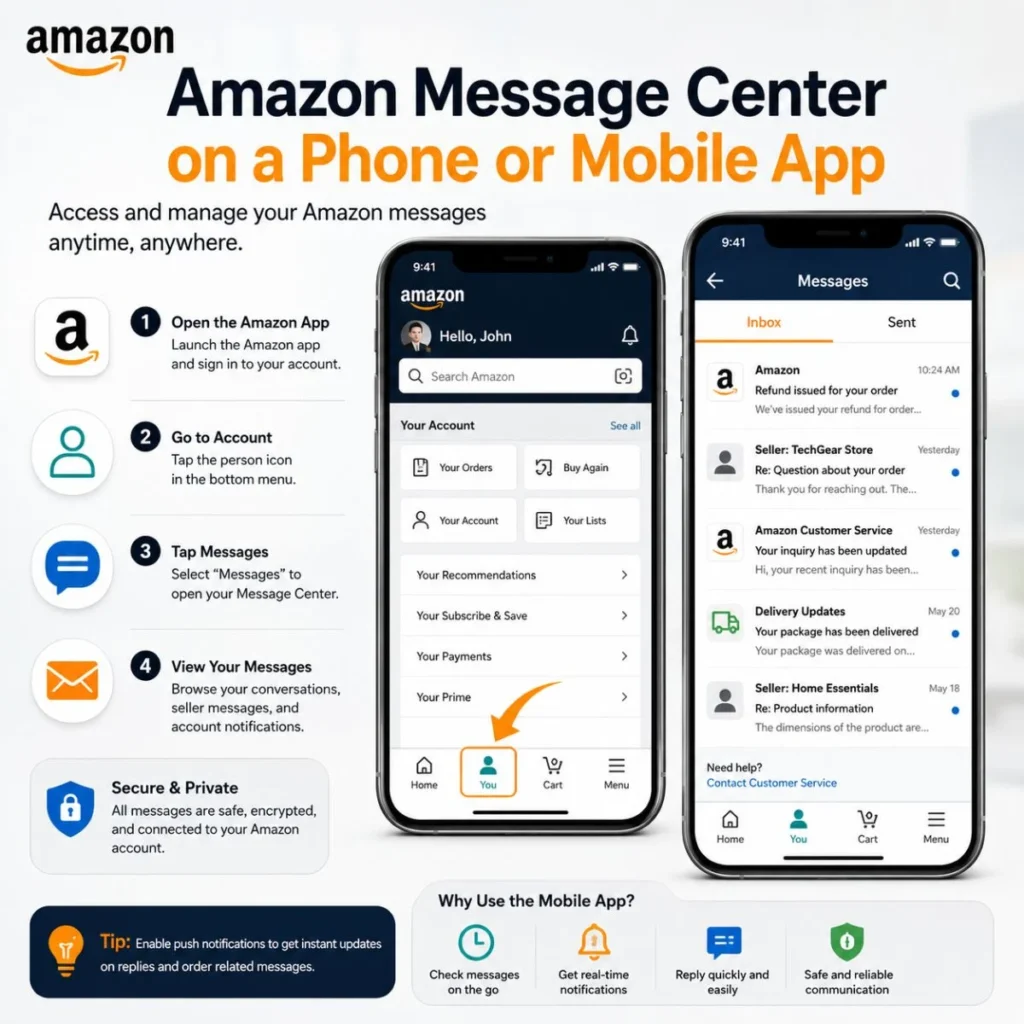
Many people search for the Amazon Message Center because they’re using a phone and cannot find the same menu they see in desktop tutorials.
That’s understandable. Mobile layouts can be more compact, and Amazon’s app navigation can change independently from the desktop website.
If you’re using the Amazon app, begin by signing into the correct account and opening the account-related area. Look for account, customer service, order, or communication options associated with your account.
If you cannot find the exact message section in the app, try opening Amazon through your phone’s web browser and signing in there. The desktop-style website may expose account options that are less obvious inside the app.
For a seller using Seller Central, the seller messaging interface is separate from the ordinary Amazon shopping experience. Sellers should use Seller Central’s Buyer-Seller Messaging tools rather than assuming the regular shopping app contains the complete seller inbox.
The key point is simple: the Amazon shopping account and Seller Central are not the same messaging environment.
How to Find a Message From an Amazon Seller
Suppose you purchased something and the seller sent you a message. You now want to read it again.
Start by checking the Amazon account associated with the purchase.
You can also start from the order itself. Find the relevant order in your Amazon order history and review the available communication or support options.
If you remember approximately when the conversation occurred, that can make the search easier. It may also help to identify the exact order involved.
For example, imagine you bought a laptop stand and the seller contacted you about a missing delivery detail. If you simply search through dozens of unrelated account notifications, finding the conversation can be frustrating. Instead, locate the laptop-stand order first and use the communication options connected to that transaction.
This approach is especially useful when you have multiple Amazon purchases.
Look for the order before searching everywhere
If the message relates directly to an order, ask yourself:
“Which order was this about?”
Once you identify the order, you have a much narrower path to the conversation.
You should also make sure you’re signed into the same Amazon account that placed the order. If you have multiple Amazon accounts, messages associated with one account will not necessarily appear in another.
How Amazon Buyer-Seller Messaging Works
For Amazon sellers, Buyer-Seller Messaging is more than a normal chat system.
Amazon designed the service around marketplace communication. Sellers may need to contact buyers to resolve order problems, answer product questions, provide necessary information, or address other customer-service situations.
For example, a seller might need to communicate because:
- An order has a problem.
- A product cannot be shipped as expected.
- The buyer has a question about the product.
- Additional information is needed to complete an order.
- Troubleshooting information is necessary.
- A customer-service issue needs to be addressed.
Amazon says sellers generally may contact buyers to complete orders or respond to customer-service questions, while marketing and promotional communication is not permitted through this system.
That distinction is important.
Buyer-Seller Messaging should not be treated like a personal marketing mailing list. Amazon has communication guidelines designed to protect buyers and maintain appropriate marketplace communication.
What Sellers Should and Should Not Send
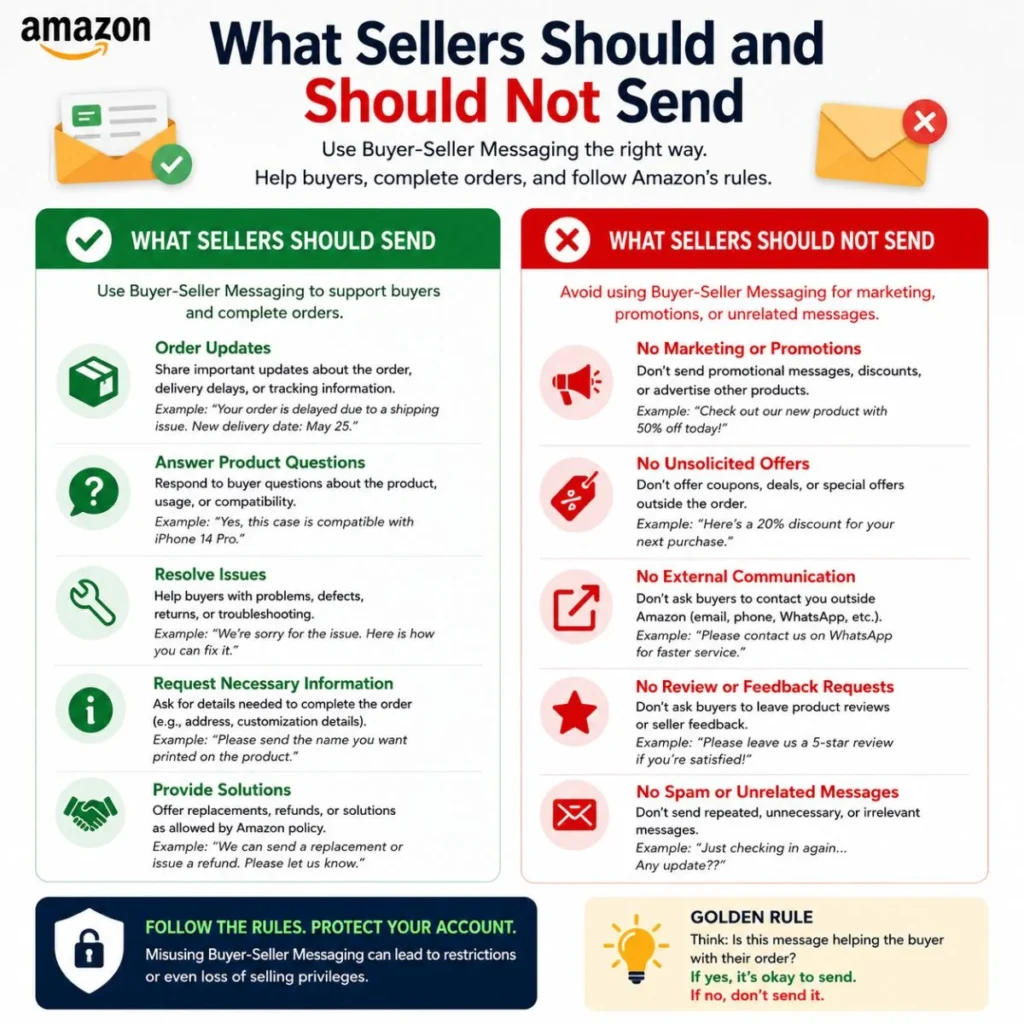
If you’re an Amazon seller, it can be tempting to use every available customer interaction as an opportunity to promote your business.
That is not what Buyer-Seller Messaging is designed for.
Amazon’s guidance states that sellers generally cannot contact buyers for marketing or promotional purposes. Amazon also says violations of its communication guidelines can result in restrictions on messaging or, in serious circumstances, selling privileges.
Appropriate communication can include information necessary to complete an order or respond to a customer-service question.
For example:
- “We’re contacting you because the item you ordered is temporarily unavailable. Please review the available options.”
- “Your question about compatibility has been received. Here is the relevant product information.”
- “We’re sorry about the issue with your order. Here are the troubleshooting steps.”
- “There is a problem affecting shipment of your order, and we want to provide an update.”
In contrast, unsolicited promotional communication is a different matter.
A message such as “Buy our new product today and receive a special discount” is promotional rather than necessary order communication.
When in doubt, sellers should check Amazon’s current Communication Guidelines before sending a message.
Why Can’t I Find My Amazon Message?
One of the most common frustrations is knowing that a message exists but being unable to locate it.
There are several possible reasons.
You are signed into the wrong Amazon account
This is one of the first things to check.
If you use more than one Amazon account, the order and associated communication may belong to another login.
The message is connected to an order
Some conversations make more sense when accessed through the relevant order rather than by searching generally.
Find the order first and look for available communication options.
You are using the customer interface instead of Seller Central
If you are an Amazon seller looking for buyer messages, make sure you’re signed into Seller Central.
Amazon’s seller communication tools are designed around the seller account, and the current seller workflow includes the messaging area represented by the envelope icon.
Amazon has changed the interface
Older online guides can be surprisingly confusing because Amazon regularly updates its website.
A tutorial might tell you to click a menu that no longer exists in the same location.
This is why it’s better to focus on the function you need—messages, Buyer-Seller Messaging, or contacting a buyer—rather than relying on an old screenshot.
You are looking for an automated notification
Sometimes people remember receiving “a message” when what they actually received was an automated Amazon order update.
For example, shipping confirmations and refund information can be communicated through Amazon’s account-update system.
If you’re looking for a tracking update, refund notice, or shipping confirmation, checking your order details may be more useful than searching specifically for a conversation.
How to Check Amazon Messages When You Have Multiple Orders
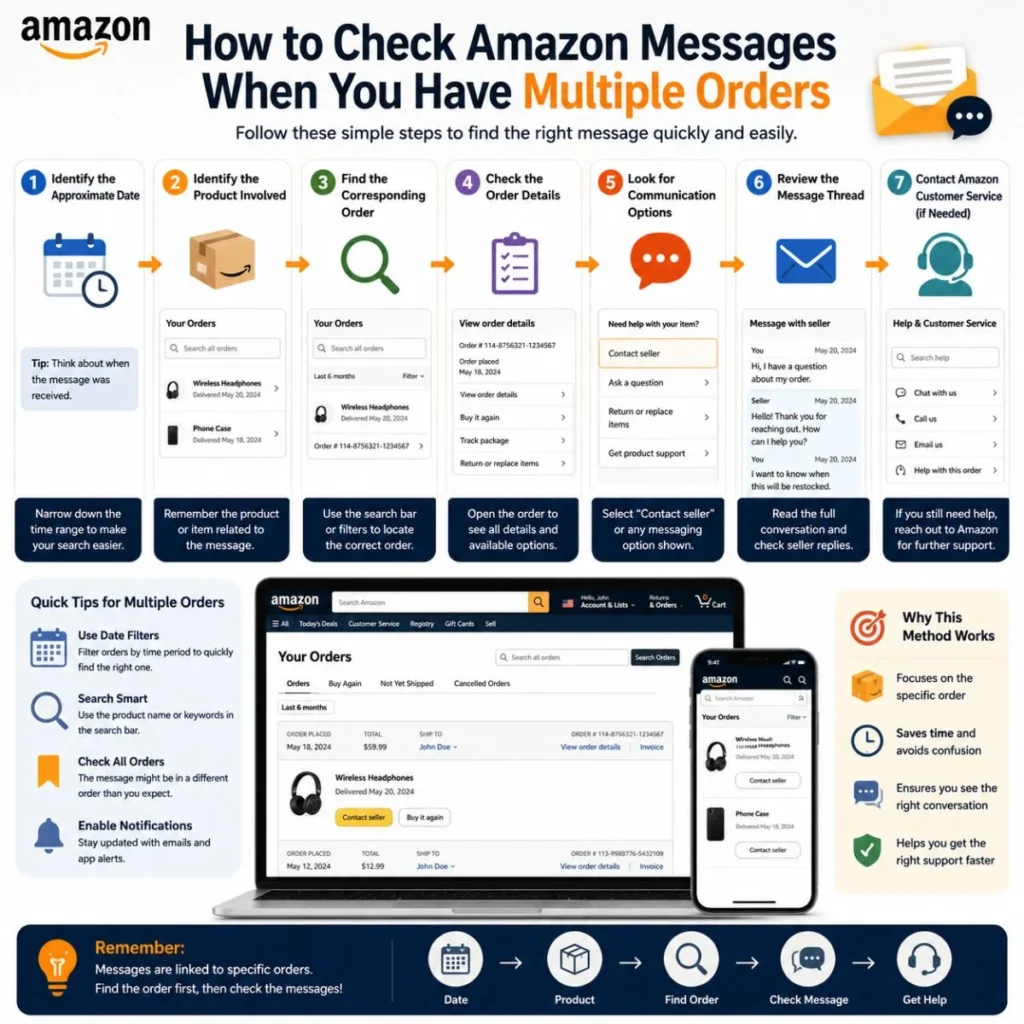
If you order frequently from Amazon, your account can contain a lot of information.
Searching randomly can waste time.
Instead, use a simple process:
- Identify the approximate date of the communication.
- Identify the product involved.
- Find the corresponding order.
- Check the order details.
- Look for communication or seller-contact options.
- Review the message thread.
- If necessary, contact Amazon Customer Service for help with the order.
This method works particularly well when you remember the product but not the seller’s name.
For example, if you remember that a seller contacted you about a phone case but don’t remember the seller’s name, searching your orders for the phone case can help you establish the relevant transaction.
Can Amazon Sellers See Your Personal Email Address?
Amazon’s marketplace messaging system is designed to manage communication without simply giving sellers unrestricted access to buyers’ personal contact information.
Amazon explains that Buyer-Seller Messaging can use an encrypted buyer email address generated through the messaging system when authorized email communication is involved, and correspondence remains visible through the Buyer-Seller Messages page.
This is one reason it’s generally better to keep marketplace conversations inside Amazon’s approved communication system.
If someone claiming to be an Amazon seller asks you to move a transaction or sensitive conversation to an unrelated communication channel, be cautious.
Never assume that someone is legitimate simply because they know details about an order.
Is the Amazon Message Center Safe?
The Amazon messaging environment is intended to provide a controlled communication channel between marketplace participants.
However, no online communication system should be treated as a reason to ignore basic security precautions.
If you receive a suspicious message:
- Don’t provide your Amazon password.
- Don’t share one-time verification codes.
- Don’t send payment information through an unexpected message.
- Don’t click unfamiliar links simply because the message mentions an Amazon order.
- Verify important information directly through your Amazon account.
- Check the actual order before taking action.
If a message says that your account will be closed unless you immediately pay a fee, stop and verify the claim through Amazon directly.
A trustworthy-looking message can still contain misleading information.
The safest approach is to navigate to Amazon yourself rather than relying entirely on links contained in unexpected messages.
How to Contact an Amazon Seller
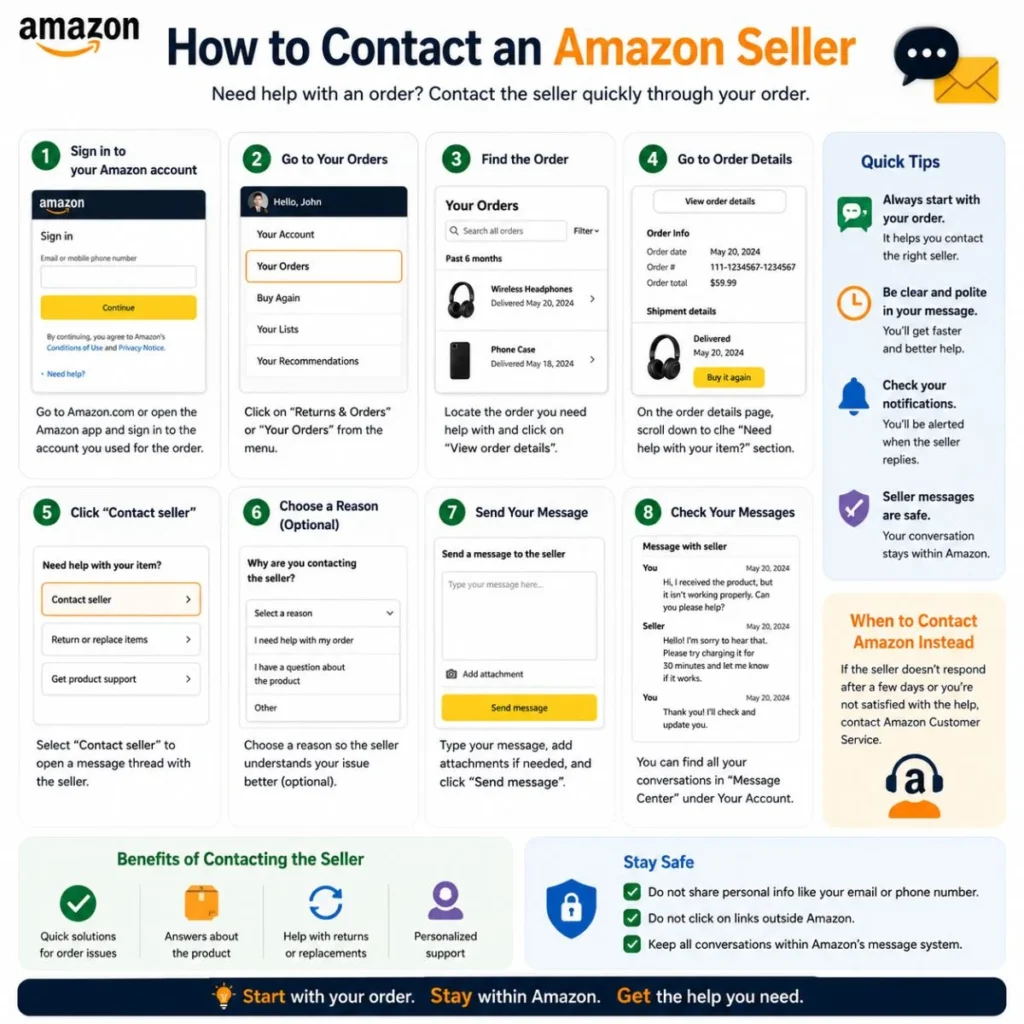
If you’re a buyer and need help with a product or order, start with the relevant Amazon order.
Open your order history and select the order that concerns you. Depending on the situation and Amazon’s current interface, you may see options for contacting the seller, getting help, returning an item, or contacting Amazon Customer Service.
The order-specific route is usually better than trying to locate a seller independently.
For example, if your package arrived damaged, you don’t necessarily need to find the seller’s separate website or personal contact details. Start with the Amazon order and use the support options available there.
This keeps the interaction connected to the transaction.
How to Write a Clear Amazon Message
If you need to contact a seller, you don’t need to write a long explanation.
The best messages are usually specific, polite, and easy to understand.
Instead of:
“Hi, I have a problem with my order. Please help.”
Try:
“Hello, my order arrived today, but one of the two items is missing from the package. Could you please advise me on the next step?”
The second version gives the seller something useful to act on.
A good marketplace message usually includes:
- A short greeting
- The specific problem
- Relevant order or product information
- What you need help with
- A polite closing
Examples of useful buyer messages
- “Hello, my package arrived today, but the item inside is damaged. Could you please advise me about the available solution?”
- “Hi, I received the wrong color. I ordered black but received blue. Please let me know how I can correct the order.”
- “Hello, could you confirm whether this product is compatible with the model listed in my order?”
- “My tracking information hasn’t changed for several days. Could you please advise me on the current status?”
- “Thank you for your response. I appreciate your help in resolving this.”
The goal isn’t to sound formal. The goal is to make the issue easy to understand.
Amazon Messages vs. Email Notifications
Another common source of confusion is the difference between an Amazon message and an email notification.
Amazon may send information to the email address associated with your account, while other communications may be available within Amazon.
These are not necessarily interchangeable.
An email notification may tell you that something happened, while the Amazon account or messaging system may provide more context.
For example, you might receive an email saying that an order has shipped. If you need detailed information, your Amazon order page may provide the tracking information and other transaction details.
So if you’re looking for a complete history of an order, don’t rely only on your email inbox.
Check the order itself.
Tips for Finding an Old Amazon Message Faster
If you frequently shop on Amazon, these habits can save time.
Remember the product
If you remember what you purchased, locate the product in your order history first.
Check approximate dates
Even knowing whether the message arrived yesterday, last week, or several months ago can narrow your search.
Search your email too
Your email inbox may contain notifications related to the same order, even when the actual interaction is managed through Amazon.
Use the correct account
If you have personal and business Amazon accounts, verify that you’re using the correct login.
Don’t rely on outdated screenshots
Amazon’s menus change. Look for the current account, order, and messaging functions rather than expecting an old interface to look identical.
Frequently Asked Questions About the Amazon Message Center
Where is the Amazon Message Center?
For regular Amazon customers, the message area is generally associated with your Amazon account and can be accessed through account-related menus. The exact location can change as Amazon updates its website and app.
For sellers, Buyer-Seller Messages are available through Seller Central, including the messaging area represented by the envelope icon.
Can I see messages from Amazon sellers?
Yes, Amazon provides communication tools for marketplace interactions. If you’re trying to locate a seller conversation, check the Amazon account and the order associated with the communication.
If you’re a seller, Buyer-Seller Messaging provides the dedicated environment for communicating with buyers.
How do Amazon sellers message buyers?
Sellers can use Buyer-Seller Messaging through Seller Central. Amazon describes accessing the messaging area through the envelope icon and also provides an order-specific Contact Buyer route.
Can Amazon sellers send promotional messages?
Amazon’s communication rules generally prohibit sellers from using Buyer-Seller Messaging for marketing or promotional purposes. The system is intended primarily for completing orders and responding to customer-service questions.
Why can’t I see an Amazon message anymore?
Check that you’re signed into the correct Amazon account, look at the relevant order, and consider whether what you remember was actually an automated order notification rather than a direct conversation. If you’re a seller, make sure you’re checking Seller Central rather than the regular shopping interface.
Is Buyer-Seller Messaging the same as ordinary Amazon customer messages?
Not exactly. Buyer-Seller Messaging is the marketplace communication system used by sellers to communicate with buyers. The ordinary Amazon customer experience also includes account notifications and order-related updates, so the two shouldn’t be treated as identical.
Final Thoughts
The Amazon Message Center can seem harder to find than it should be, especially when you’re following an older tutorial or switching between the Amazon shopping account and Seller Central.
The easiest way to approach it is to first decide what you are actually looking for. If you’re a shopper trying to find communication about an order, start with the Amazon account and the relevant order. If you’re a seller trying to communicate with a customer, use Seller Central’s Buyer-Seller Messaging tools.
Remember that Amazon’s interface can change, so button names and menu locations may not always match older instructions. What matters most is knowing which system you need: your Amazon account for customer-side information or Seller Central for marketplace seller communication.
If you’re a seller, pay particular attention to Amazon’s communication rules. Buyer-Seller Messaging is intended for legitimate order and customer-service communication, not general promotional outreach.
And if you’re a buyer, don’t feel pressured to act simply because a message looks urgent. Verify unexpected requests directly through your Amazon account and the relevant order.
When you know where to look and what type of communication you’re trying to find, locating an Amazon message becomes much less frustrating—and you can get back to the thing that actually matters: resolving your order or getting the answer you need.

Muhammad Sarfraz is a content creator and author at Message Ideas Daily, passionate about creating heartfelt, practical, and meaningful message ideas that help people express their feelings and connect with others.