
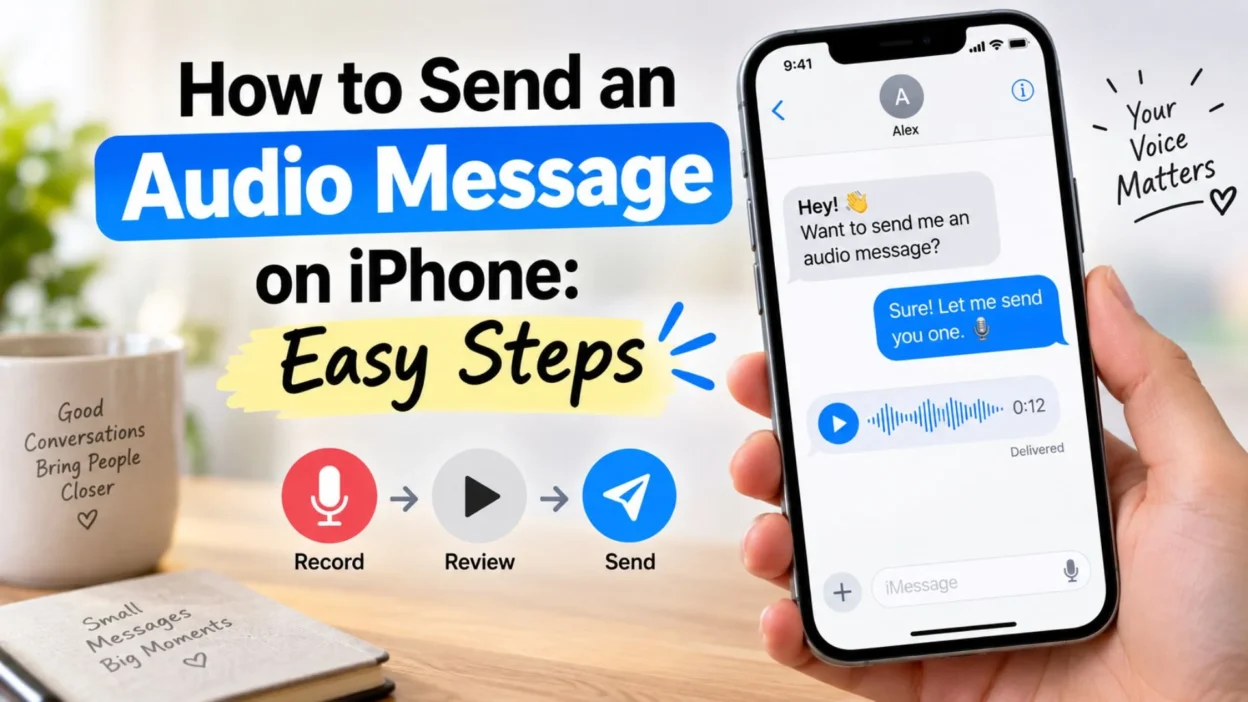
Sometimes typing a message is more work than simply saying what you mean. Maybe you’re walking, explaining something that would take several paragraphs to type, or sending a quick “I’m on my way” while your hands are busy. An audio message can make those everyday conversations much easier—and it can also feel more personal than a block of text.
If you’re wondering how to send audio message on iPhone, Apple includes the feature directly inside the Messages app. You don’t need a separate recording app for a normal audio message. In current versions of iOS, you can open a conversation, tap the Add button, choose Audio, speak, review the recording if you want, and send it.
This guide walks through the process in simple steps. You’ll also learn how to quickly record an audio message, listen before sending, keep important recordings from disappearing, save them to Voice Memos, use audio transcription, and handle a few common problems.
How to Send Audio Message on iPhone Using Messages
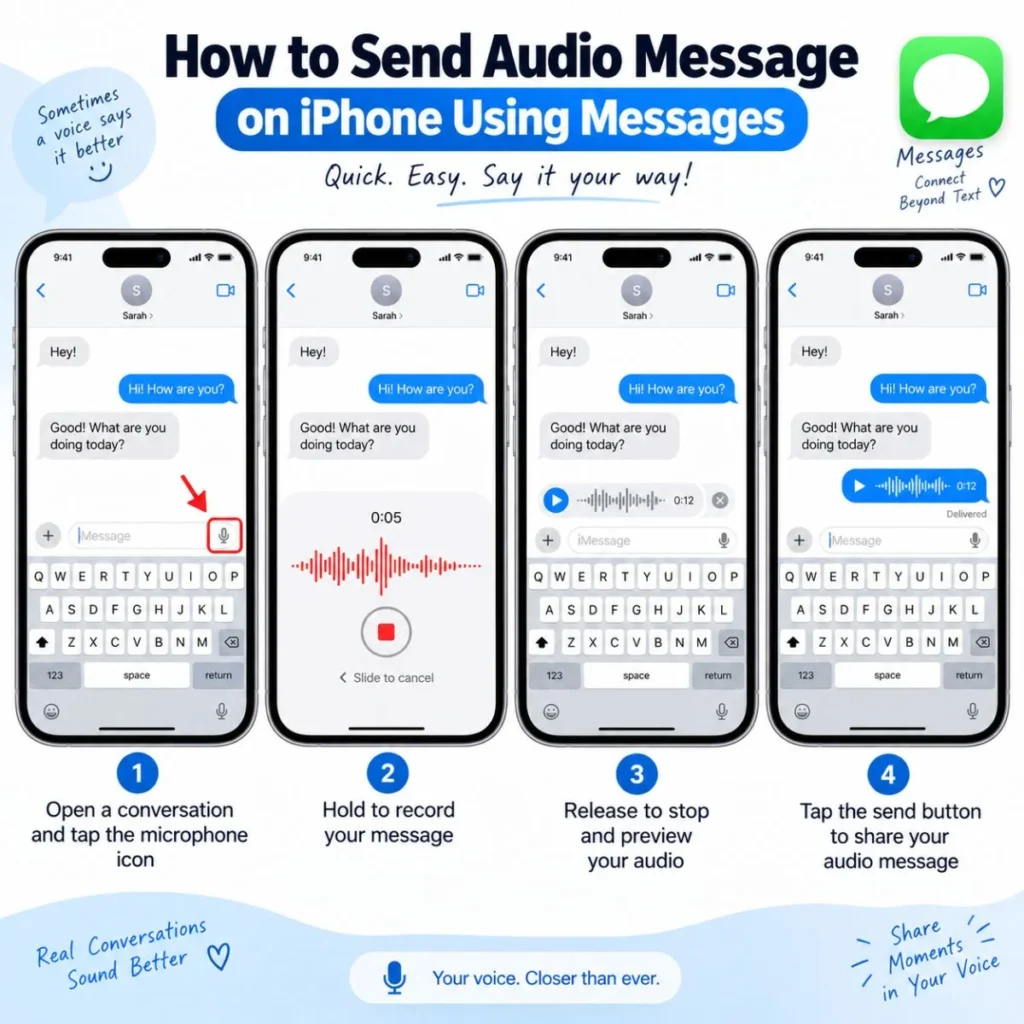
The easiest way to send a voice recording is through Apple’s built-in Messages app. The exact buttons can look slightly different depending on your iOS version, but the current Messages workflow uses the Add button and then Audio.
Step-by-step instructions
- Open the Messages app on your iPhone.
- Open an existing conversation or start a new conversation with the person you want to contact.
- Tap the Add (+) button next to the text field.
- Tap Audio.
- Start speaking normally. Your iPhone will record your voice.
- When you finish, tap the Stop button.
- Listen to the recording if you want to check it before sending.
- If everything sounds right, tap Send.
That’s it. The recipient can play the recording directly inside the Messages conversation. Apple also supports transcripts for audio messages in supported languages.
Want to record a little more?
You don’t necessarily have to start over if you stop recording and realize you forgot something. After stopping, you can use the option to continue recording and add more to the audio message before sending it.
This is particularly handy when you’re telling a story, giving directions, or explaining something complicated.
How to Quickly Send an Audio Message
If you send audio messages regularly, there is a faster way to start recording. Apple says you can touch and hold the Record Audio button in the text field to send follow-up audio messages more quickly.
This can be useful when you’re having a back-and-forth conversation and don’t want to open the audio option through the Add menu every time.
A quick audio exchange might look like:
- “Hey, I just left work. I should be there in about 20 minutes.”
- “Sounds good. I’ll meet you outside.”
- “Perfect. See you soon!”
For short conversations like this, speaking can be much faster than typing.
How to Review an Audio Message Before Sending
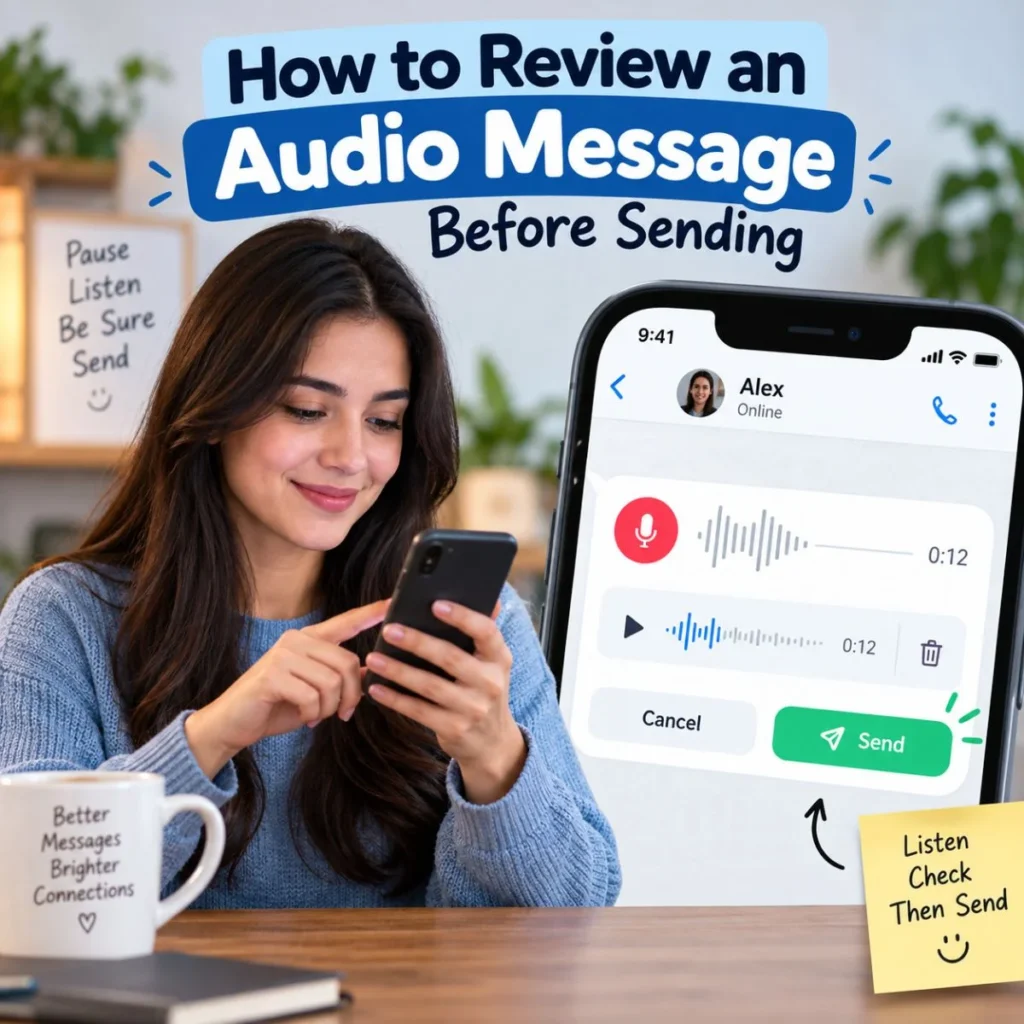
Not every recording comes out perfectly on the first try. You might hear background noise, stumble over your words, or realize that you forgot an important detail.
Fortunately, you can review an audio message before sending it.
After you stop recording:
- Tap the Play button to listen to your recording.
- If it sounds good, tap Send.
- If you need to add something, use the option to continue recording.
- If you don’t want to send it, use the option to cancel or close the recording.
Apple provides these controls directly in the audio-message workflow.
A quick review is especially useful when the message is important. For example, if you’re giving someone an address, confirming a meeting time, or explaining instructions, listening once can help you catch mistakes before the message reaches the other person.
How to Save Audio Messages on iPhone
One thing that surprises some iPhone users is that audio messages can automatically disappear from the conversation.
Apple explains that audio messages are automatically deleted to save space. On the sender’s iPhone, an audio recording can be removed from the conversation two minutes after it is sent or listened to unless it is kept. The recipient can also save it on their own device.
If the recording matters, save it rather than assuming it will remain there indefinitely.
Save an audio message in Messages
After sending or receiving an audio message:
- Open the conversation.
- Find the audio message.
- Tap Keep when the option is available.
This keeps the audio message in the conversation instead of allowing it to expire according to the normal setting.
Make audio messages stay longer
You can also change the Messages setting so audio messages are not automatically set to expire.
Go to:
Settings → Apps → Messages → Expire → Never
Apple lists this as the setting for keeping audio messages permanently instead of allowing them to expire automatically.
This can be useful if you frequently receive sentimental recordings, important instructions, or voice messages that you may want to revisit later.
How to Save an Audio Message to Voice Memos
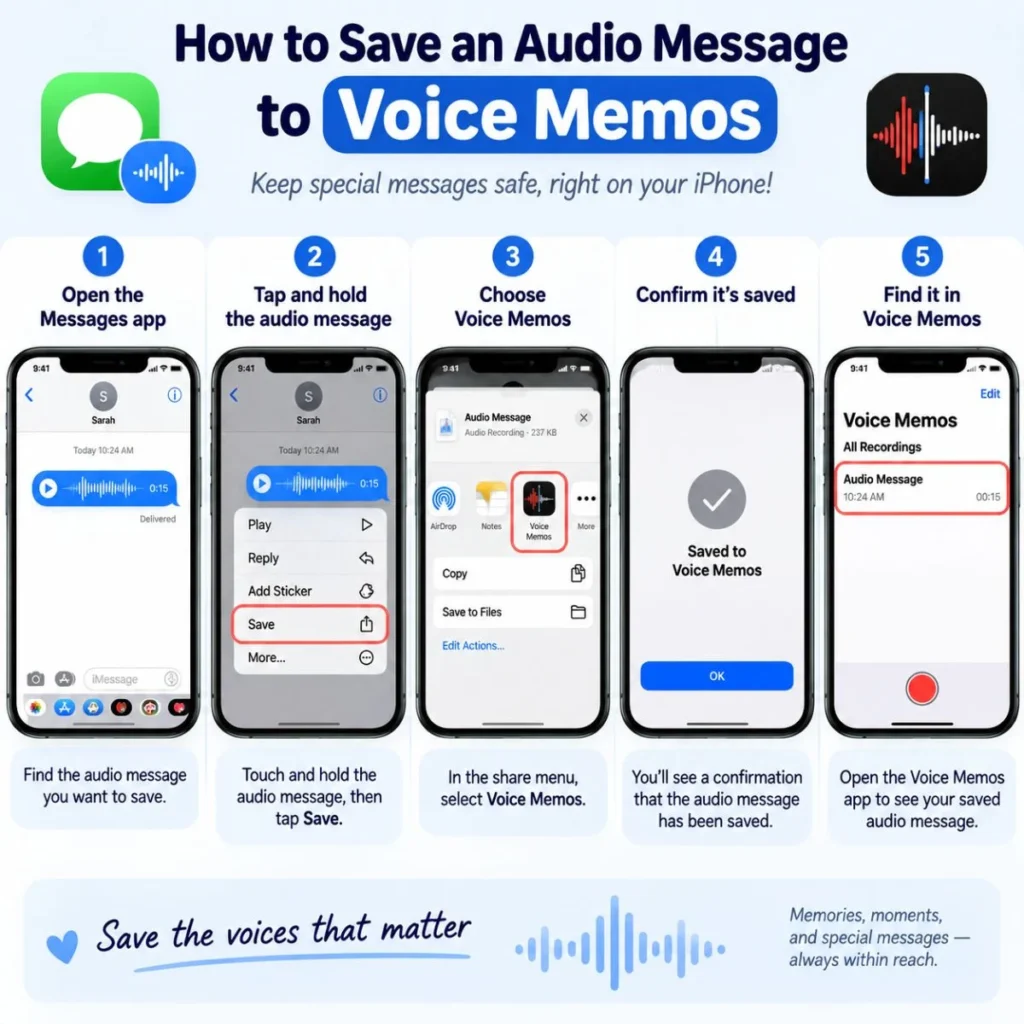
Sometimes you don’t just want to keep an audio message inside a text conversation. You may want to store the recording separately.
Apple lets you save an audio message to the Voice Memos app.
To do this:
- Open the Messages conversation.
- Find the audio message.
- Touch and hold the audio message.
- Tap Save to Voice Memos.
The recording can then be accessed through Voice Memos rather than only through the original conversation.
This is particularly useful for recordings you want to organize separately, such as a personal reminder, an important explanation, or a meaningful message from someone you care about.
How to Listen and Reply to an Audio Message
Receiving an audio message is just as simple as sending one.
Open the Messages conversation and tap the Play button on the audio message. Apple also provides controls that let you move backward or forward through the recording and adjust playback speed.
You can also use the iPhone’s Raise to Listen feature.
When enabled, you can raise the iPhone to your ear to listen to an audio message. Apple also supports replying by lowering the phone and raising it to your ear again, then speaking after the tone.
If you find this behavior inconvenient, you can turn it off under:
Settings → Apps → Messages → Raise to Listen
Then disable the feature.
How Audio Message Transcription Works
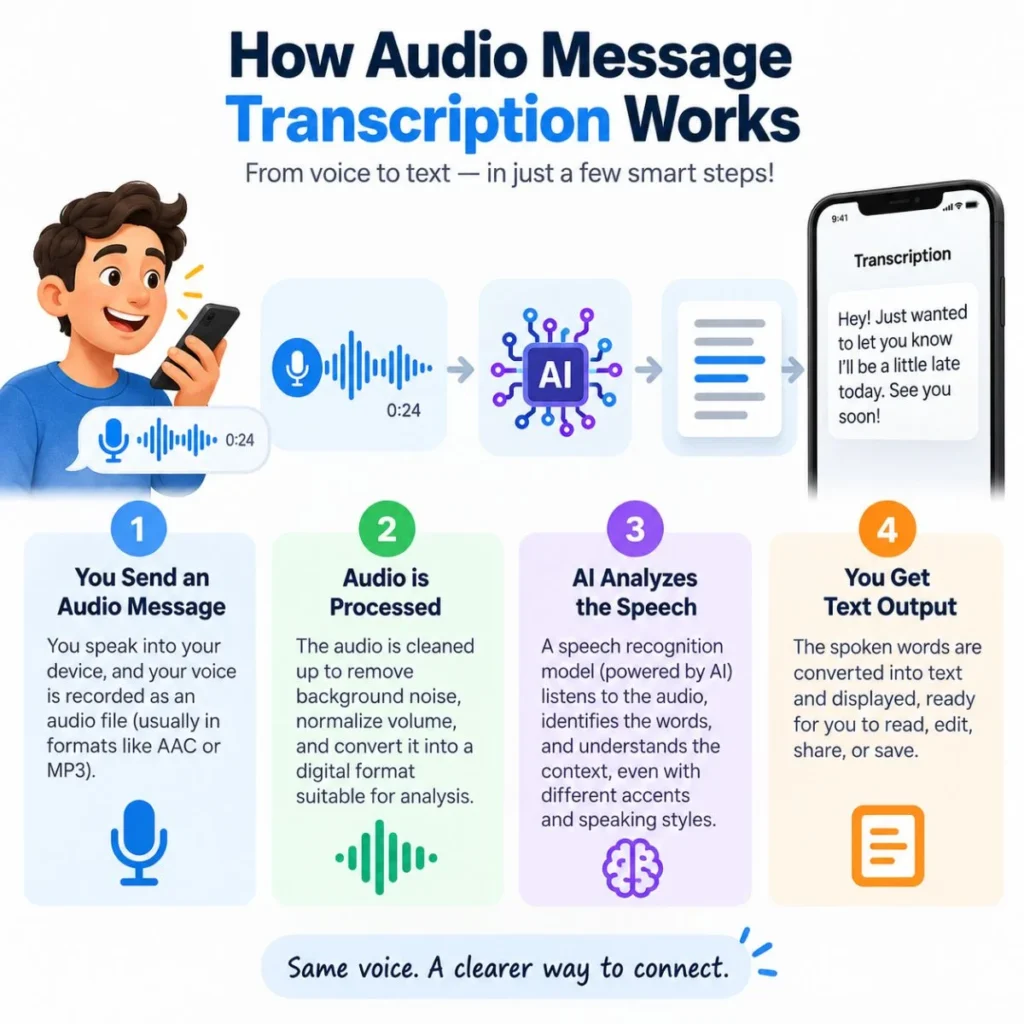
Audio messages can be more convenient when you want to listen to someone but also want to quickly read what they said.
Apple says audio messages can be automatically transcribed in the language selected by the sender, although transcription availability depends on the supported language and feature availability.
This can be useful when:
- You’re somewhere you can’t comfortably play audio.
- You want to quickly scan the main point.
- You’re looking for a particular detail in a longer recording.
- You want to understand a message without turning up your volume.
Keep in mind that transcription is not necessarily available for every language or situation, so the actual experience can depend on your iPhone’s settings and supported features.
Audio Message vs. Voice Memos: Which Should You Use?
The two features can sound similar, but they serve different purposes.
Use Messages audio when you want to communicate directly with another person. It is designed for quick voice messages inside a conversation.
Use Voice Memos when you want to create and keep a recording separately. It’s better suited to personal notes, ideas, reminders, interviews, or recordings you don’t necessarily want to send immediately.
For example:
- “I’m running 10 minutes late.” → Messages audio
- “Here are my ideas for tomorrow’s project.” → Messages audio or Voice Memos
- “I want to record this thought and come back to it later.” → Voice Memos
- “I want to send Grandma a quick birthday message.” → Messages audio
Choosing the right tool mostly depends on whether the recording is meant to be sent as part of a conversation or saved as a standalone recording.
When Sending an Audio Message Makes More Sense Than Text
Audio messages aren’t always better than texting. Sometimes a short text is clearer. But there are situations where your voice communicates more naturally.
When you need to explain something
A complicated explanation can become surprisingly long when typed. Speaking may allow you to explain it naturally without turning the conversation into several paragraphs.
When emotion matters
Your voice can communicate warmth, excitement, concern, humor, or affection in ways plain text sometimes cannot.
A simple:
“I’m really proud of you.”
can feel different when someone hears your actual voice saying it.
When your hands are busy
If you’re preparing dinner, walking around the house, or carrying something, speaking can be easier than typing.
When you want to send a personal greeting
Birthday wishes, congratulations, apologies, and thoughtful check-ins can feel especially genuine when spoken.
When you have a lot to say
If your message would take several minutes to type, an audio message may be the more natural option.
The key is to consider the recipient. Someone who is in a meeting, commuting without headphones, or somewhere quiet may prefer text.
Tips for Recording a Better iPhone Audio Message
You don’t need professional recording equipment to make a good voice message. A few simple habits can make your recording much easier to understand.
Find a reasonably quiet place
Background noise can make your voice difficult to hear. If possible, step away from loud music, traffic, fans, or crowded areas.
Speak naturally
You don’t need to speak like a news presenter. Just talk clearly and at a comfortable pace.
Start with the point
Instead of spending the first 30 seconds saying, “Okay, so basically, I wanted to tell you…”
Try:
“Hey, I wanted to give you a quick update about tomorrow.”
The listener immediately knows why you’re speaking.
Keep long messages organized
If you need to explain several things, use a simple structure:
- First, say what happened.
- Next, explain what you need.
- Finally, mention what happens next.
This makes even a longer voice message easier to follow.
Listen before sending important recordings
If the message contains important details, take a few seconds to review it. You may notice that you spoke too quietly or accidentally left something out.
Don’t worry about sounding perfect
A voice message is a conversation, not a podcast. Small pauses and natural expressions can actually make it feel more human.
Common Reasons You Might Not See the Audio Option
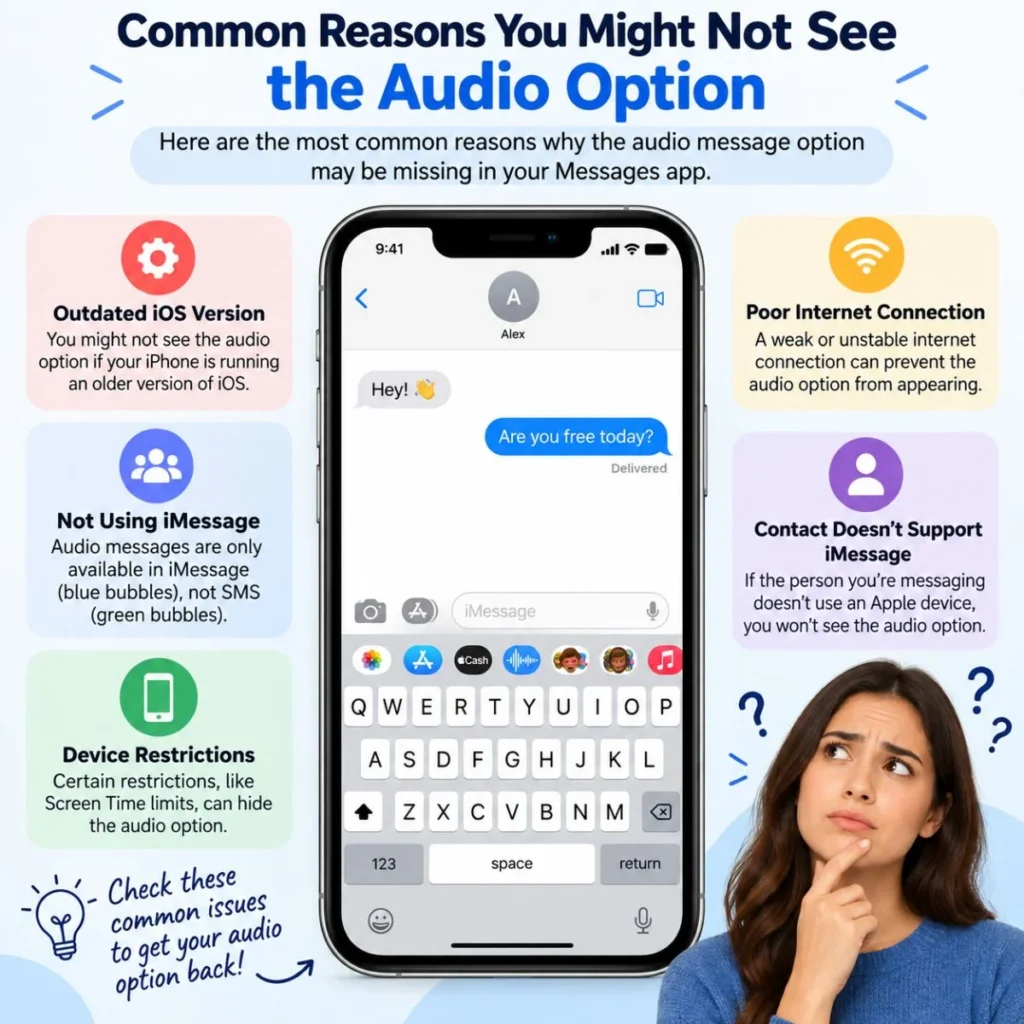
If you’re trying to figure out how to send audio message on iPhone but don’t immediately see the expected option, don’t panic.
First, open a conversation in the Messages app and look for the Add (+) button near the text field. In current iOS, Apple places Audio among the options available through that menu.
If the interface looks different from what you expected, consider these possibilities:
- Your iPhone may be running a different iOS version.
- You may be looking in another messaging app rather than Apple Messages.
- The Audio option may be inside the Add menu rather than displayed beside the keyboard.
- You may be using a conversation or messaging setup where available features differ.
Apple’s current Messages documentation confirms that audio messages are part of the Messages app’s available features.
If you’re having broader problems sending or receiving Messages, Apple also provides troubleshooting resources for Messages and iMessage.
5 Simple Situations Where an Audio Message Works Well
Sometimes the hardest part isn’t knowing the button to press—it’s deciding what to say.
Here are some natural examples.
Checking in with a friend
“Hey! Just wanted to check in and see how you’re doing. No need to call back right away—I just wanted you to know I was thinking about you.”
Sending a quick update
“Quick update: I’m leaving now, so I should be there in about 20 minutes. I’ll text you when I arrive.”
Explaining something complicated
“It’s probably easier if I explain this by voice instead of sending you five different texts. Here’s what happened…”
Sending encouragement
“I know you’ve been working really hard on this. Whatever happens today, I hope you know how much progress you’ve already made.”
Sharing something funny
“Okay, I have to tell you what just happened because there’s no way I can type this without laughing.”
These examples work because they sound like something a real person might actually say rather than a formal written message.
How to Make an Audio Message Feel More Personal
The best voice messages usually aren’t the most polished ones. They’re the ones that sound like they were genuinely meant for that particular person.
Instead of:
“I hope you are having a good day.”
Try:
“Hey, I hope your day is going better than your morning started!”
Instead of:
“Congratulations on your achievement.”
Try:
“You actually did it! I knew you could pull this off, and I’m seriously so happy for you.”
Instead of:
“I apologize for the inconvenience.”
Try:
“I’m really sorry about what happened. I should’ve handled it better.”
The difference is personalization.
Mention something only the two of you would know. Use the person’s name. Refer to something that happened earlier in the day. Match your normal speaking style.
That is what turns an ordinary recording into a meaningful audio message.
FAQ: How to Send Audio Message on iPhone
How do I send an audio message on my iPhone?
Open Messages, choose a conversation, tap the Add (+) button, tap Audio, and start speaking. When you finish, tap Stop, review the recording if needed, and tap Send.
Can I listen to an audio message before sending it?
Yes. After stopping the recording, you can use the Play option to review it before sending. You can also continue recording or cancel it if necessary.
Do iPhone audio messages disappear automatically?
They can. Apple says audio messages are automatically deleted to save space. You can tap Keep to save an individual recording, or change the setting under Settings → Apps → Messages → Expire → Never to keep audio messages from automatically expiring.
Can I save an audio message to Voice Memos?
Yes. Touch and hold the audio message in Messages and choose Save to Voice Memos. This lets you keep the recording separately from the conversation.
Can iPhone turn an audio message into text?
Audio message transcription is available on supported iPhones and in supported languages. Apple says outgoing audio messages can be transcribed according to the sender’s selected language.
Can I turn off Raise to Listen?
Yes. Go to Settings → Apps → Messages and turn off Raise to Listen. This prevents audio messages from automatically playing when you raise the iPhone to your ear.
Final Thoughts
Once you know where the Audio option is, sending a voice message on an iPhone is remarkably simple. Open Messages, choose your conversation, tap Add, select Audio, speak, review the recording if necessary, and send it.
The bigger advantage of an audio message is not simply convenience. Your voice can carry details that text sometimes misses—your excitement when sharing good news, your reassurance when someone is having a difficult day, or the little laugh that makes an ordinary story feel personal.
If a message would take several paragraphs to type, try saying it instead. If it is important, listen once before sending. And if the recording is something you’ll want later, remember to tap Keep or save it to Voice Memos.
Knowing how to send audio message on iPhone is useful, but knowing when to use your voice is what makes the feature truly valuable. Sometimes the simplest way to connect is just to press record and say what you mean.

Muhammad Sarfraz is a content creator and author at Message Ideas Daily, passionate about creating heartfelt, practical, and meaningful message ideas that help people express their feelings and connect with others.