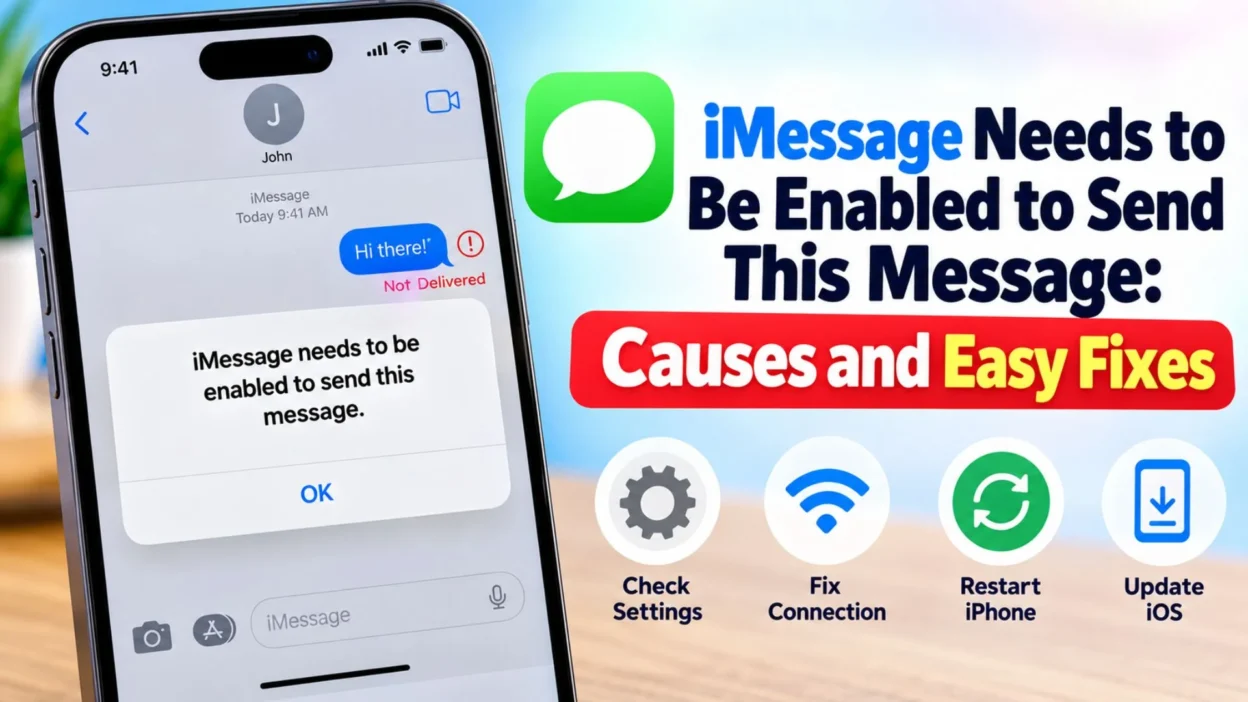
You open the Messages app, type a message, tap the send button, and instead of seeing your message go through, your iPhone displays “iMessage needs to be enabled to send this message.” It can be confusing, especially when you have already used Messages normally before.
The good news is that this message usually points to a setting, activation, network connection, or messaging configuration that needs attention. Sometimes iMessage has been turned off accidentally. In other situations, your iPhone may not have completed iMessage activation, your Apple Account may not be properly connected to Messages, or your phone number may not be selected for iMessage.
This guide explains what the error means, why it appears, and what you can do to fix it. The steps are designed to help you work through the problem from the simplest solution to more advanced troubleshooting.
What Does “iMessage Needs to Be Enabled to Send This Message” Mean?
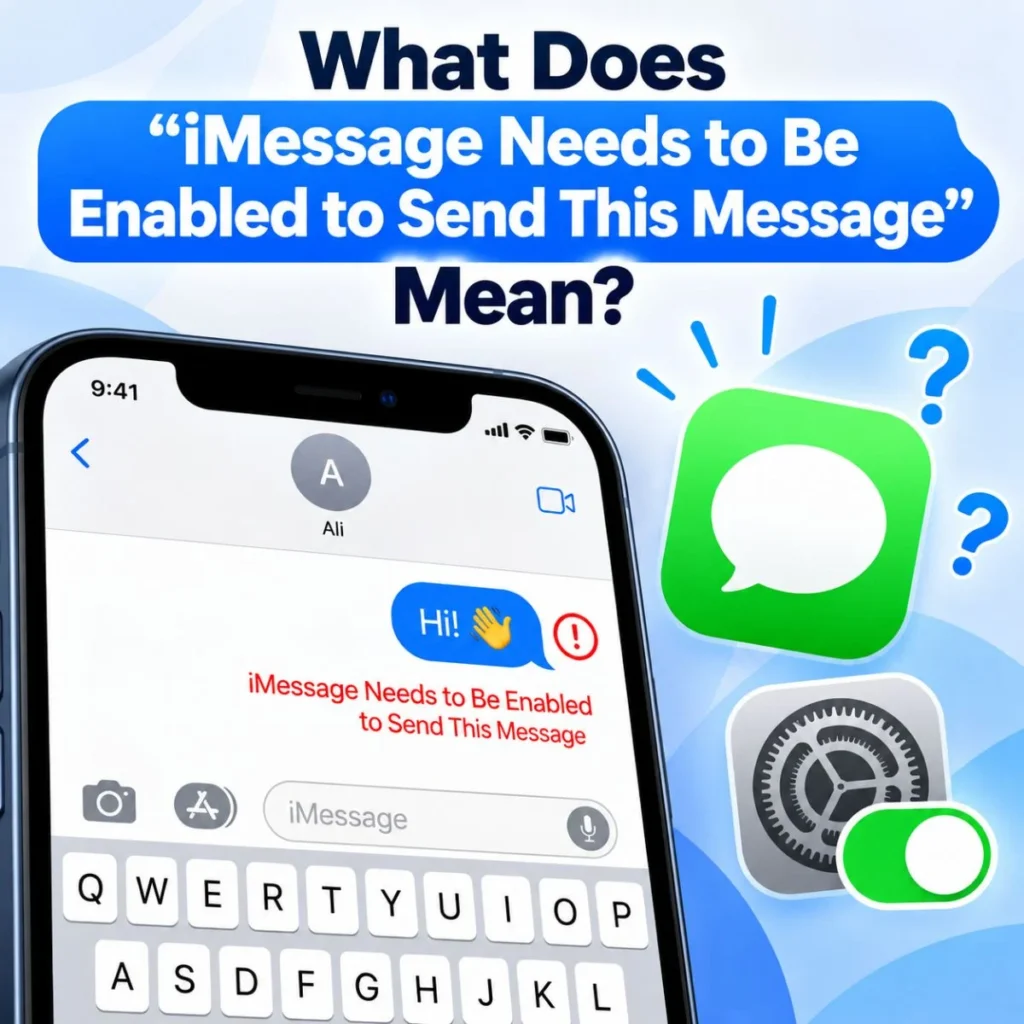
The message generally means that your iPhone is attempting to send a message using iMessage, but iMessage is not currently available or activated for the conversation.
iMessage is Apple’s messaging service for sending messages between supported Apple devices. When iMessage is working, messages are typically sent through an internet connection rather than as traditional SMS text messages.
If iMessage is disabled, inactive, or unable to connect properly, your iPhone may display an error instead of sending the message.
Several things can cause this:
- iMessage is turned off.
- iMessage activation has not completed.
- Your phone has no reliable internet connection.
- Your phone number is not selected for iMessage.
- Your Apple Account settings need attention.
- Messages is temporarily experiencing a connection problem.
- Your iPhone’s date and time settings are incorrect.
- A software issue is affecting Messages.
- You are trying to send an iMessage while SMS fallback is unavailable.
- The recipient’s contact information is causing the conversation to use the wrong messaging method.
The exact cause can vary, so it is useful to try the fixes in order rather than changing several settings at once.
Turn On iMessage
The first thing to check is whether iMessage is enabled.
On your iPhone, open Settings and go to Messages. Look for the iMessage option and make sure it is turned on.
If it is already enabled, turning it off, waiting briefly, and turning it back on can sometimes refresh the service.
After enabling iMessage, give the phone some time to activate. Activation may not always happen instantly.
Once iMessage is enabled, return to the Messages app and try sending the message again.
If the error disappears, the problem was likely related to iMessage being disabled or temporarily inactive.
Check Your Internet Connection
iMessage requires an internet connection. Your iPhone can use either Wi-Fi or cellular data for internet-based messaging.
If your connection is weak or unavailable, iMessage may not work correctly.
Try these simple checks:
- Open Safari and visit a website.
- Turn Wi-Fi off and test cellular data.
- If you are using cellular data, make sure mobile data is enabled.
- If you are using Wi-Fi, disconnect and reconnect.
- Try another Wi-Fi network if possible.
- Restart your router if the problem affects multiple devices.
A useful test is to switch between Wi-Fi and cellular data. If iMessage works on one connection but not the other, the network may be responsible.
Remember that having cellular signal does not necessarily mean you have an internet connection. Your phone can show signal bars while mobile data is unavailable or restricted.
Check Your iMessage Send and Receive Settings
Another common reason for the error is that your phone number or Apple Account is not properly selected for iMessage.
Open:
Settings → Messages → Send & Receive
You should see the addresses that can be used with iMessage.
Check whether your phone number is listed and selected.
You may also see an Apple Account email address. Depending on how you use Messages, you can select the addresses you want to use for sending and receiving iMessages.
If your phone number is missing, inactive, or showing an activation-related message, iMessage may not be fully configured.
This is particularly important after:
- Getting a new iPhone
- Changing your SIM card
- Changing your phone number
- Switching carriers
- Restoring an iPhone
- Signing out of your Apple Account
- Moving from one device to another
After checking the settings, close Messages and try again.
Restart Your iPhone
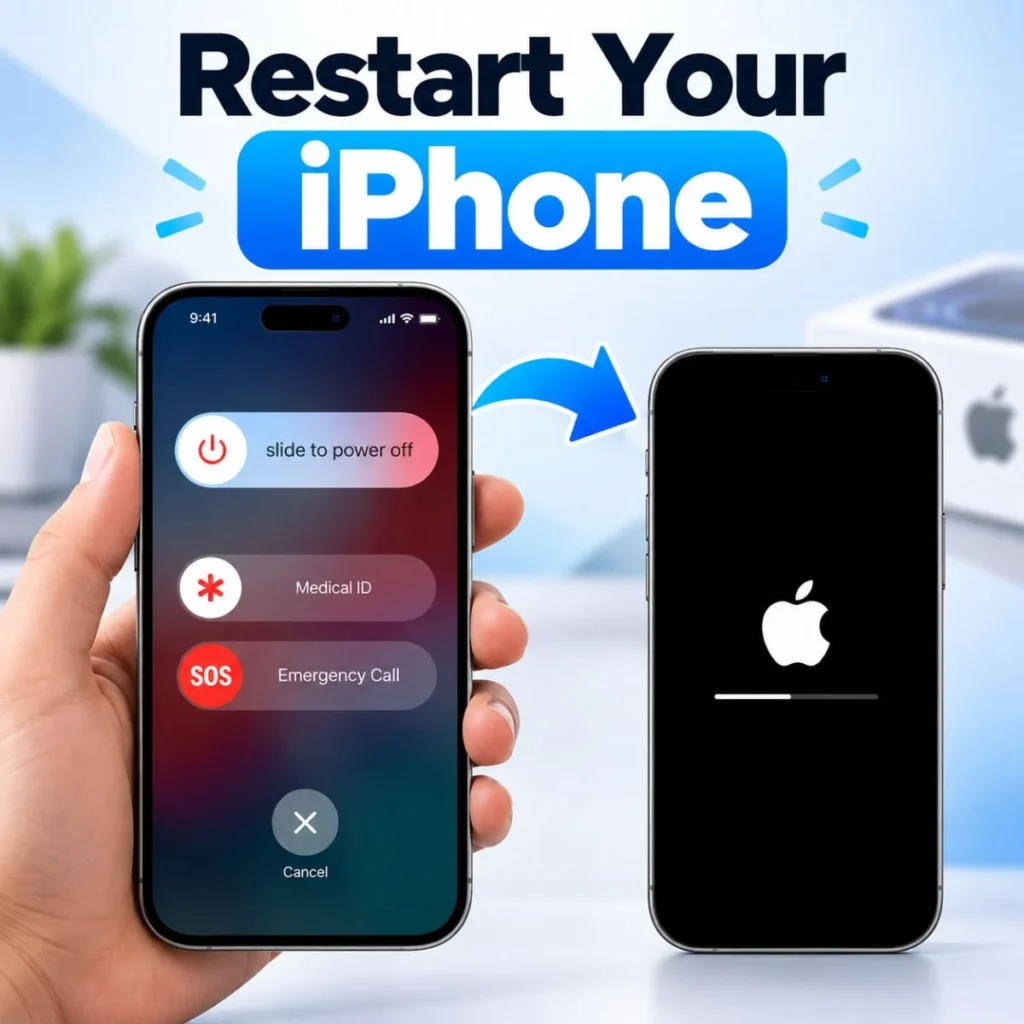
A simple restart can fix temporary software and connectivity problems.
Restart your iPhone normally, wait for it to boot completely, and then open Messages again.
Although restarting may sound too simple, it can refresh network connections, background services, and messaging processes.
After restarting:
- Check that Wi-Fi or cellular data is working.
- Confirm iMessage is still enabled.
- Open the affected conversation.
- Send a new message.
If the error was caused by a temporary system problem, the message may send normally after the restart.
Turn Airplane Mode On and Off
Airplane Mode can provide a quick way to refresh your phone’s wireless connections.
Open Control Center and turn Airplane Mode on. Wait a few seconds, then turn it off again.
Give your iPhone a moment to reconnect to the mobile network and Wi-Fi.
Then open Messages and try sending the message.
This method is particularly useful if your internet connection or cellular registration appears to be behaving unusually.
Check Whether iMessage Is Still Activating
Sometimes iMessage is enabled but has not finished activation.
Go to:
Settings → Messages
If you see a message indicating that iMessage is waiting for activation or is still activating, the service may need additional time.
Activation can depend on your phone number, carrier, SIM or eSIM configuration, network connection, and Apple’s messaging infrastructure.
If activation remains stuck, check that:
- Your SIM or eSIM is active.
- Your phone can make normal calls.
- Your phone can send ordinary SMS messages.
- Your phone has internet access.
- Your date and time are correct.
- Your Apple Account is signed in properly.
If activation continues to fail, you may need to contact your mobile carrier or Apple Support.
Check Date and Time Settings
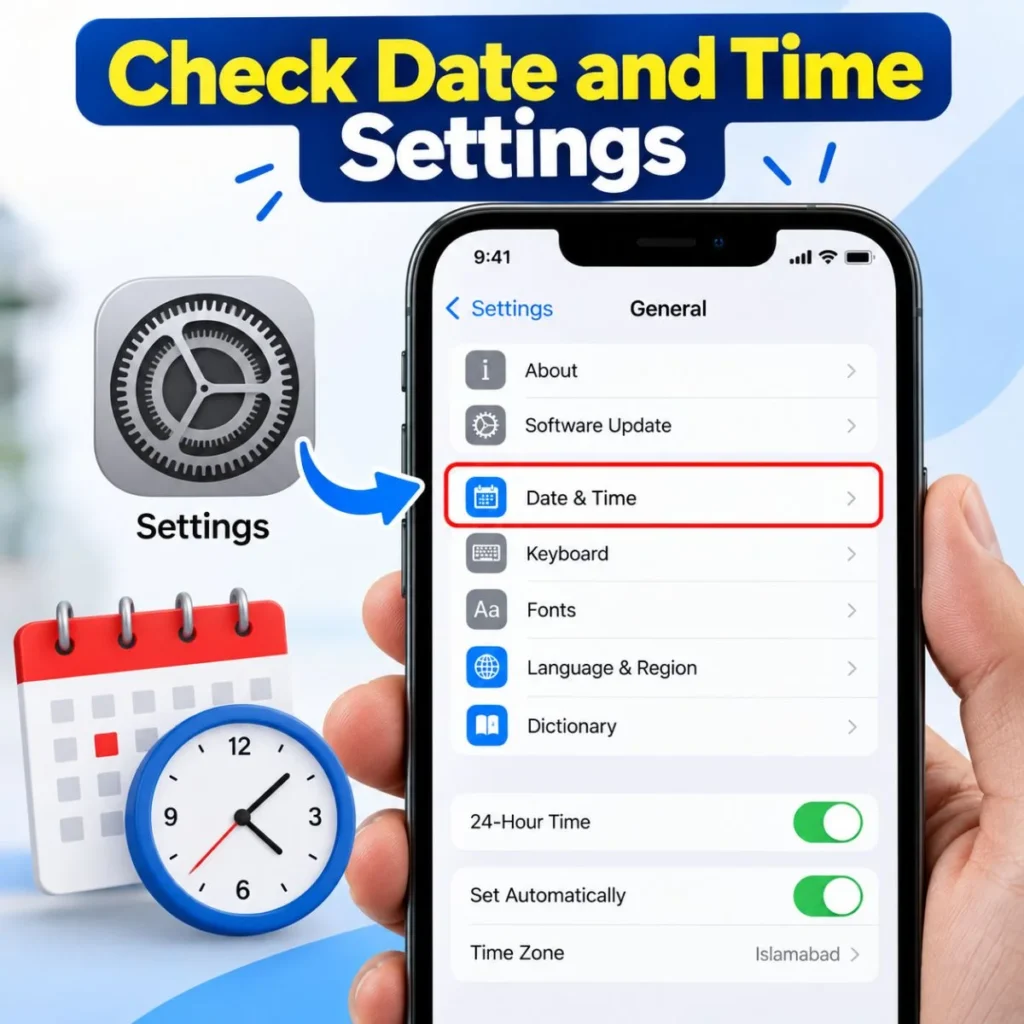
Incorrect date, time, or time-zone settings can sometimes interfere with services that depend on secure network communication.
Go to:
Settings → General → Date & Time
If available, enable Set Automatically.
Your iPhone should then use the network to determine the appropriate date and time.
After changing the setting, restart the Messages app and try sending the message again.
This is a small setting, but it is worth checking when activation or account-based services are behaving unexpectedly.
Check Your Phone Number
If you recently changed your SIM, eSIM, carrier, or phone number, your iPhone may not immediately associate the correct number with iMessage.
Go to:
Settings → Apps → Messages → Send & Receive
Depending on your iOS version, the exact menu layout may differ, but the important setting is the list of addresses associated with iMessage.
Make sure the correct phone number is selected.
If the number is not available or appears incorrectly, your iPhone may need additional activation.
You can also check your phone number under your iPhone’s cellular or phone settings to make sure the device itself recognizes the correct number.
Make Sure SMS Messaging Is Available
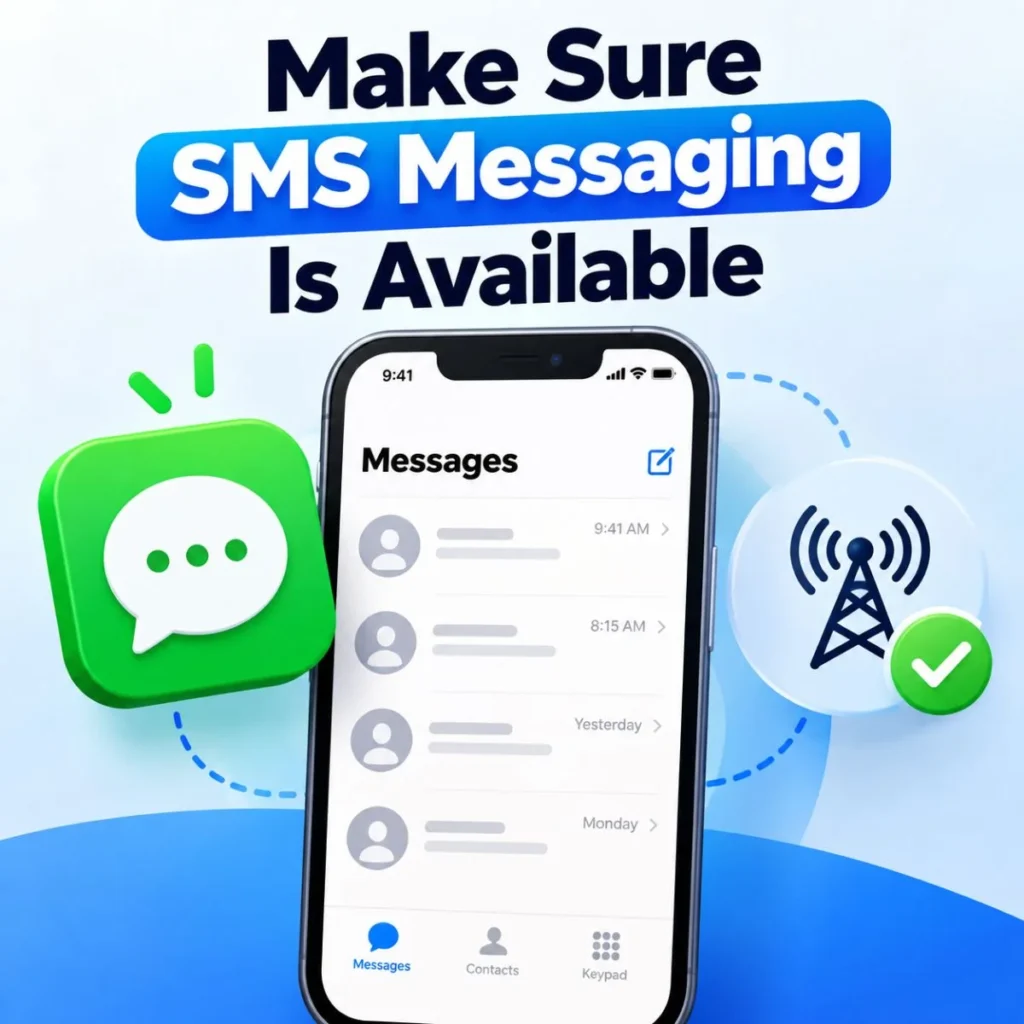
Not every message between phones is necessarily sent through iMessage.
If the recipient is not using an Apple device, the message may need to be sent as SMS or another supported carrier message.
If your iPhone is configured to use SMS as a fallback when iMessage is unavailable, that option can be useful.
Look under:
Settings → Messages
and check the available options related to sending SMS messages.
Keep in mind that SMS depends on your mobile carrier and cellular service. If your carrier service is inactive or your account has restrictions, SMS messages may also fail.
If your problem occurs only with a particular recipient, it is worth checking whether the conversation is being treated as iMessage or SMS.
Check the Color of the Message Bubble
Message bubble color can provide a useful clue.
In Apple’s Messages app, iMessages generally appear in blue, while SMS/MMS messages generally appear in green.
If a conversation that normally uses iMessage suddenly appears differently, your phone may be unable to use iMessage for that conversation.
This can happen if:
- iMessage is disabled on your phone.
- The recipient has disabled iMessage.
- The recipient is temporarily offline.
- The recipient changed devices.
- Your phone number is not properly activated.
- There is a temporary service or connectivity issue.
The color itself does not tell you the exact cause, but it can help identify which messaging system your phone is trying to use.
Try Sending a New Message
If the problem occurs in only one existing conversation, try creating a new message.
Open Messages and tap the option to start a new conversation. Enter the recipient’s phone number or select the contact again.
Then send a short test message.
If the new conversation works but the old conversation does not, the issue may be related to that particular conversation thread or recipient information.
You can continue using the new conversation if appropriate.
Before deleting an old conversation, however, make sure you do not need any of its messages, photos, or other information.
Check the Recipient’s Contact Information
A contact may have multiple phone numbers or email addresses.
For example, you might have a person’s:
- Personal phone number
- Work phone number
- Old phone number
- iMessage email address
If Messages is trying to use an address that is no longer associated with iMessage, sending may fail.
Try starting a new message and manually entering the recipient’s current phone number.
If that works, update the contact information in your Contacts app.
This can be especially helpful when the problem happens with one person while messages to other contacts work normally.
Sign Out and Back Into iMessage
If your iMessage account configuration appears incorrect, signing out and back in can sometimes refresh the connection.
Open the Messages settings and access the Send & Receive section.
If your Apple Account is displayed, you may have an option to sign out.
After signing out, restart the iPhone if necessary and sign back in.
Then check that your phone number and desired email address are selected.
Do not repeatedly sign in and out if the account is already working normally. This step is more appropriate when there are clear signs that the account configuration is not functioning correctly.
Update Your iPhone
Software updates can include fixes for messaging, networking, and account-related issues.
Go to:
Settings → General → Software Update
If an update is available, review it and install it when convenient.
Before a major update, it is sensible to make sure your important information is backed up.
After the update is complete, check iMessage again.
If the problem started immediately after an iOS update, it may also be worth restarting the device and checking Apple’s current support information for any known service issues.
Reset Network Settings
If the problem continues despite having a working internet connection, resetting network settings may help.
This is a more advanced step and should not be your first choice.
Network settings can include saved Wi-Fi networks, passwords, VPN-related configurations, and other connection information. Resetting them means you may need to reconnect to Wi-Fi networks afterward.
On supported iOS versions, the option is generally found under:
Settings → General → Transfer or Reset iPhone → Reset → Reset Network Settings
Read the options carefully before confirming.
This does not mean erasing the entire iPhone. However, it does reset network-related configuration, so make sure you understand what will change before proceeding.
Check Apple’s System Status
Sometimes the problem is not caused by your iPhone at all.
Apple’s services can occasionally experience temporary outages or disruptions. If iMessage is experiencing a broader service issue, changing settings repeatedly on your phone may not solve anything.
Check Apple’s official System Status page for information about current service availability.
If iMessage is experiencing an outage, the best approach may simply be to wait until the service is restored.
This is particularly worth checking if:
- iMessage suddenly stopped working.
- Multiple Apple devices are affected.
- Other internet services work normally.
- Your iMessage settings appear correct.
- Friends or family members are reporting similar problems.
When the Error Happens Only With One Person
If you can send iMessages normally to most people but see “iMessage needs to be enabled to send this message” with one specific contact, the problem may be specific to that conversation.
Try these steps:
- Start a new message.
- Enter the person’s phone number manually.
- Check whether the number is correct.
- Check whether the person still uses an Apple device.
- Ask whether their iMessage is enabled.
- Try sending the message through another available method if appropriate.
The recipient may have switched from an iPhone to another type of phone, changed their phone number, or disabled iMessage.
In that situation, your iPhone may simply be trying to use a messaging method that is no longer appropriate for that recipient.
When the Error Happens With Everyone
If the same message appears when you try to contact multiple people, focus on your own iPhone settings rather than one individual contact.
Start with:
- Checking that iMessage is enabled.
- Checking your internet connection.
- Checking Send & Receive.
- Confirming your phone number.
- Restarting the iPhone.
- Checking for software updates.
- Checking Apple’s system status.
If all of these appear normal and the problem continues, more advanced troubleshooting or Apple Support may be necessary.
How to Personalize Your Troubleshooting
The fastest way to solve a messaging problem is to identify exactly when it occurs.
Ask yourself:
Does it happen with everyone? If yes, investigate iMessage activation, account, network, and device settings.
Does it happen with only one person? Check that person’s phone number, device, and conversation.
Did it start after changing your phone or SIM? Focus on activation and phone-number settings.
Did it start after an iOS update? Restart the device, check for additional updates, and review Apple’s support information.
Does Wi-Fi work but cellular data does not? Investigate your mobile data settings or carrier service.
Does cellular data work but Wi-Fi does not? Investigate the Wi-Fi network or router.
These questions can prevent you from making unnecessary changes.
Common Mistakes to Avoid
When trying to fix the error, avoid changing many unrelated settings at once.
For example, you do not normally need to erase your iPhone simply because iMessage is showing an activation problem.
Start with the least disruptive solutions:
- Check iMessage.
- Check internet access.
- Verify Send & Receive.
- Restart the iPhone.
- Check date and time.
- Check software updates.
Only move toward more advanced options if the basic steps do not work.
Another mistake is assuming that every messaging problem is an iMessage problem. Messages can involve iMessage, SMS, MMS, carrier services, contact information, and internet connectivity. Identifying which system is being used can make troubleshooting much easier.
Quick Fix Checklist
If you need a short checklist, work through these steps:
- Open Settings → Messages.
- Make sure iMessage is enabled.
- Check that Wi-Fi or cellular data is working.
- Open Send & Receive.
- Make sure your phone number is selected.
- Check your Apple Account information.
- Restart your iPhone.
- Turn Airplane Mode on and off.
- Check Date & Time and enable automatic settings if appropriate.
- Try a new conversation.
- Verify the recipient’s phone number.
- Check whether SMS messaging is available.
- Install any available iOS update.
- Check Apple’s System Status.
- Reset network settings only if necessary.
- Contact your carrier or Apple Support if activation continues to fail.
Frequently Asked Questions
Why does my iPhone say iMessage needs to be enabled?
It usually means your iPhone is trying to send the message through iMessage, but iMessage is disabled, inactive, not fully activated, or temporarily unavailable. Check Settings → Messages and confirm that iMessage is turned on.
How do I enable iMessage?
Open Settings → Messages and turn on iMessage. Then check Send & Receive to make sure your phone number or Apple Account address is correctly configured.
Why is iMessage enabled but my message still won’t send?
iMessage can be enabled while another problem prevents it from working. Check your internet connection, phone number activation, Send & Receive settings, iOS version, and Apple’s service status.
Why can I message everyone except one person?
The problem may be specific to that contact. Check whether you have the correct phone number and try starting a new conversation. The other person may also have changed devices, changed their number, or disabled iMessage.
Does iMessage need Wi-Fi?
iMessage needs an internet connection, but that connection does not have to be Wi-Fi. It can generally work through cellular data when mobile data is available.
Will resetting network settings delete my messages?
Resetting network settings is different from erasing the iPhone. It resets network-related configurations, such as saved Wi-Fi information, but it is not the same as deleting all of your device’s content. Because settings can vary by iOS version, review the reset option carefully before confirming.
Final Thoughts
Seeing “iMessage needs to be enabled to send this message” can be frustrating when you simply want to send a text, but the problem is often connected to a small configuration or connectivity issue.
Start by checking whether iMessage is enabled and whether your iPhone has a reliable internet connection. Then review the Send & Receive settings to confirm that your phone number and Apple Account are correctly configured. A simple restart can also resolve temporary problems.
If the issue affects only one person, investigate the recipient’s contact information and try creating a new conversation. If it affects everyone, focus on your iPhone’s iMessage activation, network, and account settings.
For persistent problems, check Apple’s system status and consider contacting your carrier or Apple Support. Most importantly, avoid making drastic changes before trying the basic troubleshooting steps.
Once iMessage is properly enabled and activated, your Messages app should be able to use the appropriate messaging service again, allowing you to get back to sending messages without repeatedly seeing the activation error.

Muhammad Sarfraz is a content creator and author at Message Ideas Daily, passionate about creating heartfelt, practical, and meaningful message ideas that help people express their feelings and connect with others.